2K+ SMART HOME CAMERA
All questions
2K+ SMART HOME CAMERA
How to Add a Camera in the App
How do I add a camera in the App?
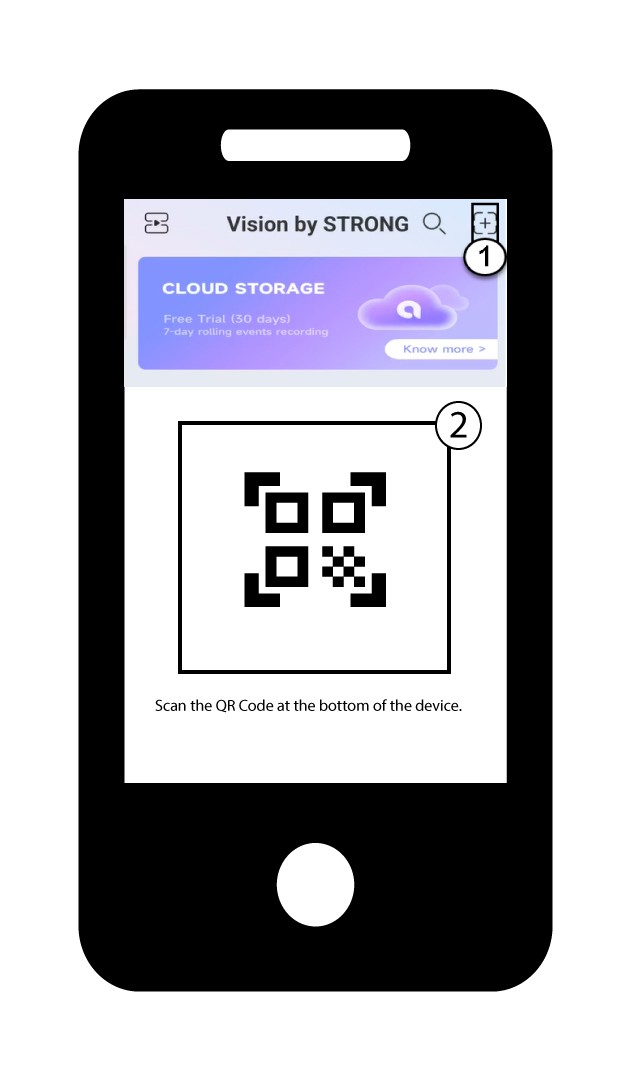
1Start Adding a Device
Click the + icon and scan the QR code of the camera.
2Check the Camera LED
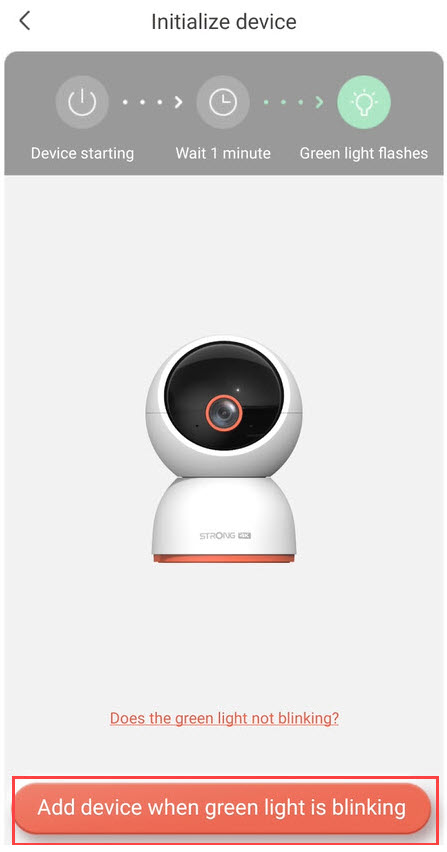
Then, look at the LED on your camera; if it blinks green, press the Add device.
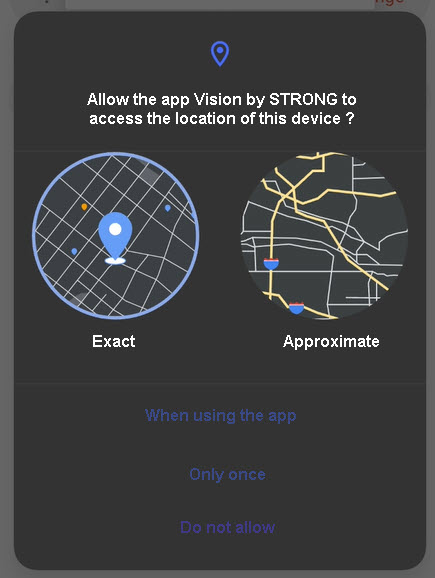
3Allow Location Access
Authorize the Vision by Strong App to access your device's location.
4Set Up Your Wi-Fi Network
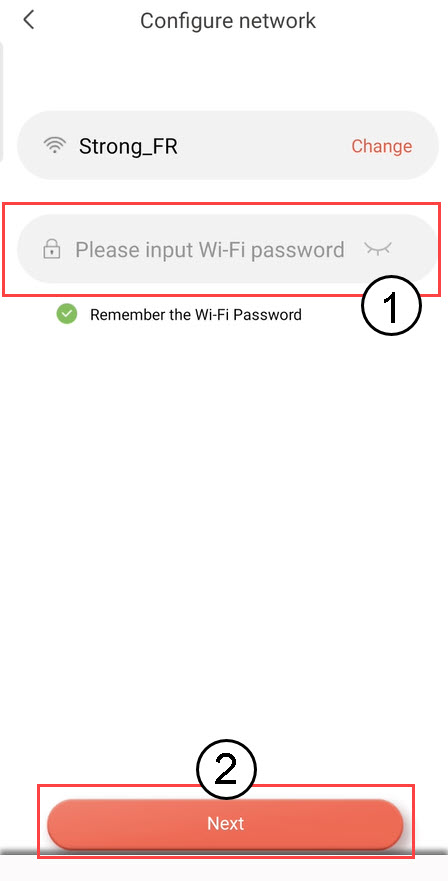
Select an option from the list displayed on your screen. You must set up your Wi-Fi network. The App will automatically select the Wi-Fi network to which your phone is connected. Then, enter the password of the Wi-Fi network and click Next.
TIP : Click change to select a different Wi-Fi network from the list. If you want to display the Wi-Fi password, click the eye icon.
5Send the Sound Wave
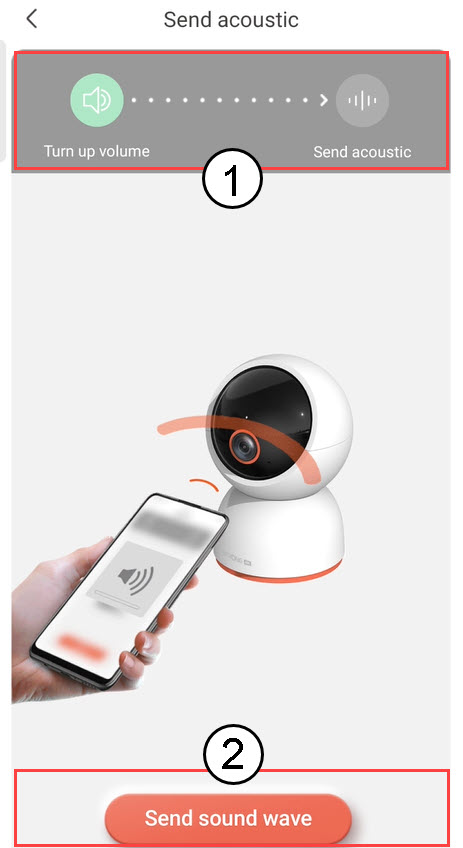
Turn up your phone's volume and click Send sound wave.
6Confirm Sound Wave Reception
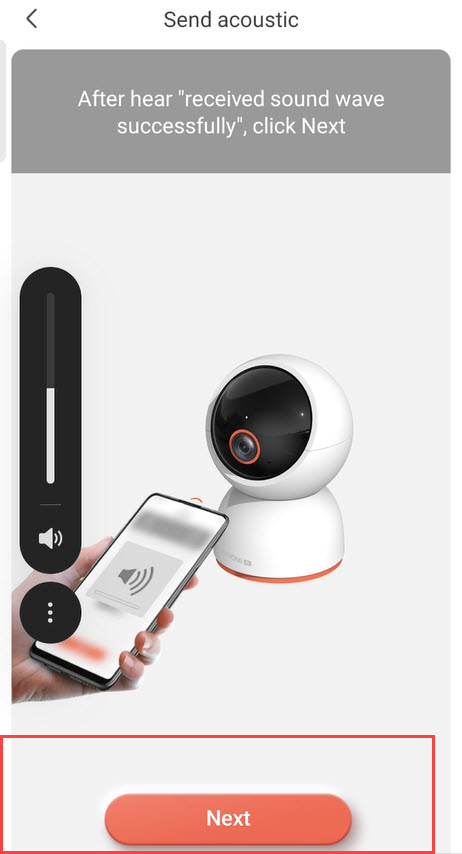
Wait for the message: "Received sound wave successfully", then click Next.
7Configuration in Progress
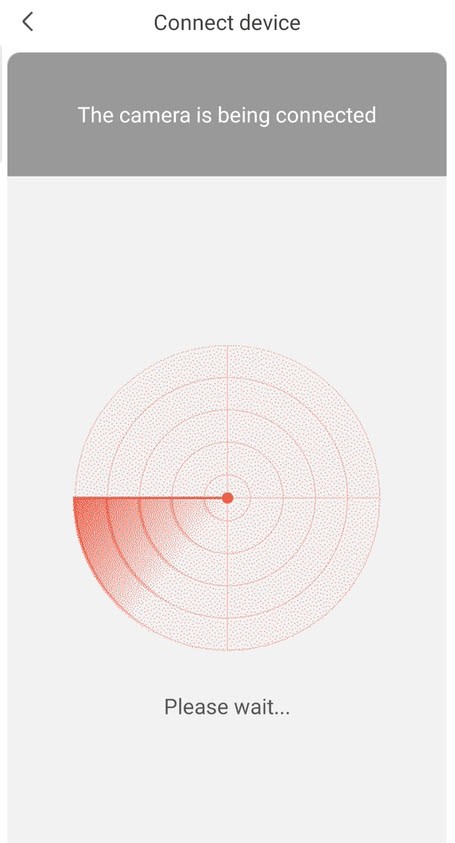
Please wait while the camera is being configured.
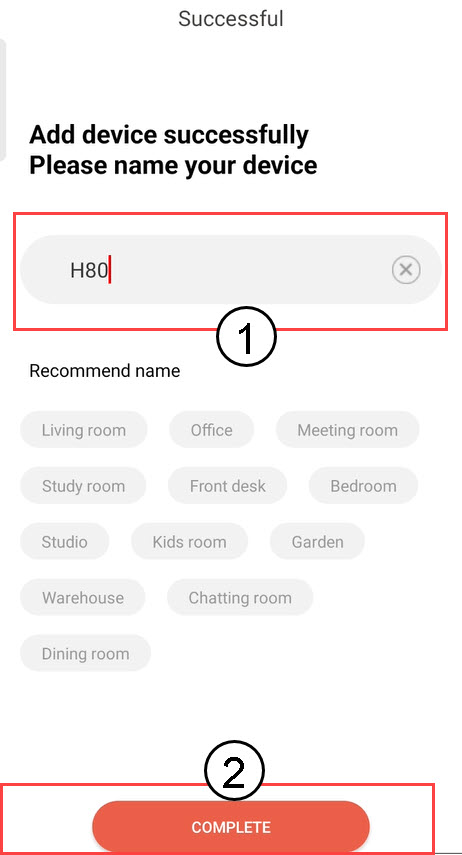
8Name Your Camera
Once the setup is completed, you must set a name for your camera. Then, click COMPLETE.
Tip: If you have several cameras, please name them based on their room location.
9Camera Added
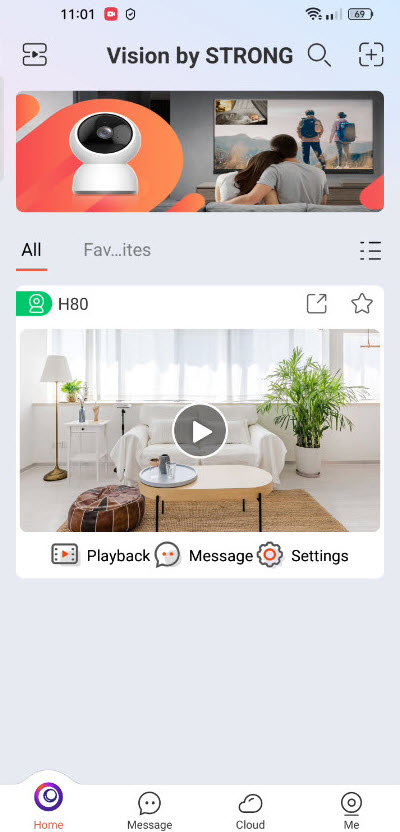
Your camera now appears on the home page of the App.