4G AIRHOME 310 with Detachable 4G antennas
No items found.
No items found.
All questions
4G AIRHOME 310 with Detachable 4G antennas
No items found.
No items found.
How do I change the SSID (Wi-Fi Network Name) and password? (Case 2: Wi-Fi Settings)
How do I change the SSID (Wi-Fi Network Name) and password? (Case 1: Quick Settings)
In the Web UI, you have two ways to change the SSID and password of your router:
• By using the Quick Settings
• Or by using Wi-Fi Settings.
1Connect to the router Wi-Fi network
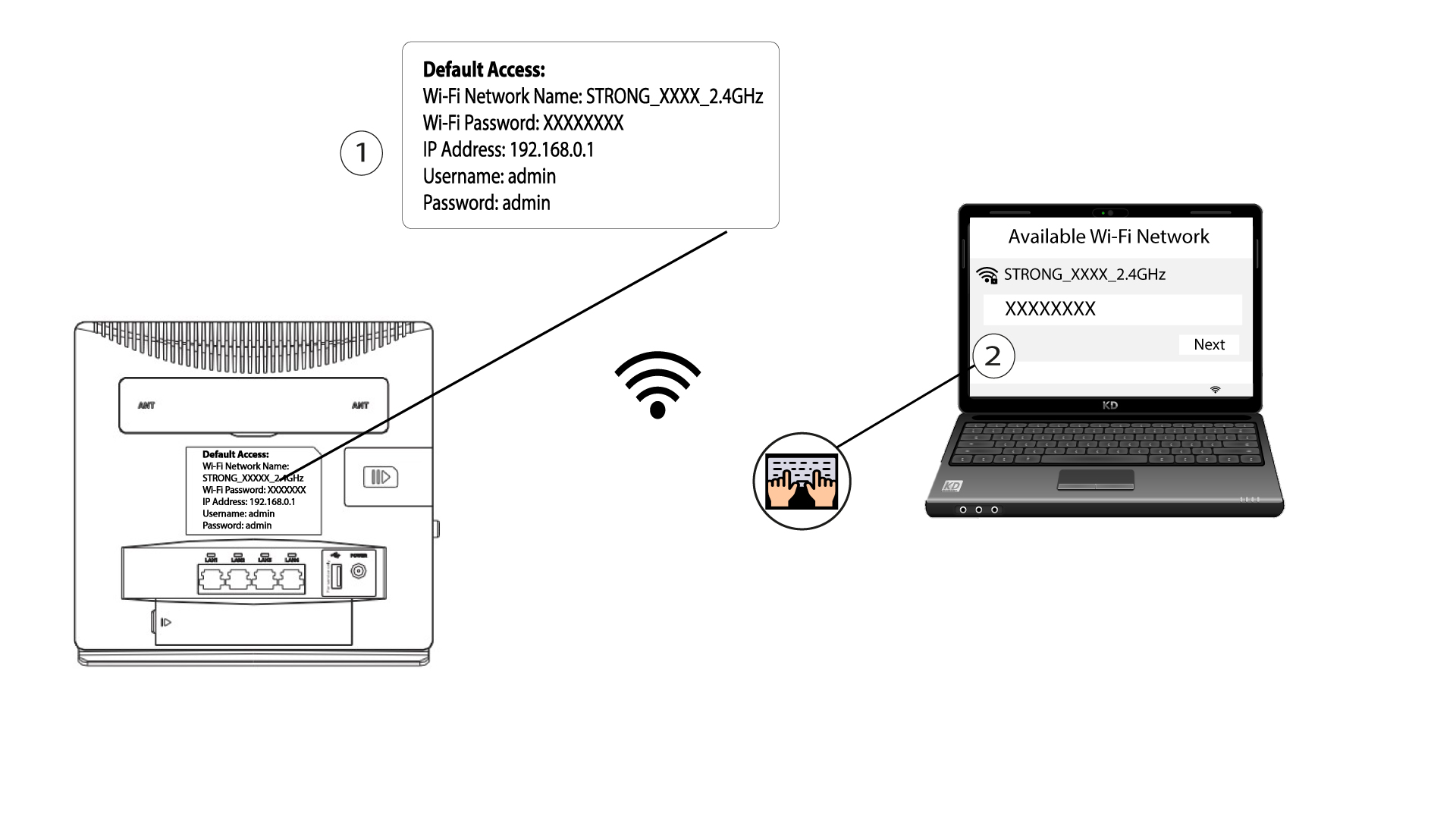
To change the SSID and password, you must connect to the Wi-Fi of your device. And connect to the Web UI by following this procedure:
2Wi-Fi Settings
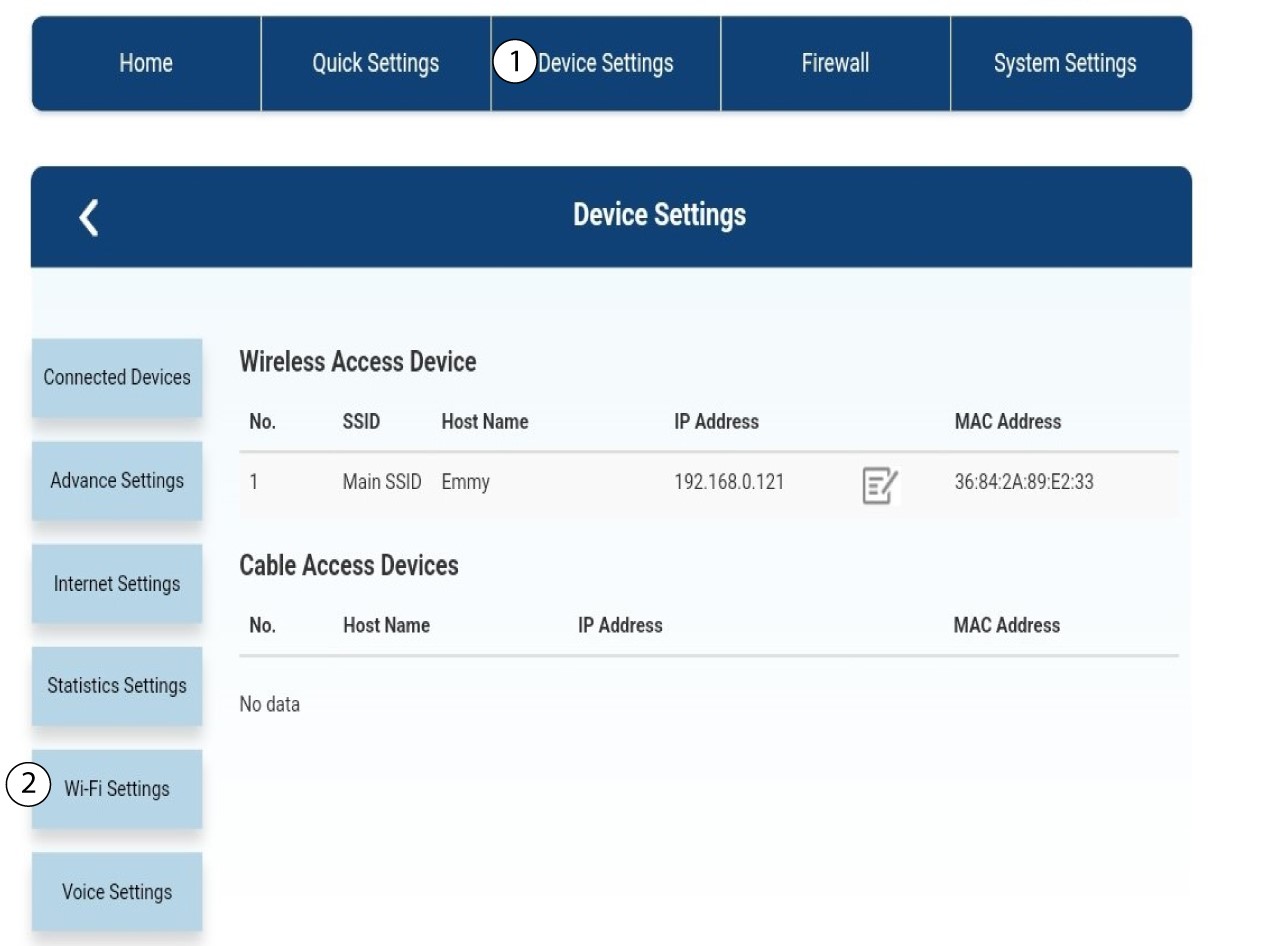
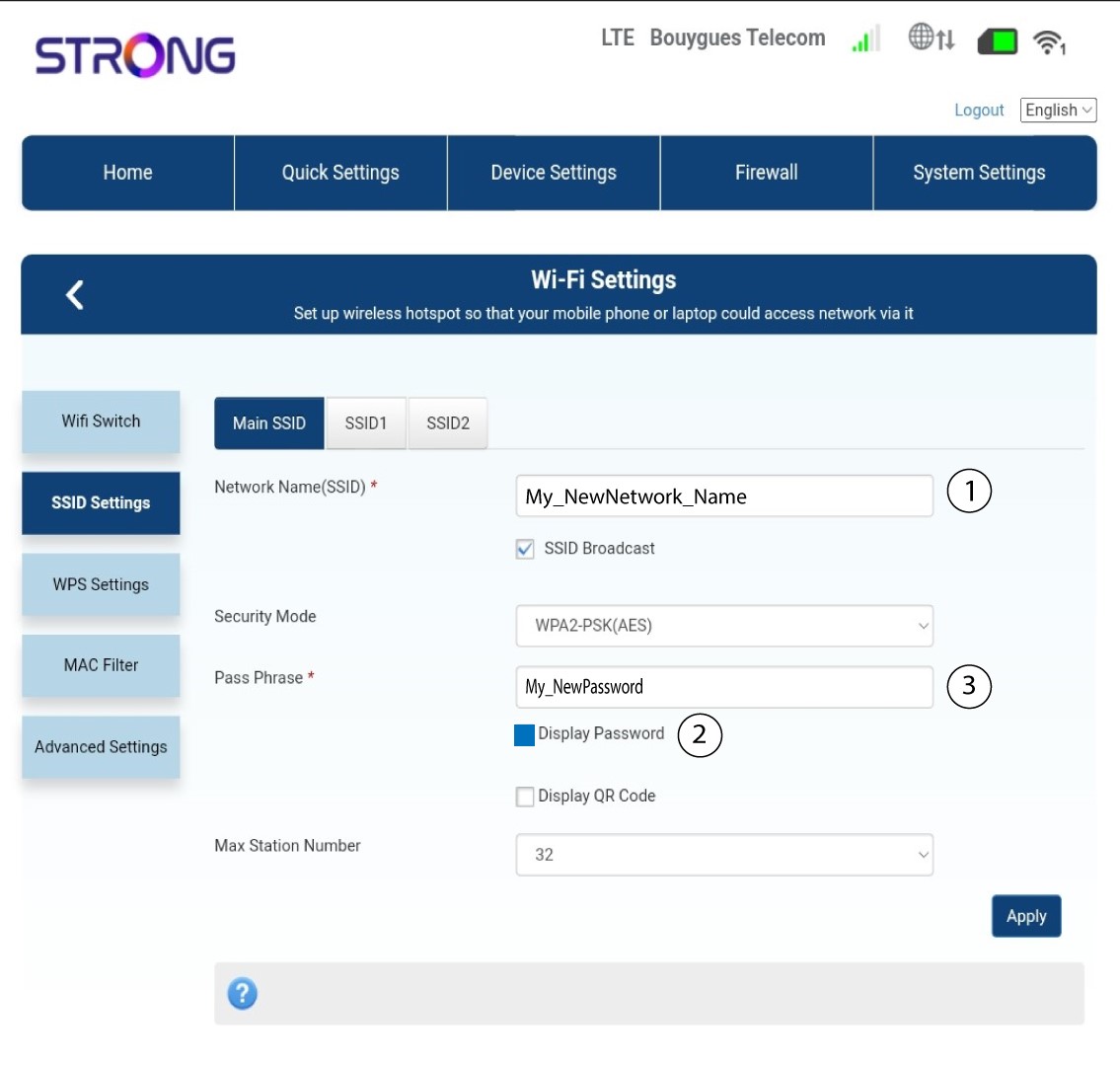
Click Device Settings and select Wi-Fi Settings.
3SSID Settings
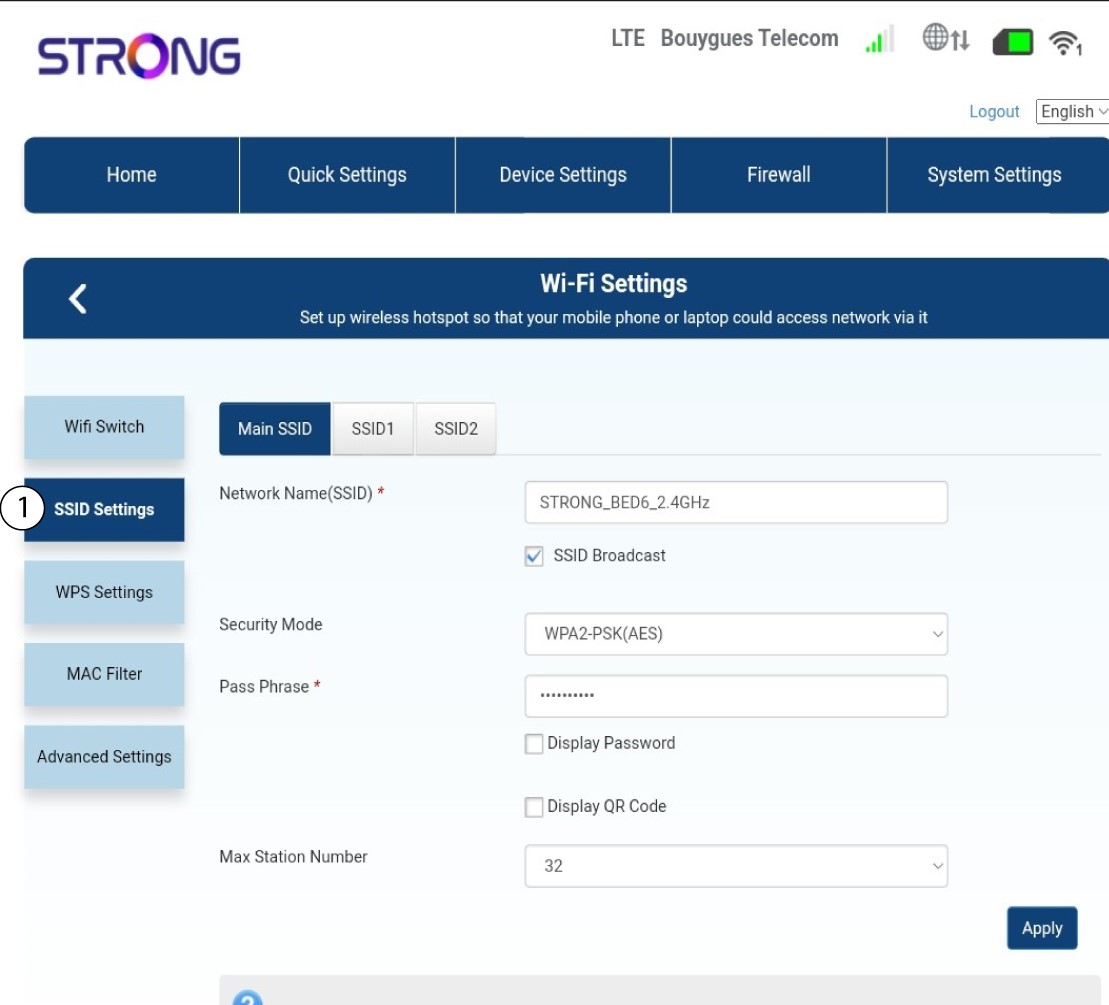
Then select SSID Settings.
4Enter your new network information
Change the name entered in the Network Name (SSID) field and check the Display Password box. Then change the password entered in the Pass Phrase field.
5Save the new network information
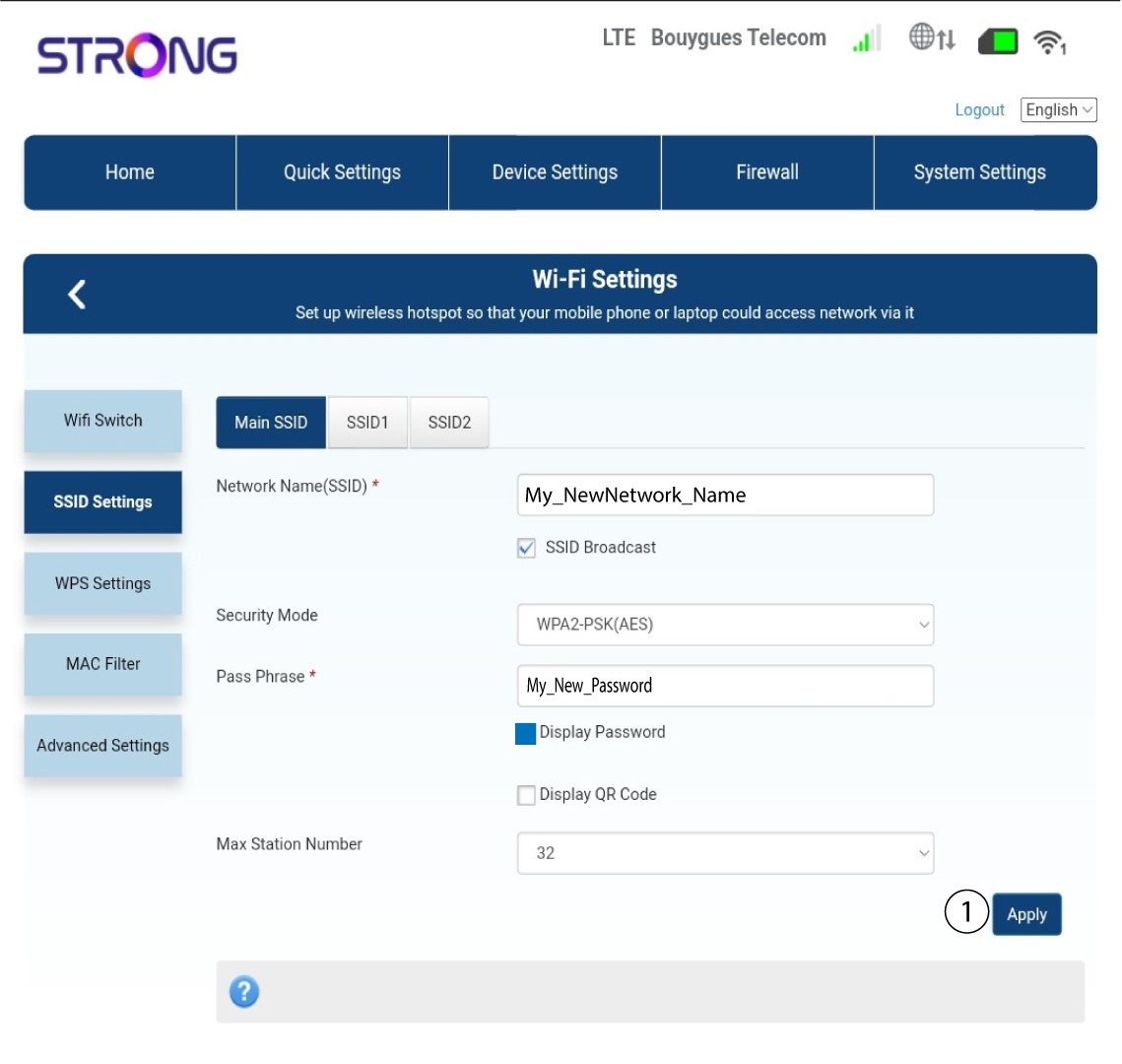
Click Apply to save the changes.
6Write down the new network information
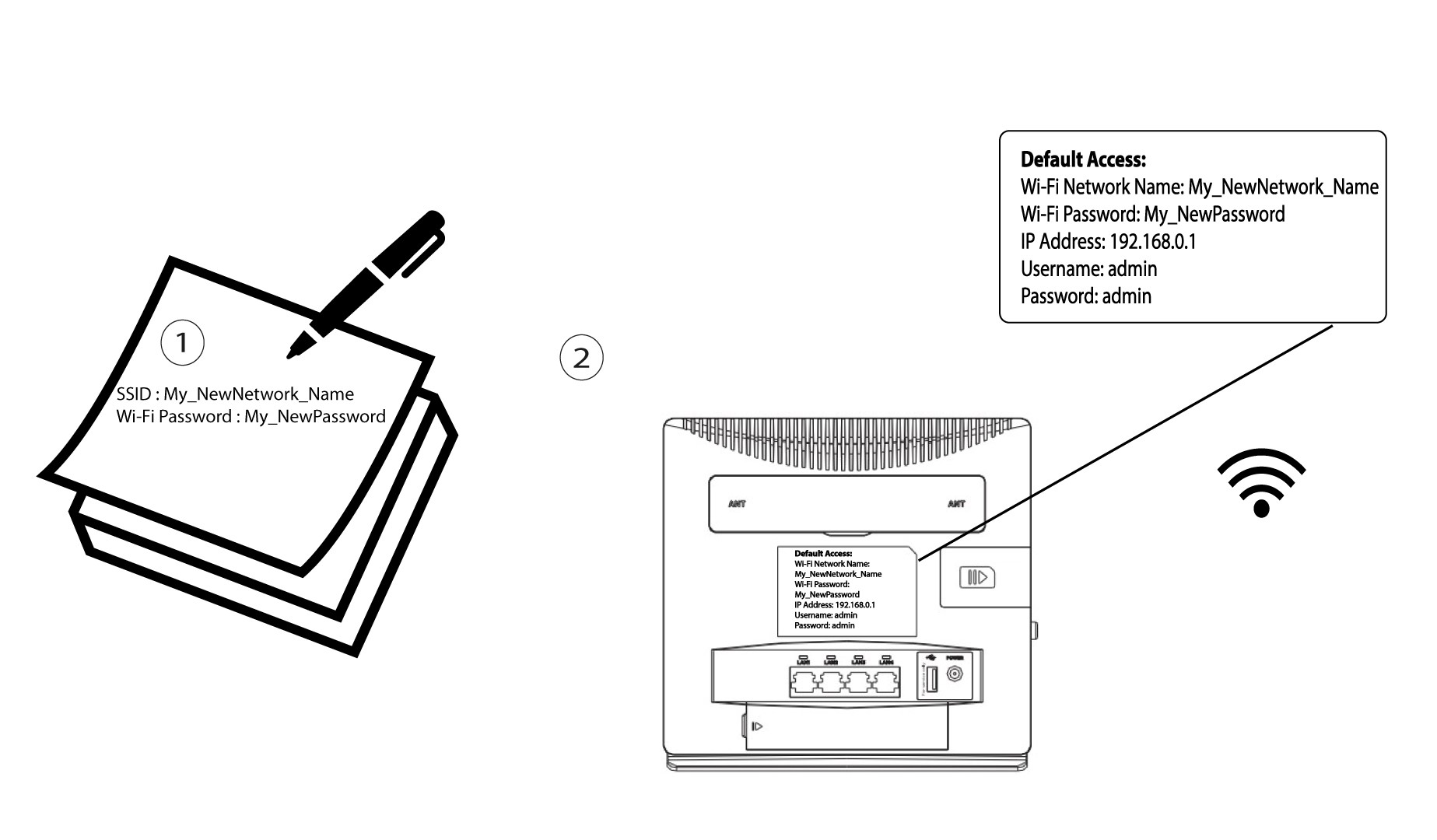
Write your new SSID and password on a paper and tape it to the router.