Universal Repeater 300 V2
All questions
Universal Repeater 300 V2
How can I set up Universal Repeater 300 as an Access Point?
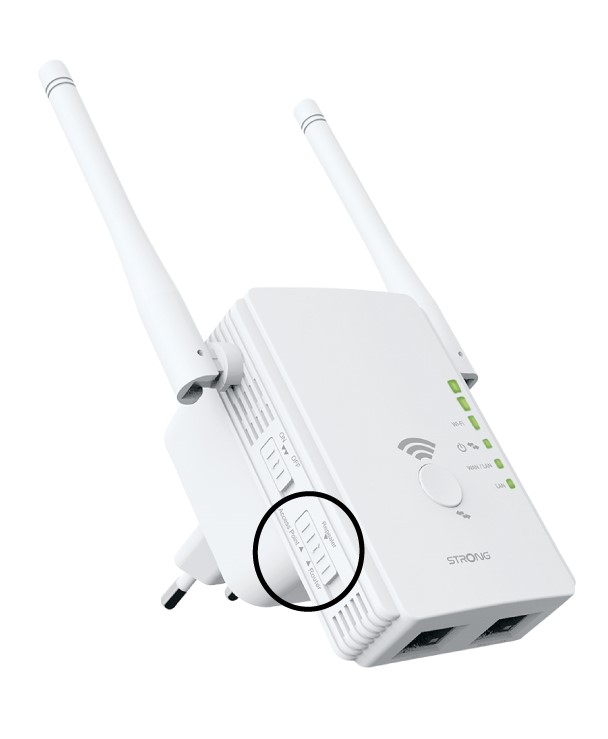
Please ensure that the Mode Selection switch on the side panel of your Universal Repeater 300 is set to Access Point mode.
1Check the mode of the device
Check the switch on the left side of your repeater to see the functioning mode of your repeater. The switch must be set to router.
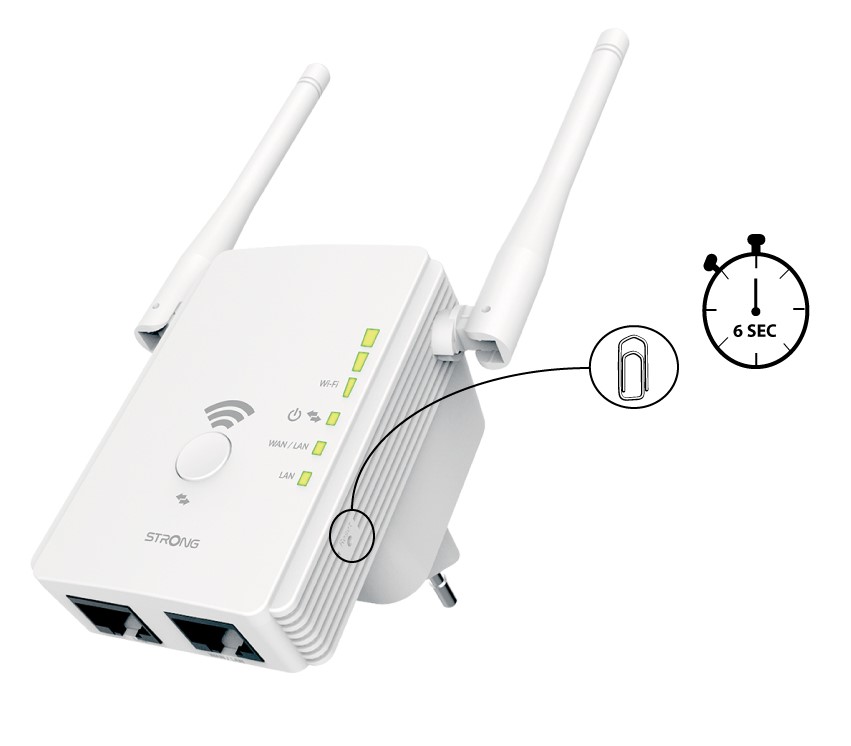
2Reset your repeater to its factory settings
Reset your device to its factory settings by pressing the "Reset" button with a paper-clip for 6 seconds.
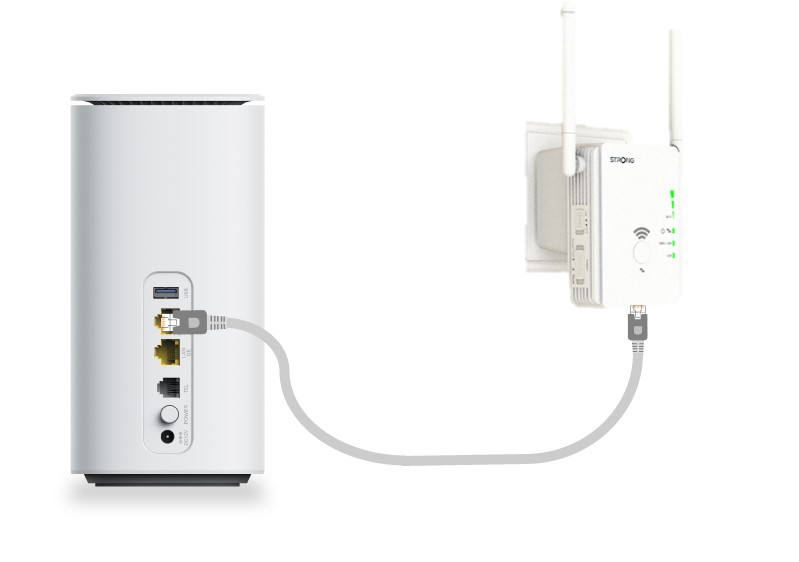
3Connect your repeater to the modem
Connect your modem/router by an RJ45 Ethernet cable to the WAN/LAN port of the Universal Repeater 300.
4Connect to the Wi-Fi
Connect your Wi-Fi device to one of the default Wi-Fi network (STRONG_2.4GHz) provided by Universal Repeater 300. There is no password for the default Wi-Fi network.
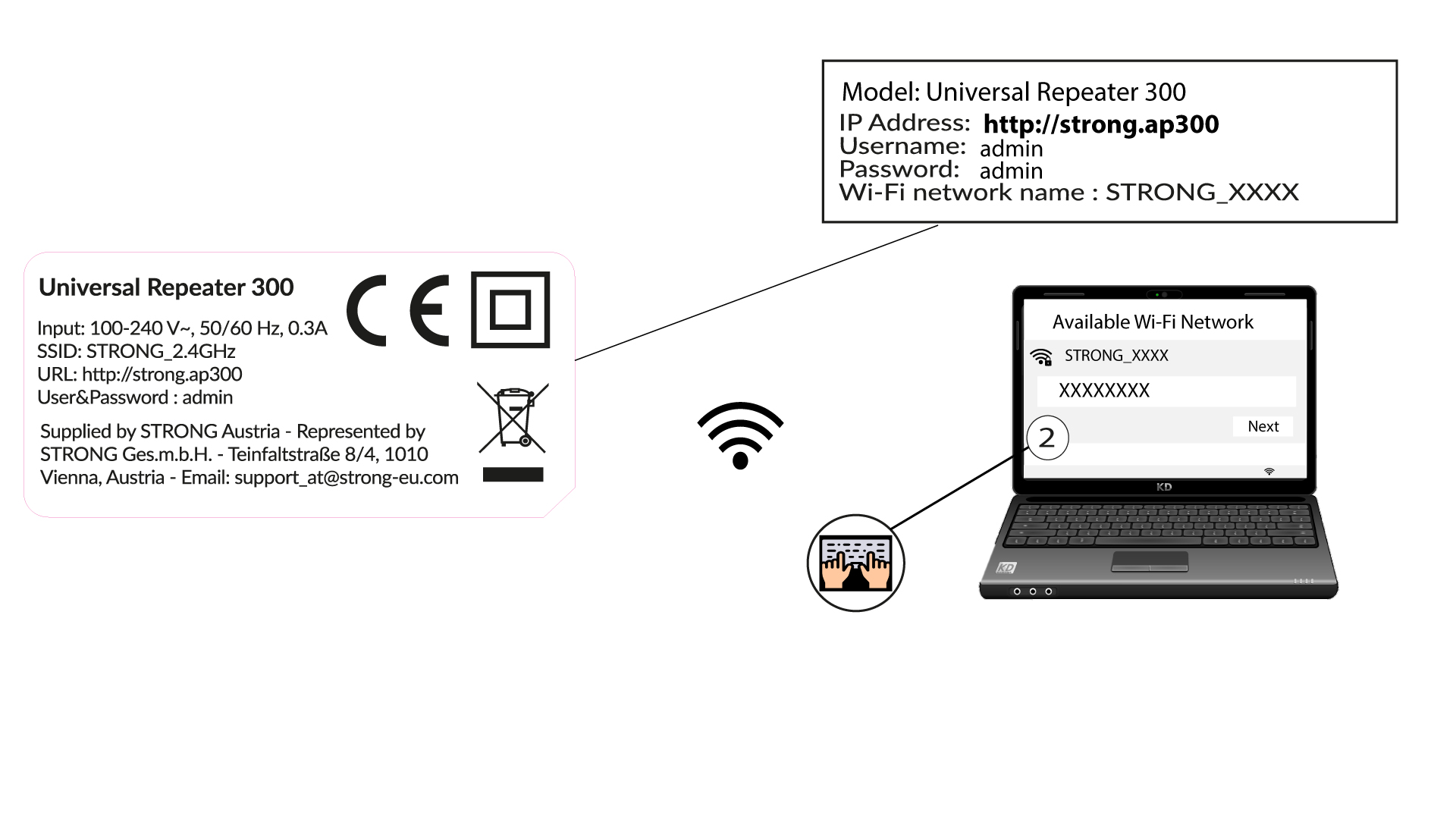
5Browse to the Web UI
Type the following URL in your search bar: http://strong.ap300
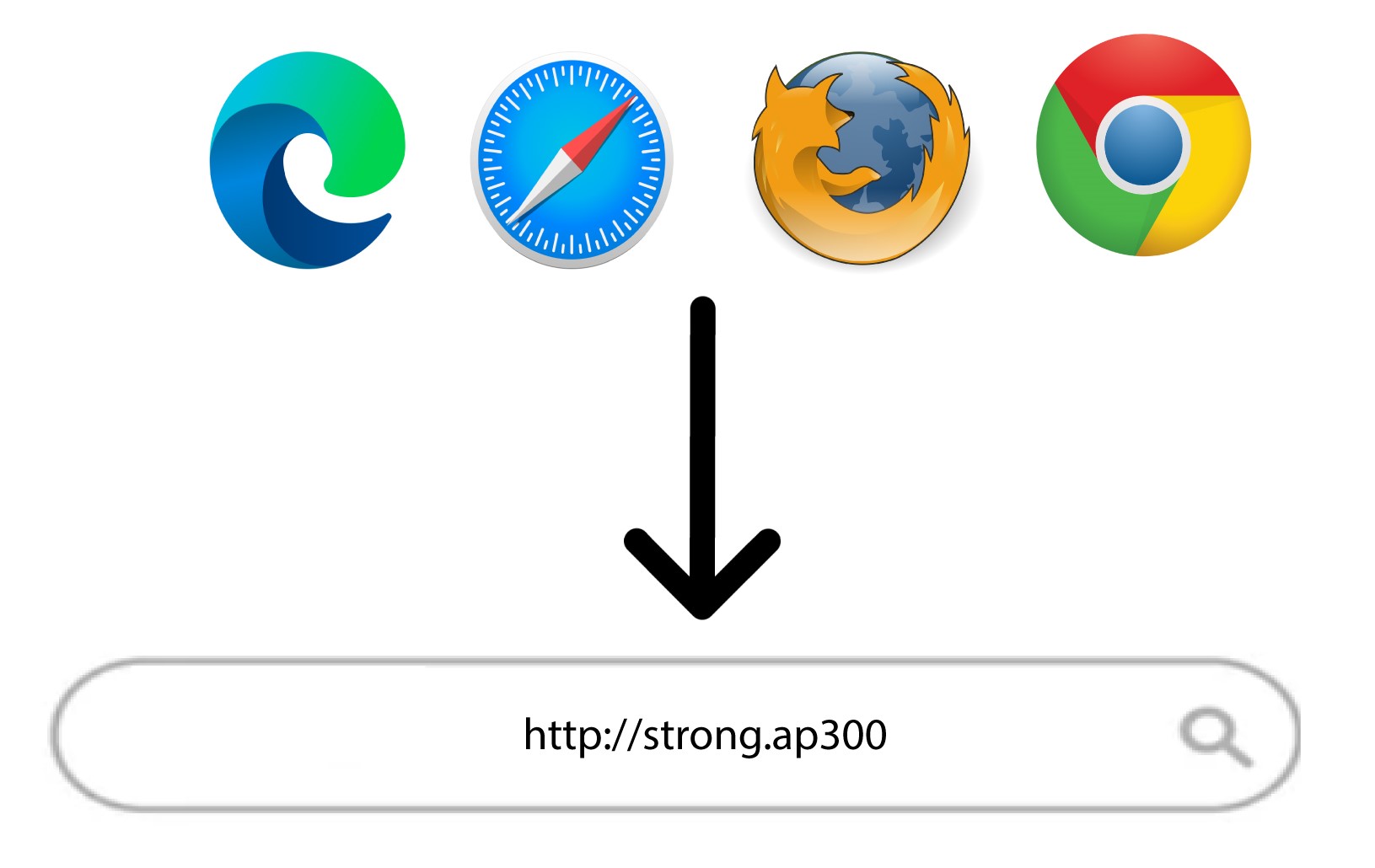
6Enter your credentials
Enter your password (admin) before clicking Login.
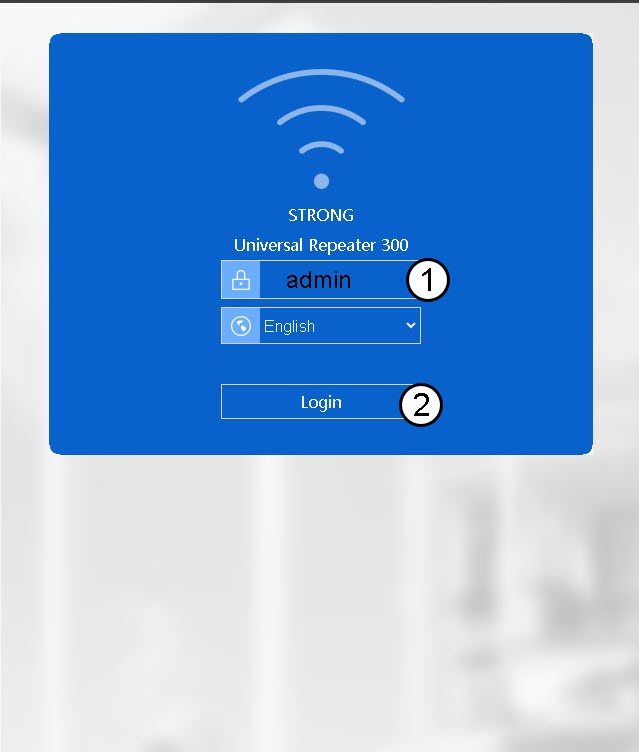
7Wizard
Click Wizard in the bottom menu bar.
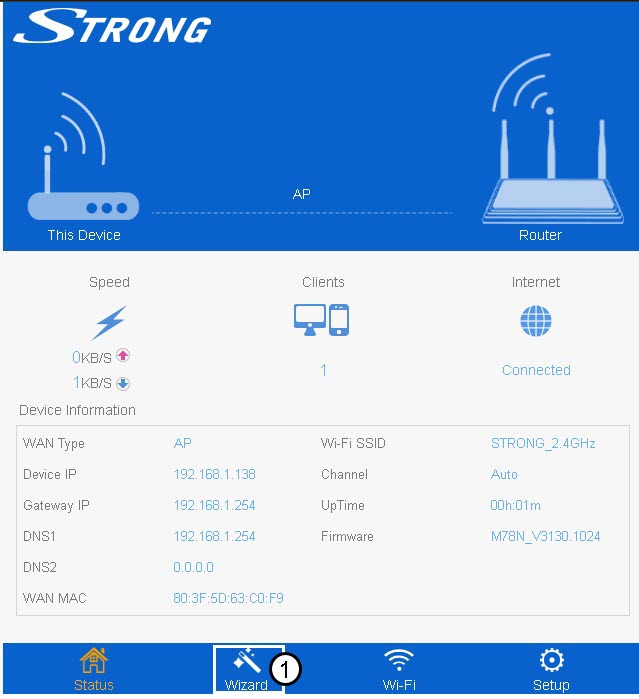
8Set up the AP
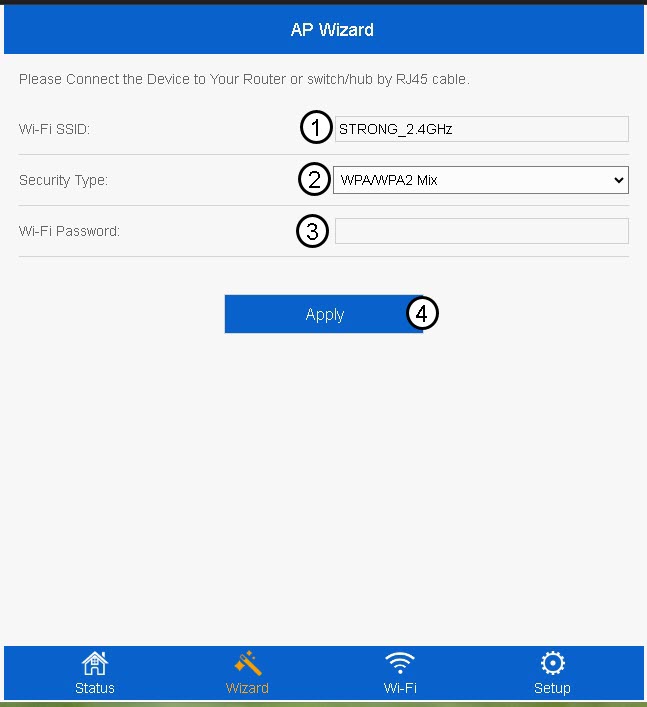
Enter the Wi-Fi SSID and select its security type. Then, enter a Wi-Fi Password before clicking Apply.
We recommend using yhe WPA/WPA2 Mix .
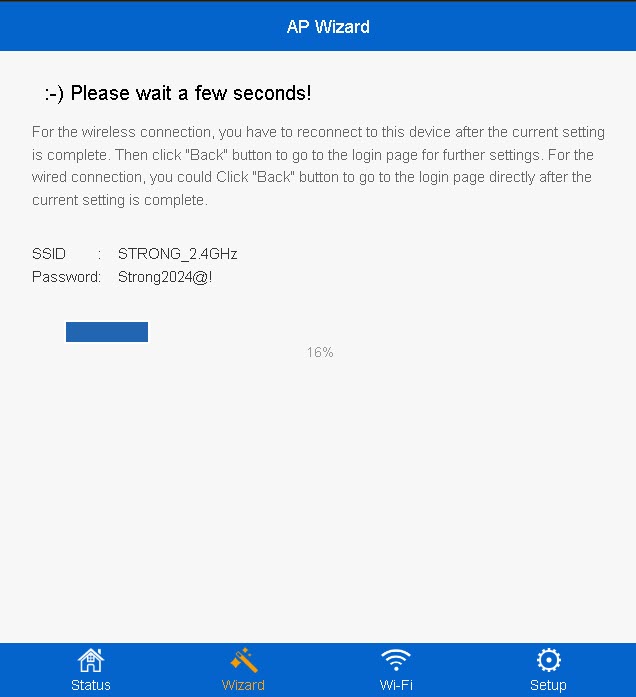
9Wait during the set up
The completion percentage of the configuration will be displayed on your screen. Please wait for the configuration to be completed.
Write down the information of the new Wi-Fi network. You will need it to connect to network after the configuation.