No items found.
LEAP 41 | 4K Google TV with HDR10+
No items found.
All questions
No items found.
LEAP 41 | 4K Google TV with HDR10+
No items found.
I have connected an AZERTY keyboard via USB, but it is recognized as a QWERTY keyboard, why?

Warning: Please note that supported keyboard layouts for external keyboards are defined by Google. Therefore, your keyboard layout may not be supported. In this case, we encourage you to contact your keyboard manufacturer to see if there is an app that would make your keyboard compatible.
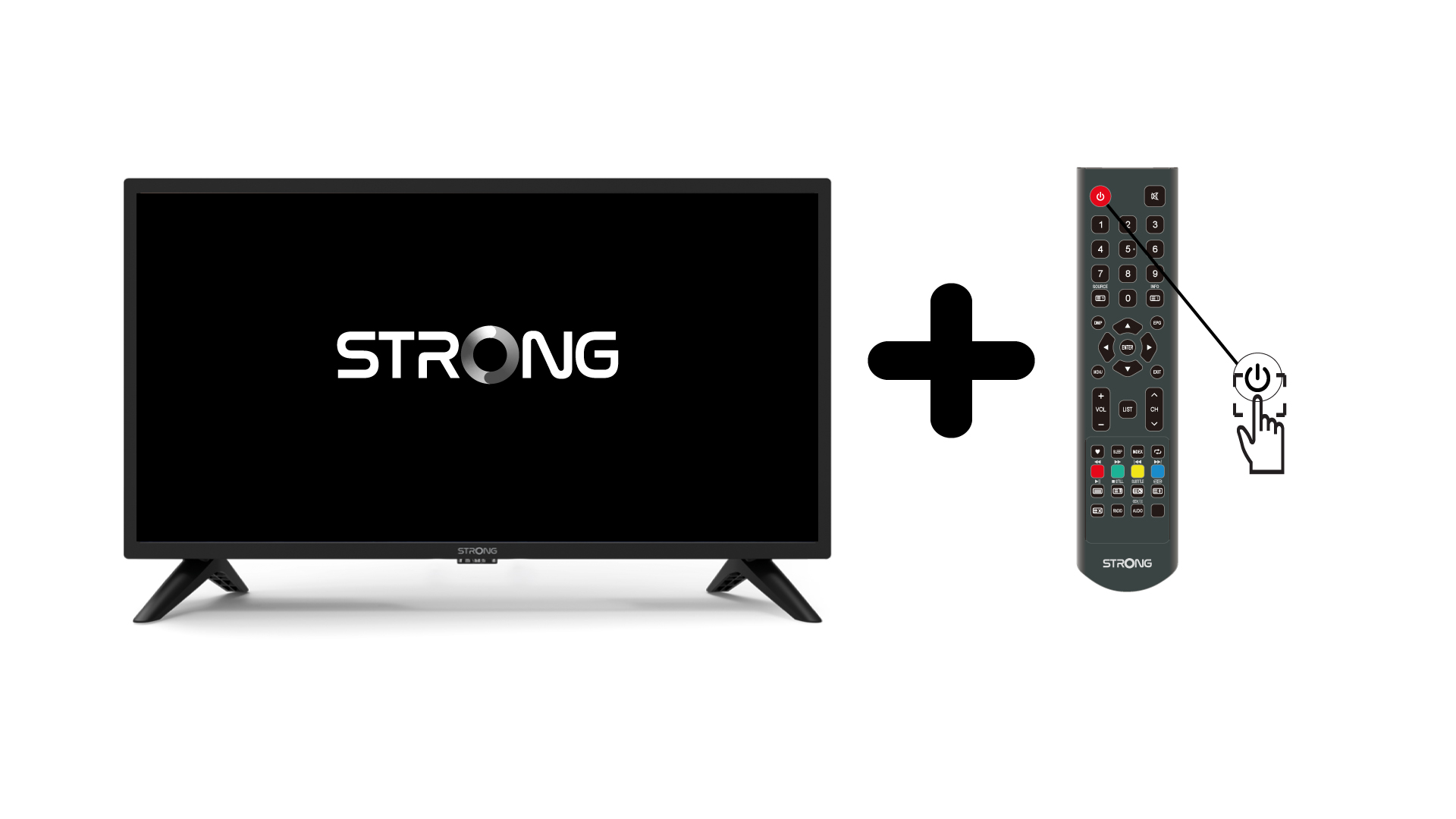
1Turn on the TV and the device
Turn on your TV and your device.
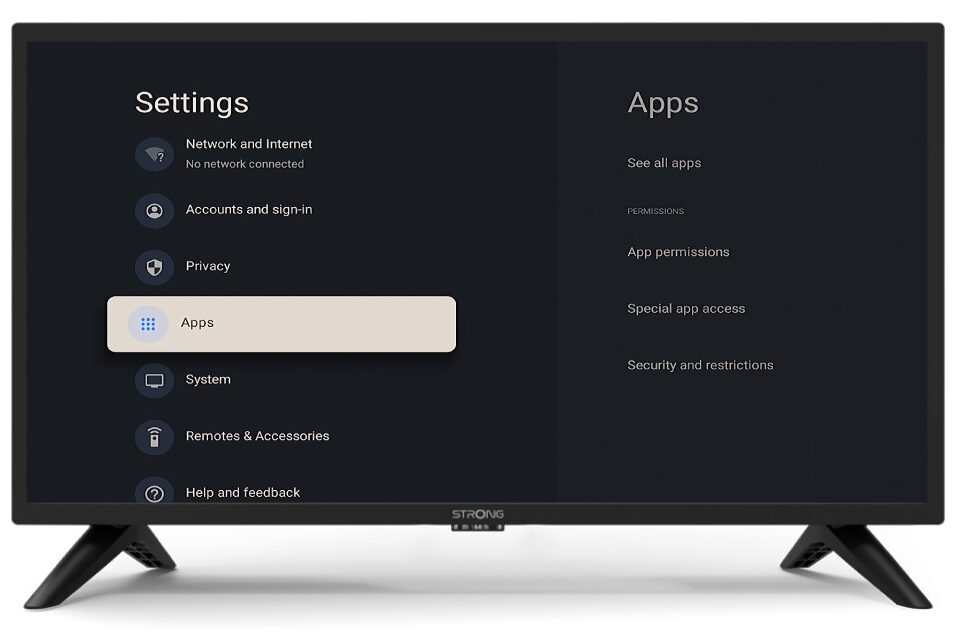
2Settings
Press the Settings button on the remote control (Cogwheel icon). The Settings menu will be displayed on your TV screen.
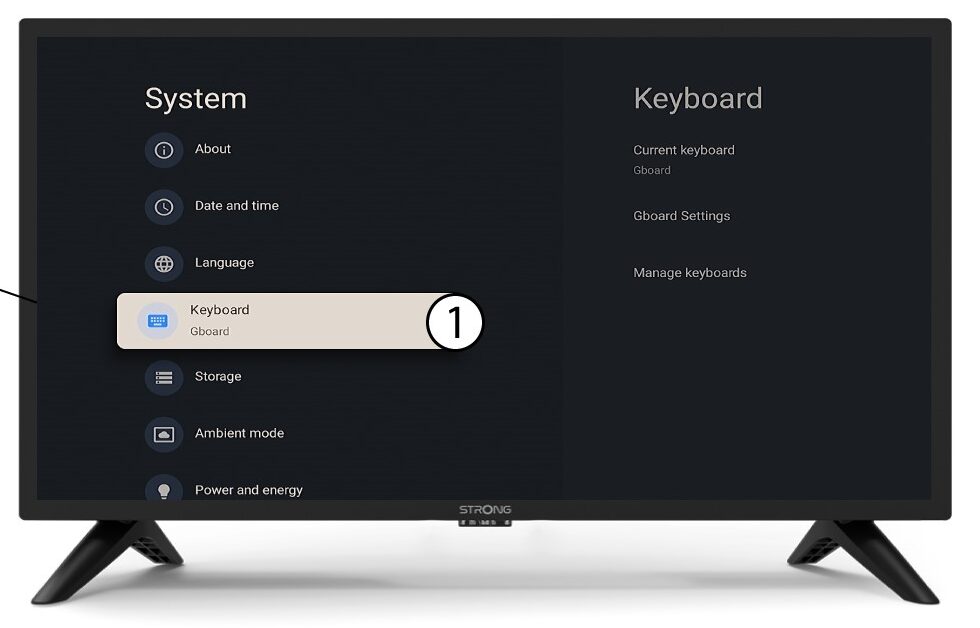
3Keyboard
Select Keyboard in the Settings Menu and press the OK button on your remote control.
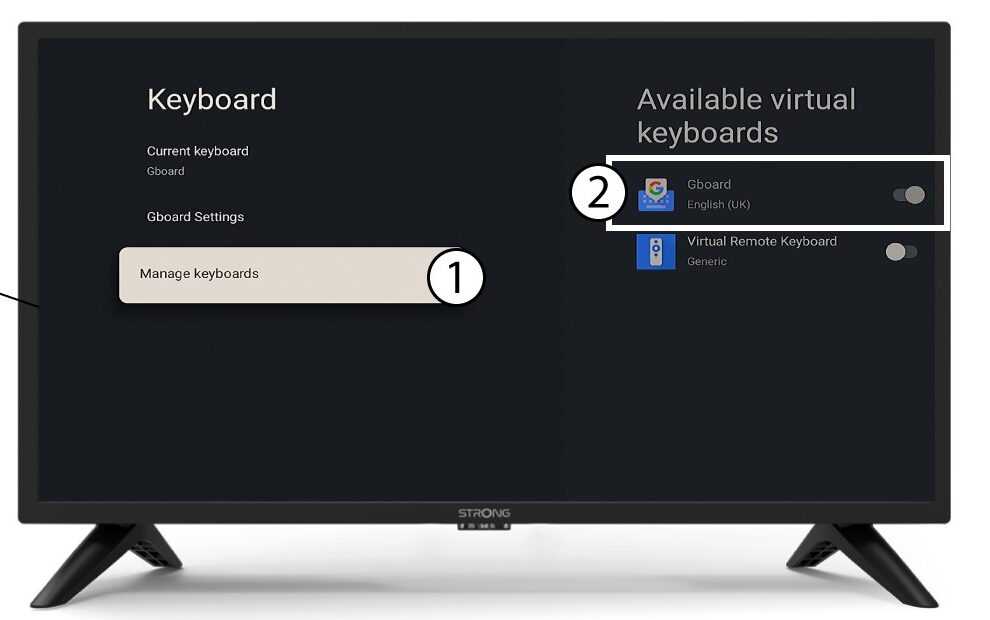
4Manage Keyboard
Click Manage Keyboard. Then, click the toggle button to deactivate it.
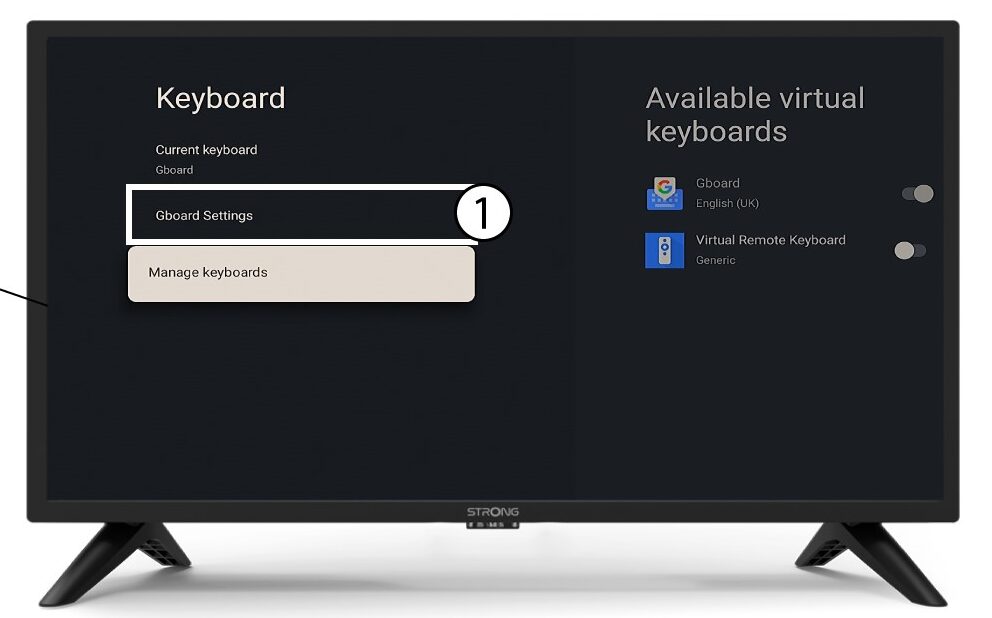
5Gboard Settings
Click Gboard Settings and press OK.
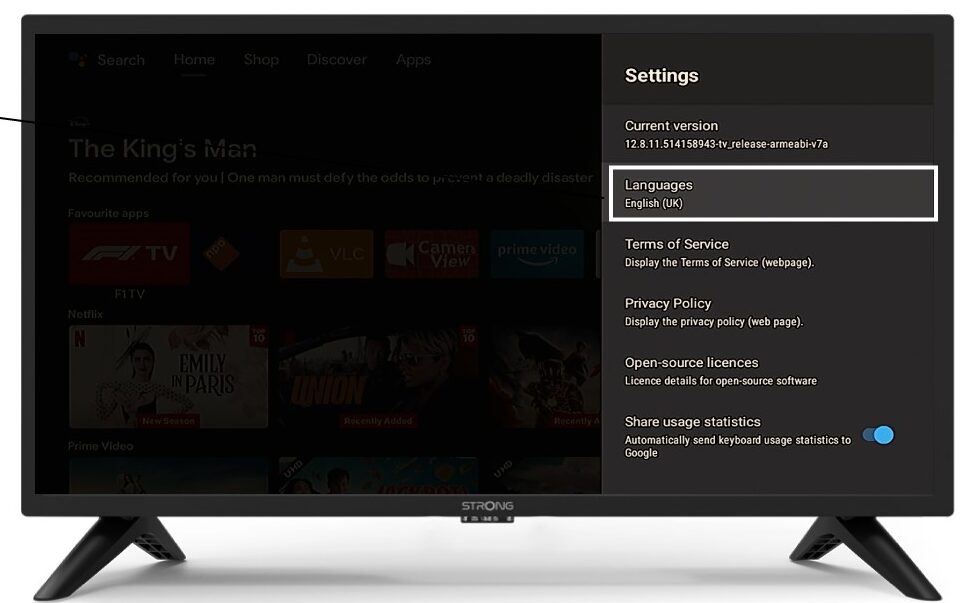
6Languages
Click Languages and press OK on the remote control. Then, select the language.