
4G AIRSPOT 220 Mobile Wi-Fi with Display
All questions
4G AIRSPOT 220 Mobile Wi-Fi with Display
How do I change the SSID (Wi-Fi Network Name) and Wi-Fi password?
In the Web UI, you have two ways to change the SSID (Wi-Fi Network Name) and Wi-Fi password of your router:
• By using the Quick Settings
• Or by using Wi-Fi Settings
1CASE 1: Quick Settings
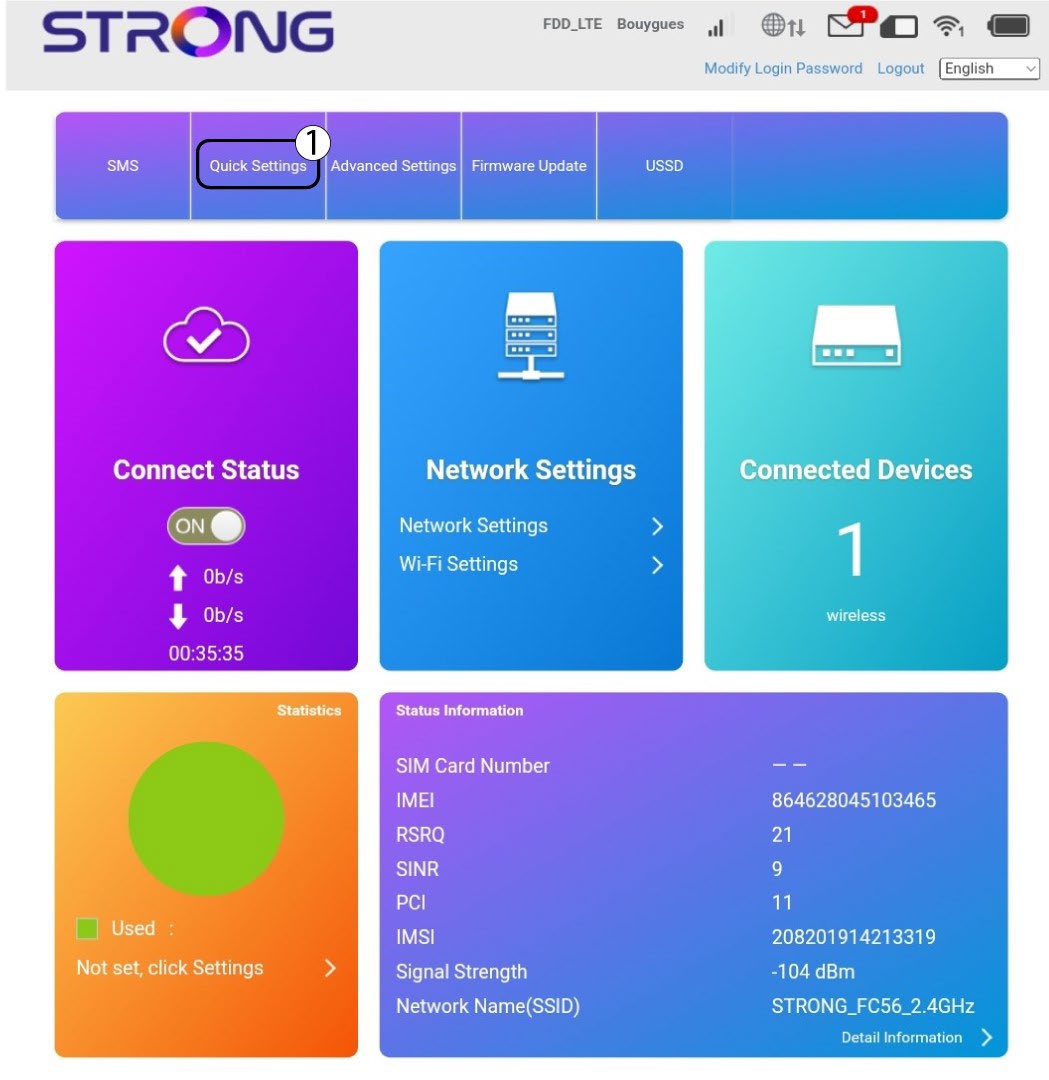
In the Web UI, the Quick Settings enable you to change the information of your network: its SSID (Wi-Fi Network Name) and Wi-Fi password.
To do so, click Quick Settings in the top bar.
2APN Setting
Click Next.

3SSID
Enter the new network name and click Next.

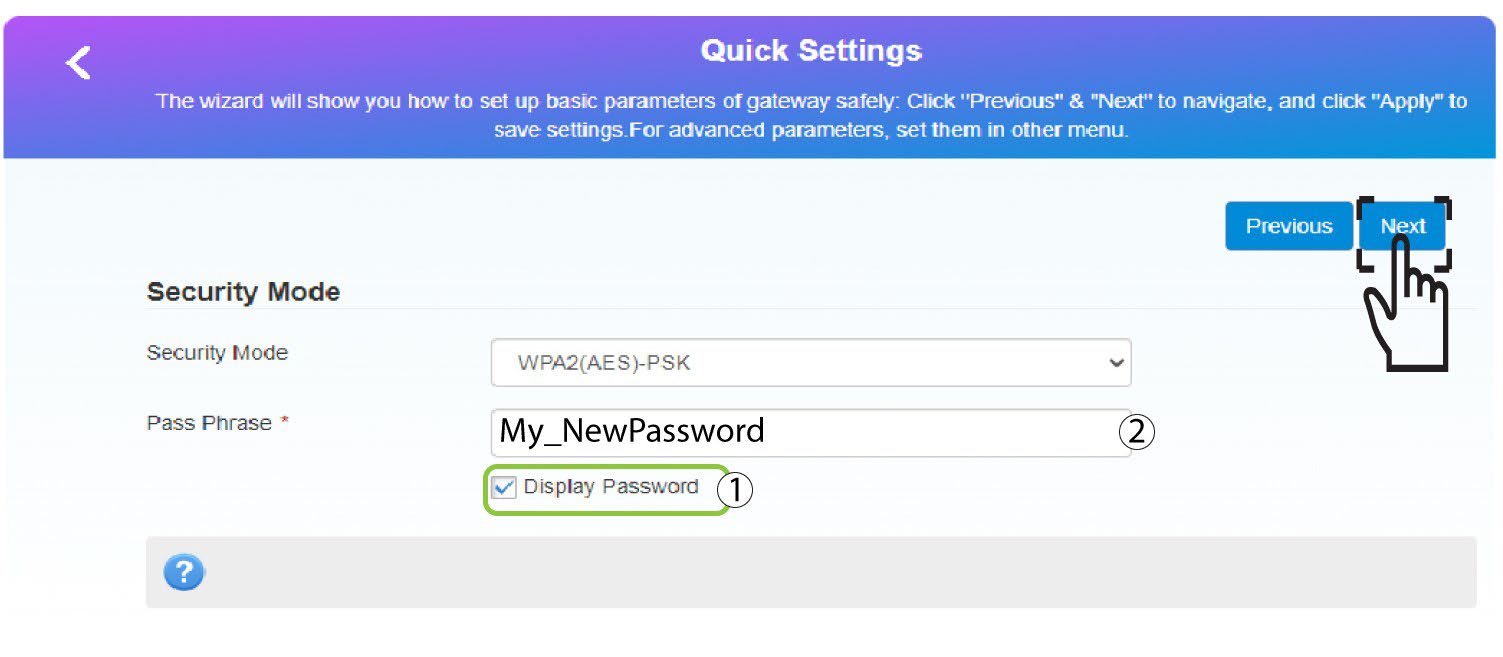
4Enter the new password
Click Display
password and enter the new password for the Wi-Fi network, then click Next.
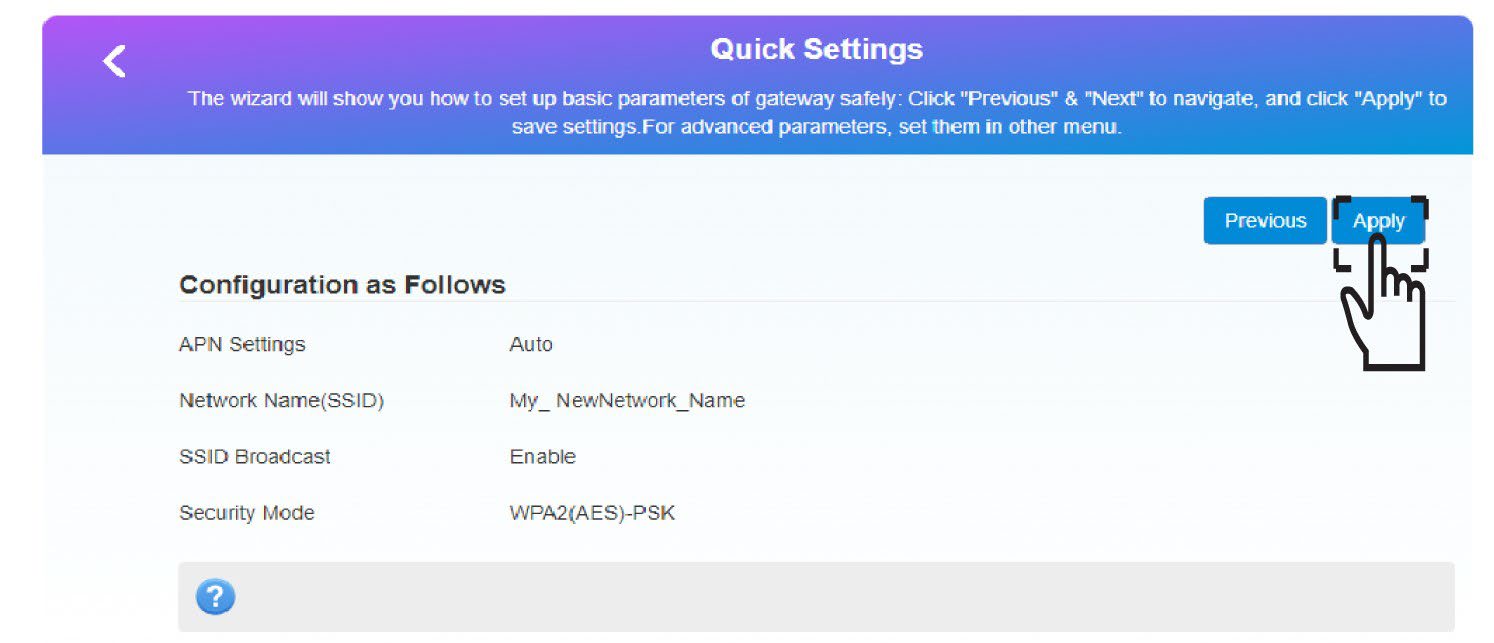
5Save the new network information
Click Apply to save the changes.
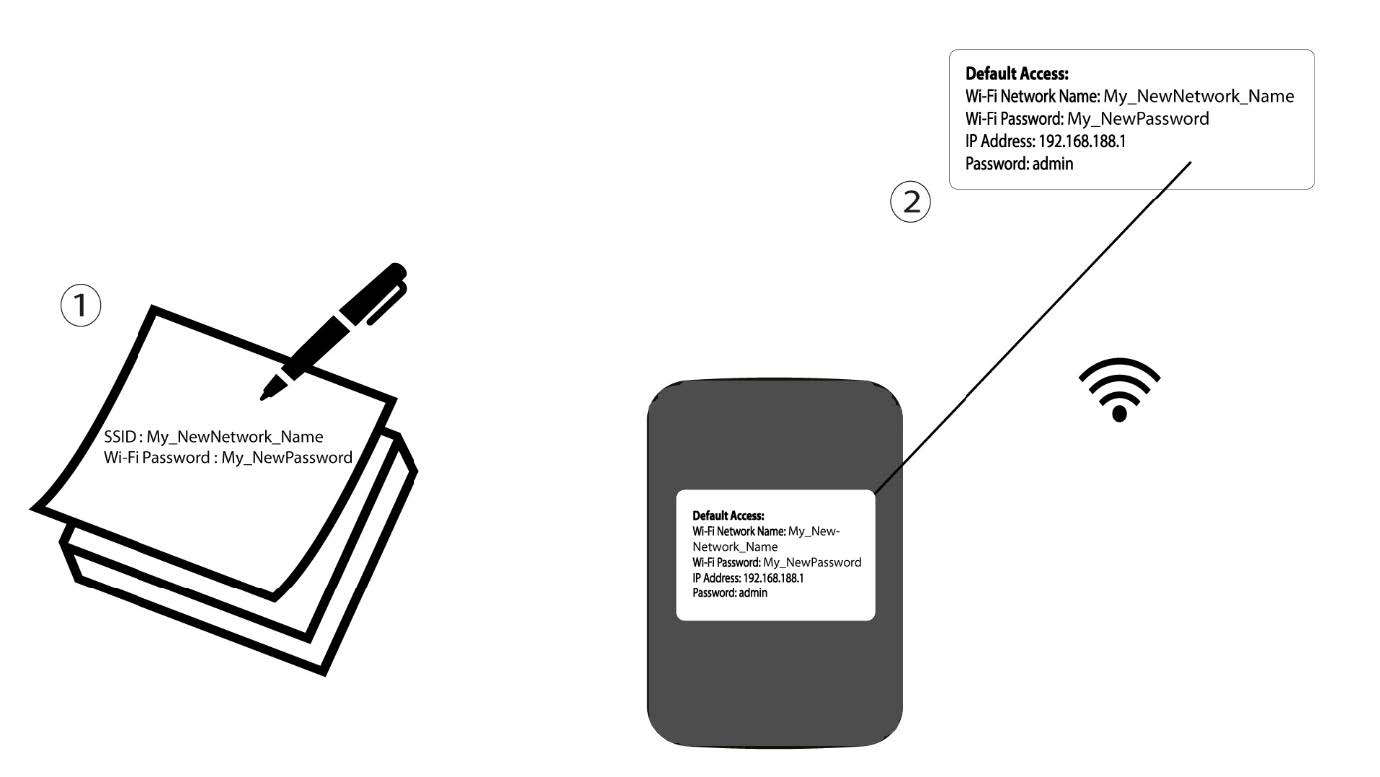
6Write down the new network information
Write down the new network information on a piece of paper.
1CASE 2: Wi-Fi Settings
Connect to the Wi-Fi of your router.

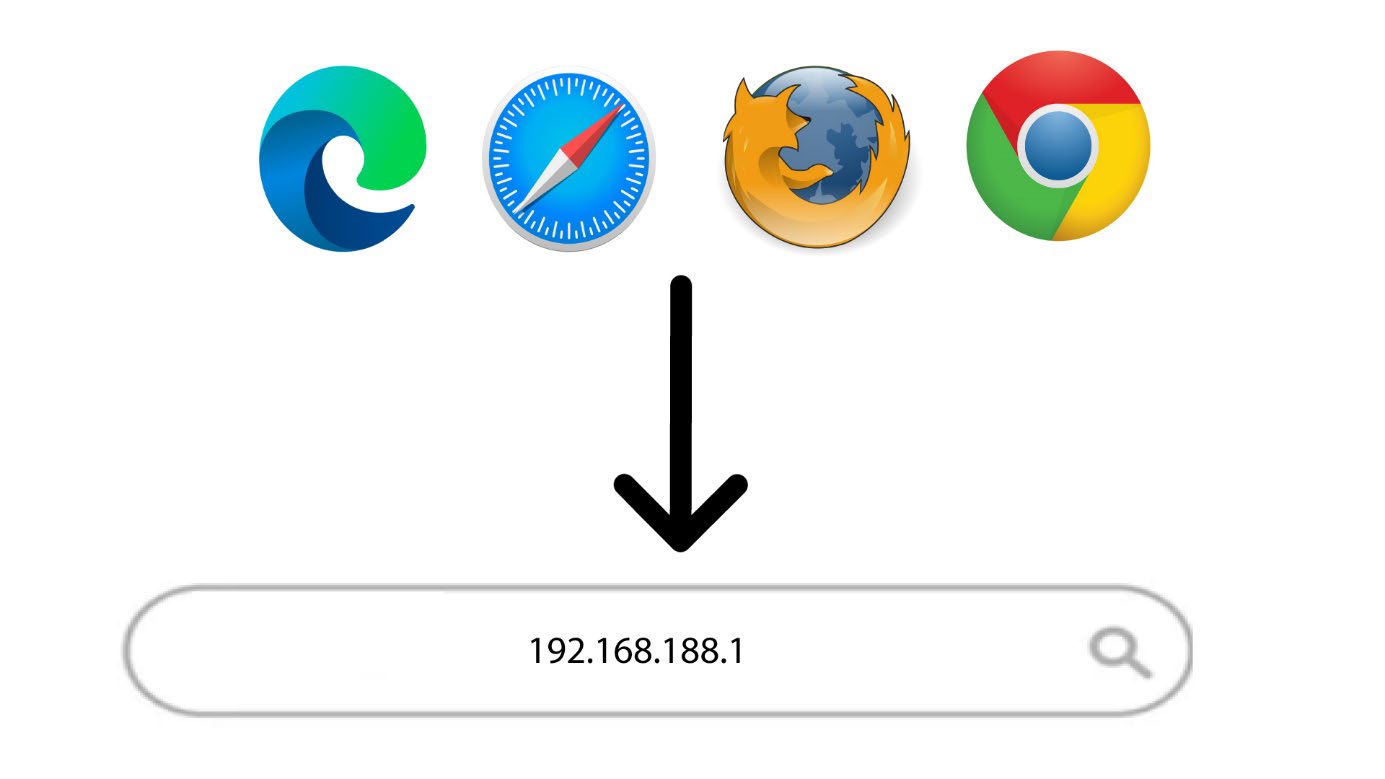
2Browse to the Web UI IP Address
Then, enter the following IP address: 192.168.188.1 in your browser.
3Login
You must enter the Password.

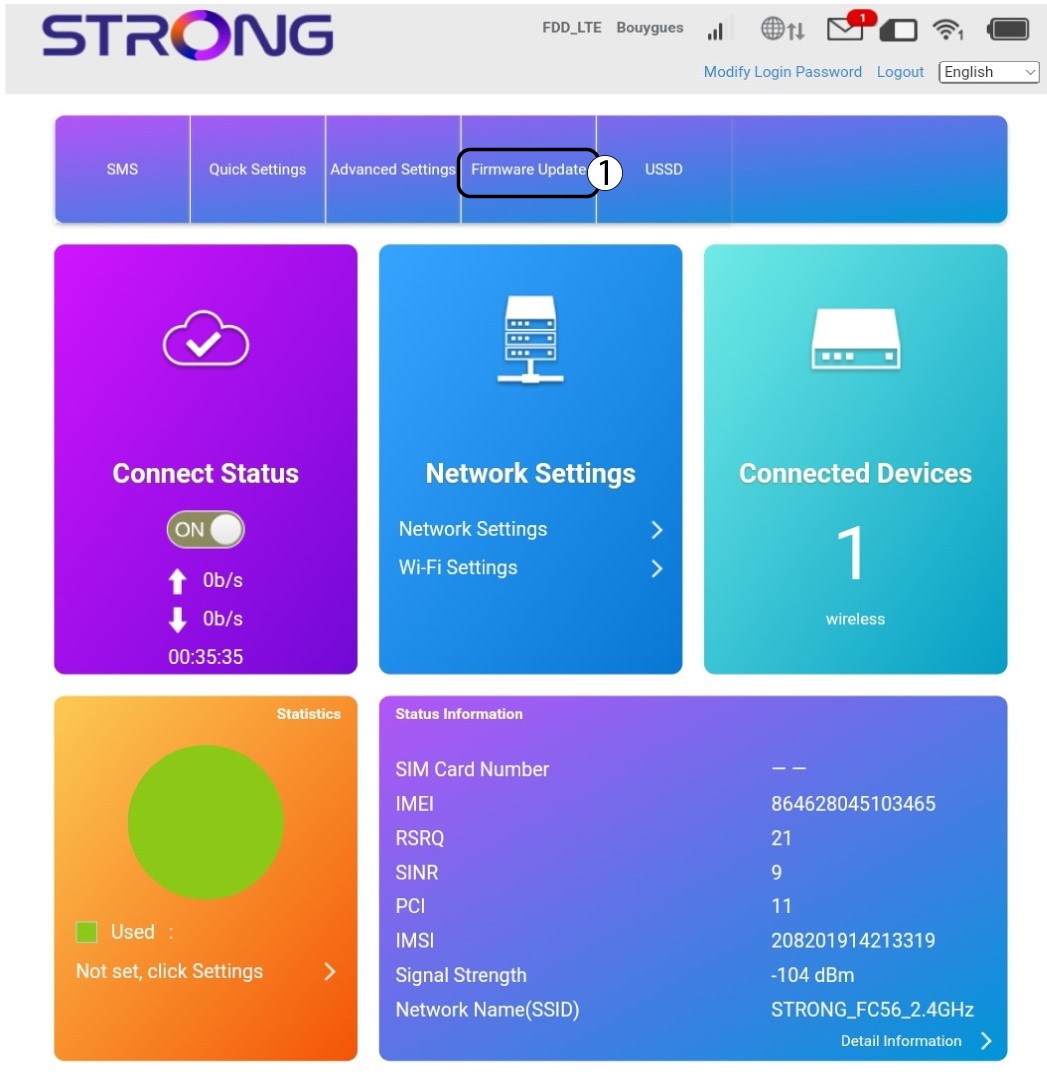
4Wi-Fi Settings
Click Wi-Fi Settings in the Network Settings Section.
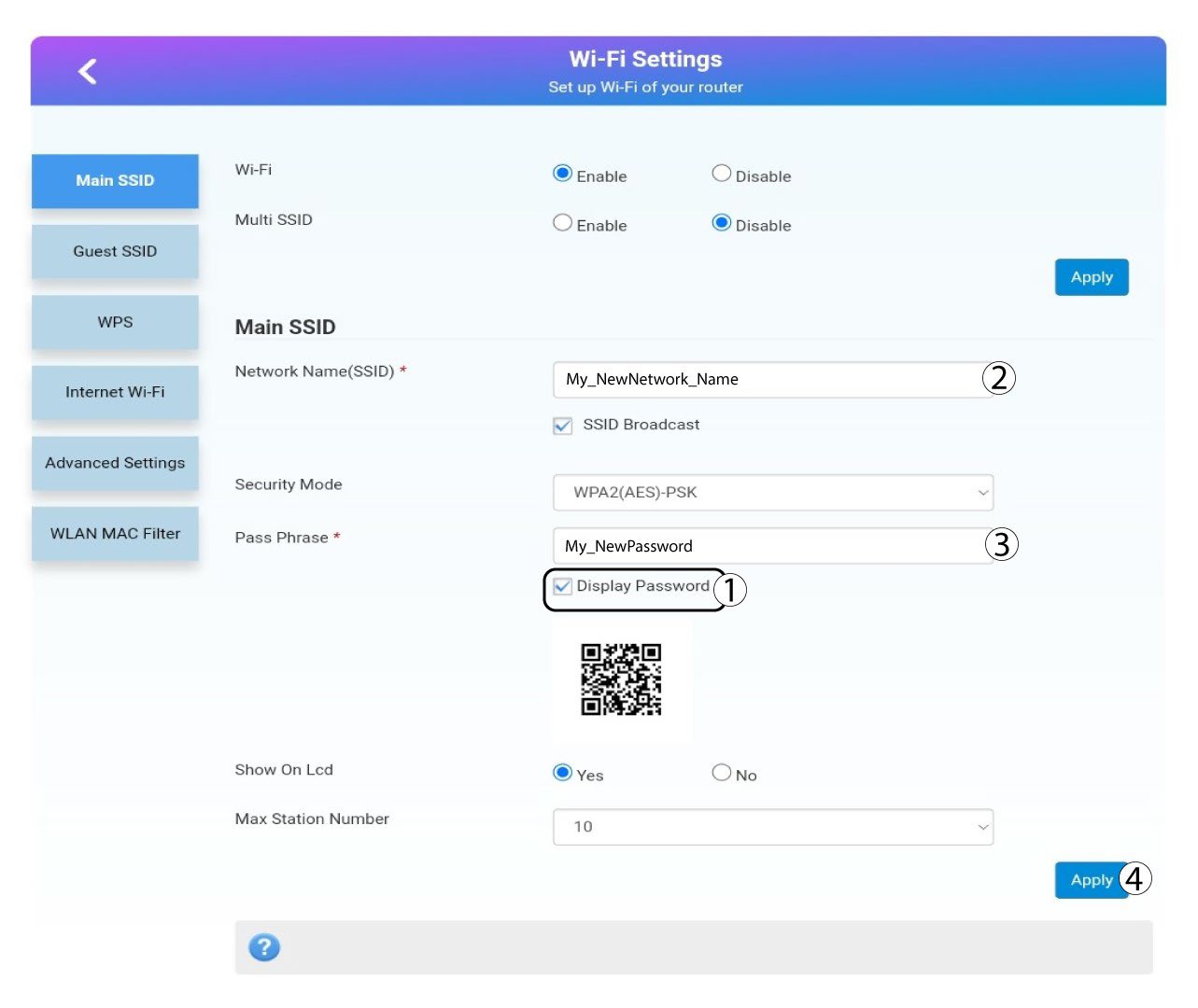
5Change Password
Click display password and enter the following information before clicking Apply:a. Enter the new network name.b. Enter the new Wi-Fi password.
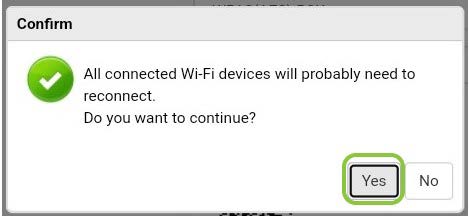
6Confirmation
In the pop-up message click Yes to apply your changes.
7Write down the new network information
Write down the new network information on a piece of paper.
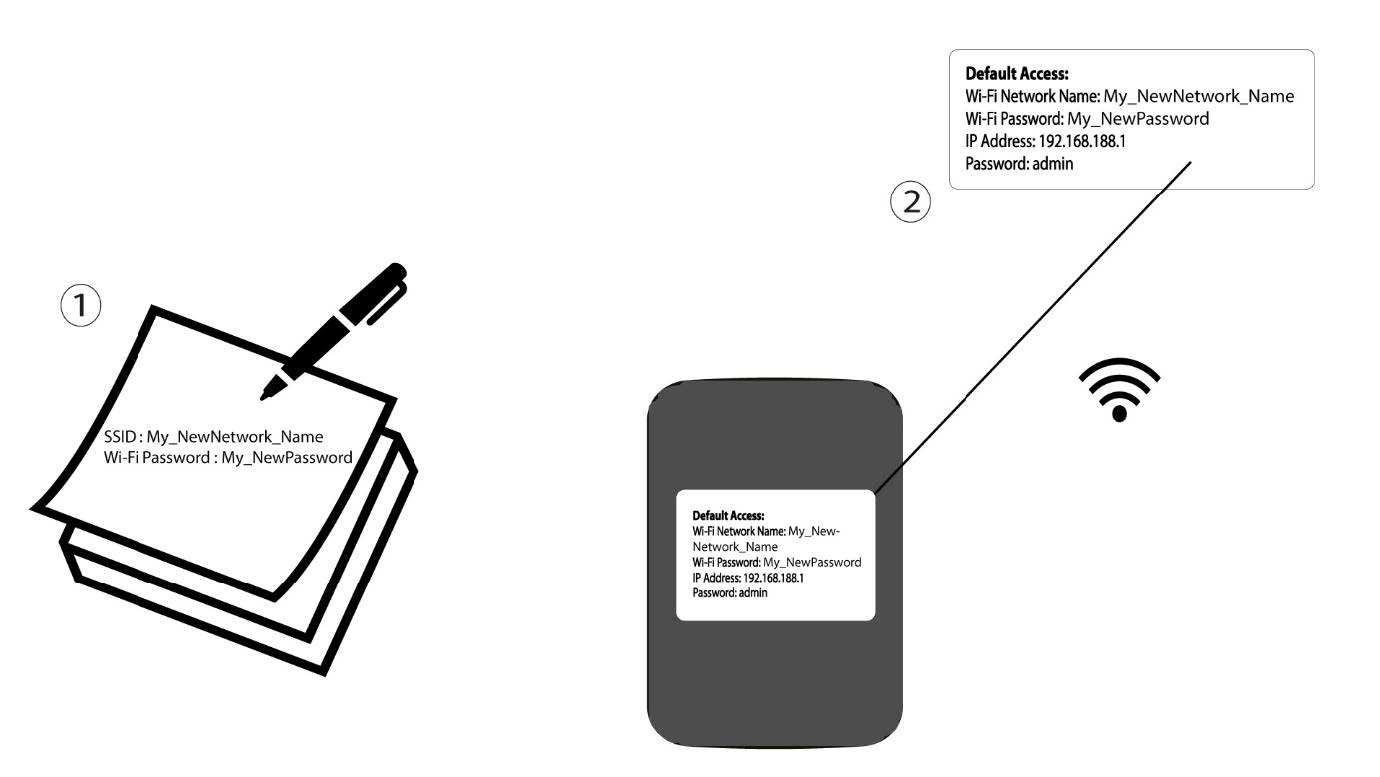

Warning: After changing the Wi-Fi network information all the devices that were connected to the network will be automatically disconnected.