ATRIA Wi-Fi 6 Mesh System 3000 (2-pack)
All questions
ATRIA Wi-Fi 6 Mesh System 3000 (2-pack)
I forgot the Wi-Fi password of my Mesh network, how I can find it?
How do I create or modify the Wi-Fi password of my Mesh network?
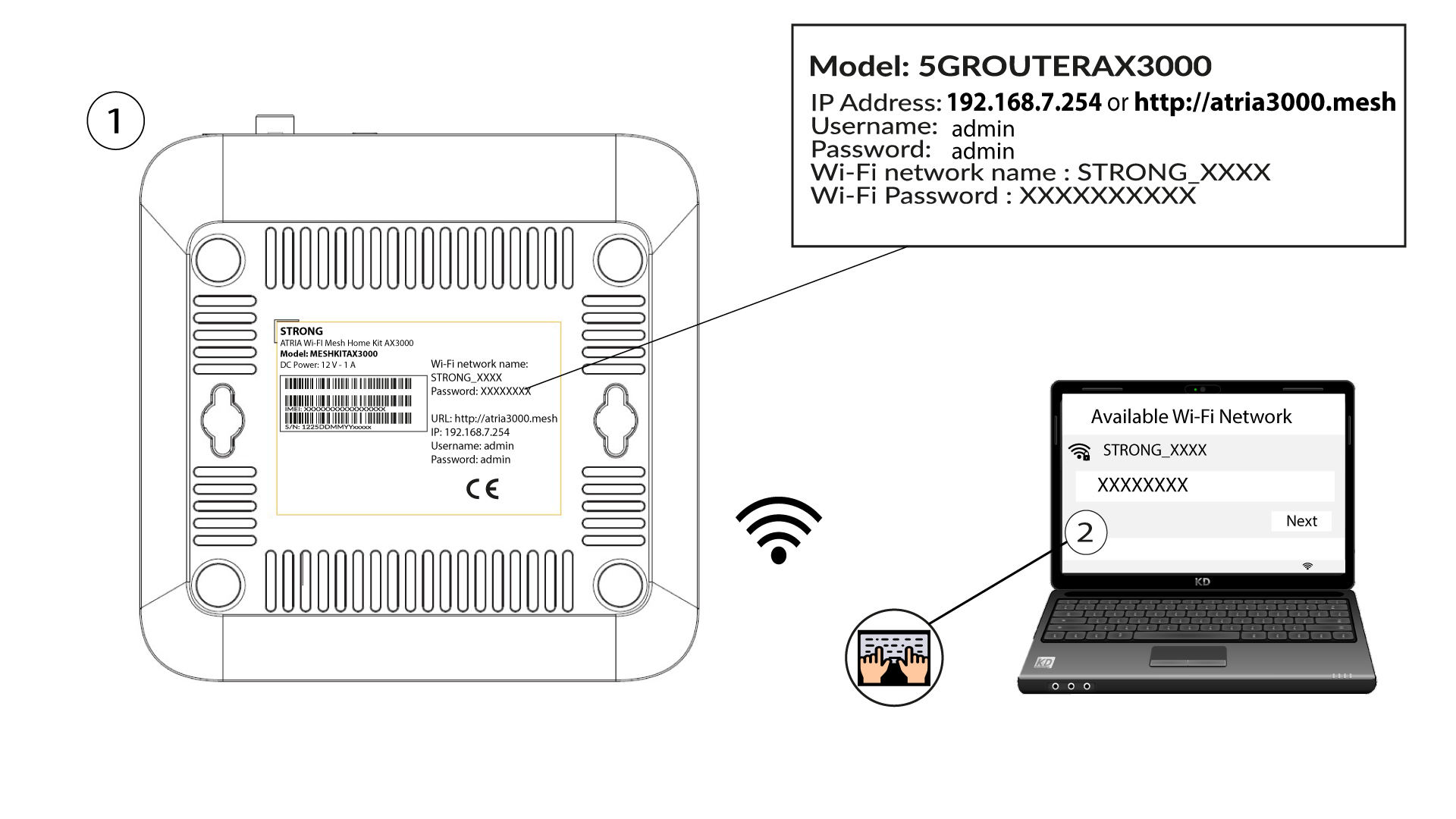
1Default Password location
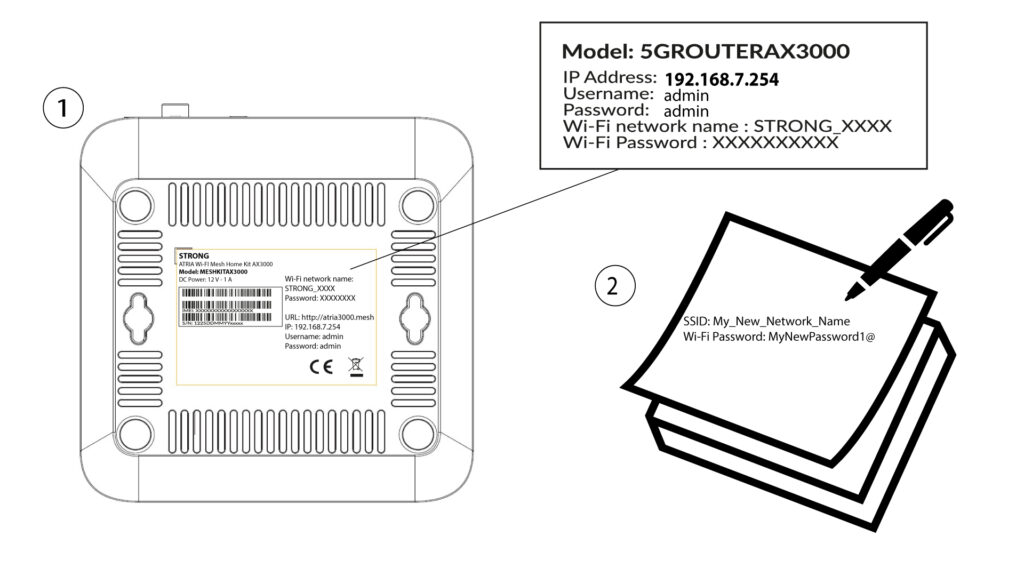
The default Wi-Fi password is located under your device, however, if you already changed it, you may need to restore the Mesh AX 3000 to its default factory settings.
To do so please refer to the following section : How do I reset my Mesh units to the factory settings?
Once this is done, you can modify the Wi-Fi default password to your own personal password
1Connect to the Wi-Fi of the device
To do so, enter the SSID (Wi-Fi Network Name) and Wi-Fi password of the router in your device:
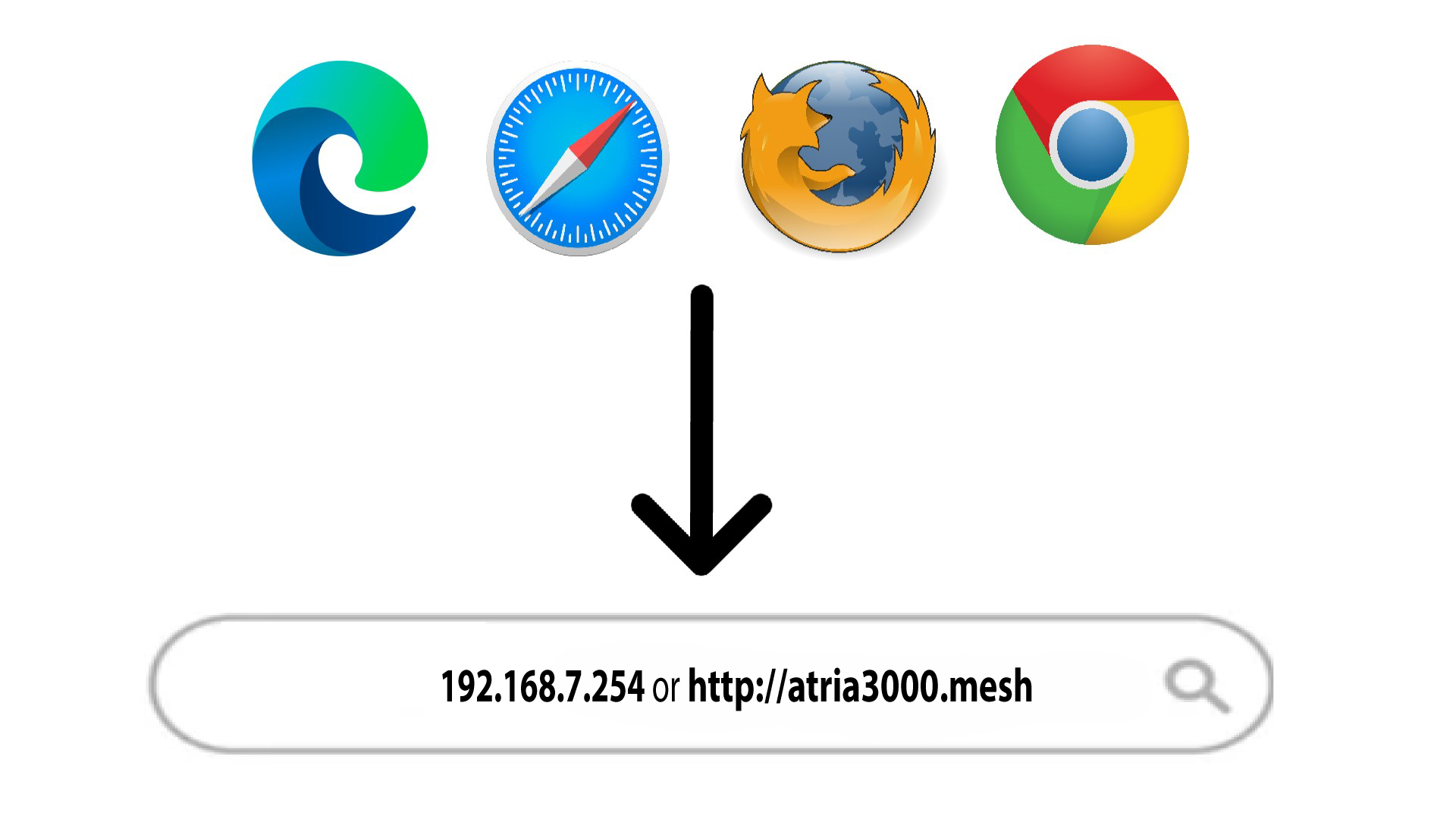
2Browse to the Web UI IP Address
Then, enter the following IP address in your browser: 192.168.7.254 or type the following address : http://atria3000.mesh
3Enter your credentials
You must enter the Username (admin) and Password (admin) (please note that after the first connection you will create your personal admin password which means that the password written on the product label will not work any more). Then, click Login.

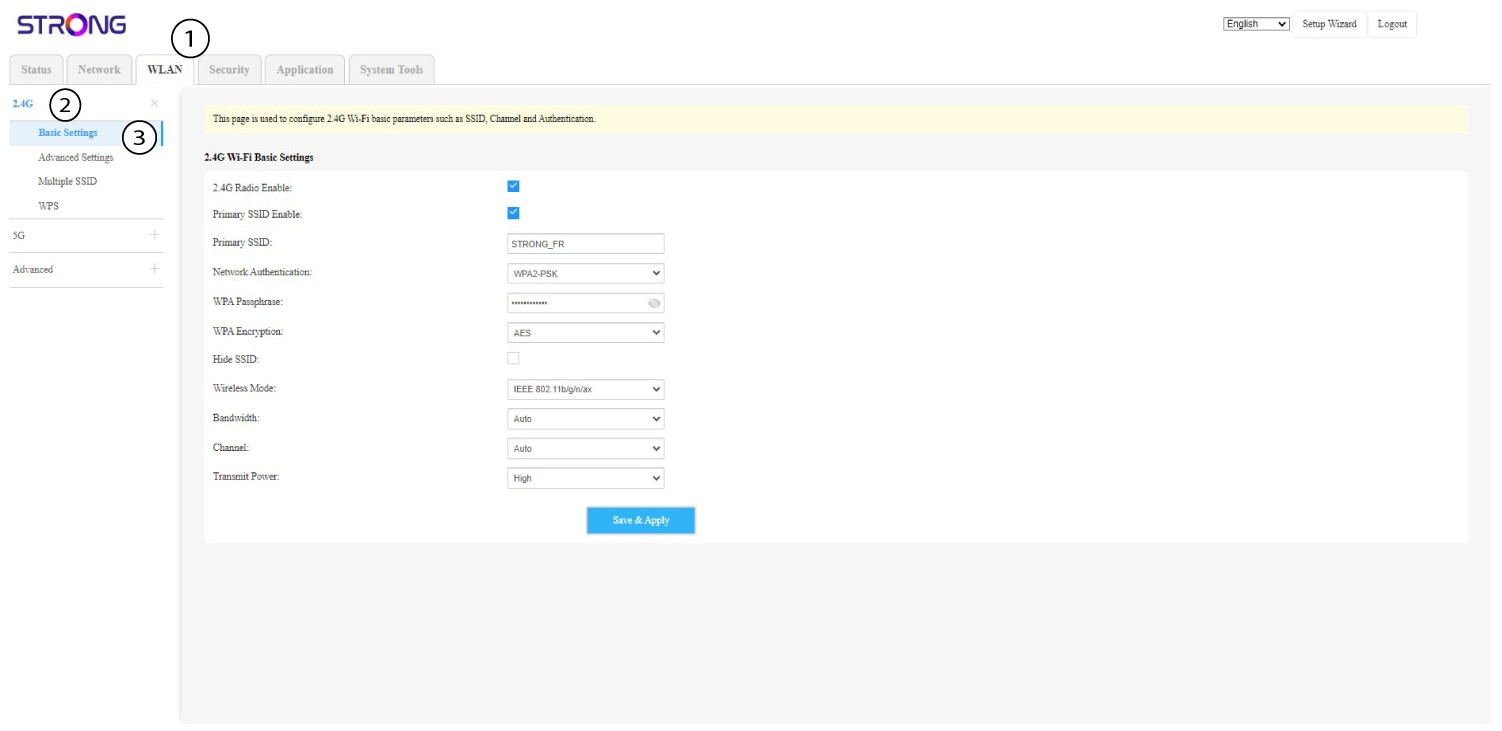
4WLAN 2.4G and 5G
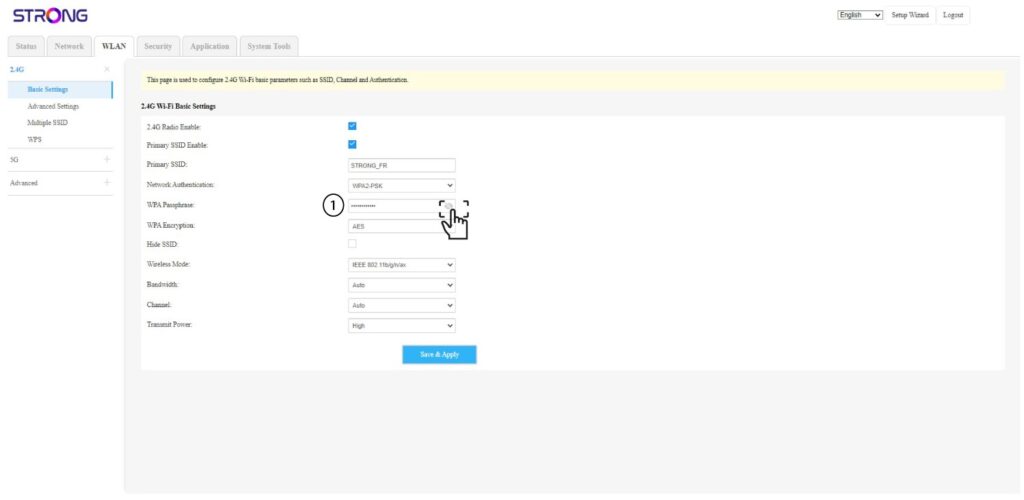
Then, click WLAN in the top bar and go to 2.4G or 5G depending on which network type you are connected on. Then, go to Basic Settings.
5Change password
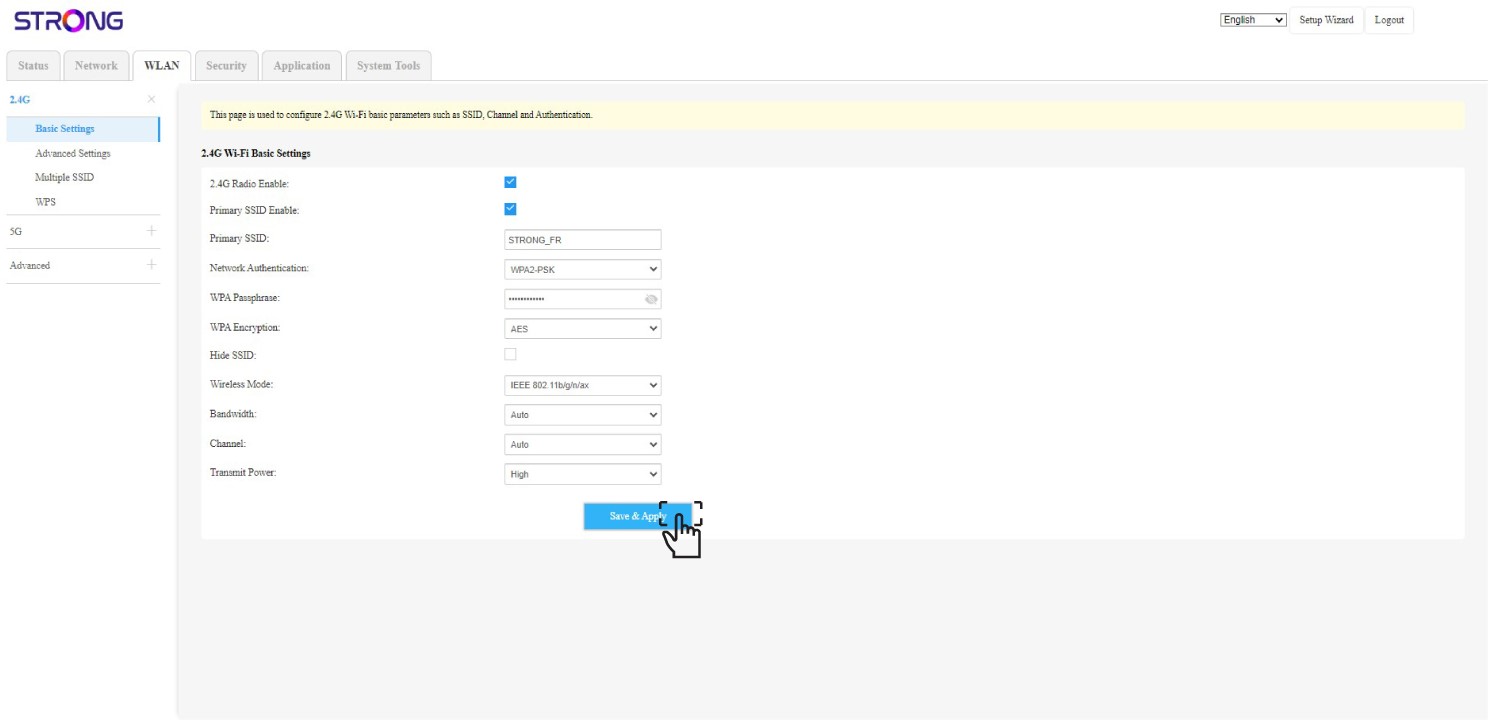
Now, you can change the password in the WPA Passphrase section. You can check if your wrote the right one thanks to the little eye icon option.
6Write it down
Write down the new password on a piece of paper and tape it to your device.
7Save the modifications
Click Save & Apply.