
5G AIRHOME 1050 | Wi-Fi 6
All questions
5G AIRHOME 1050 | Wi-Fi 6
How do I access the Web UI?
To access the Web UI, you must be connected to the Wi-Fi of your device after positioning the SIM card in the slot.
1Connect to the router Wi-Fi network
To do so, enter the SSID (Wi-Fi Network Name) and Wi-Fi password of the router in your device:
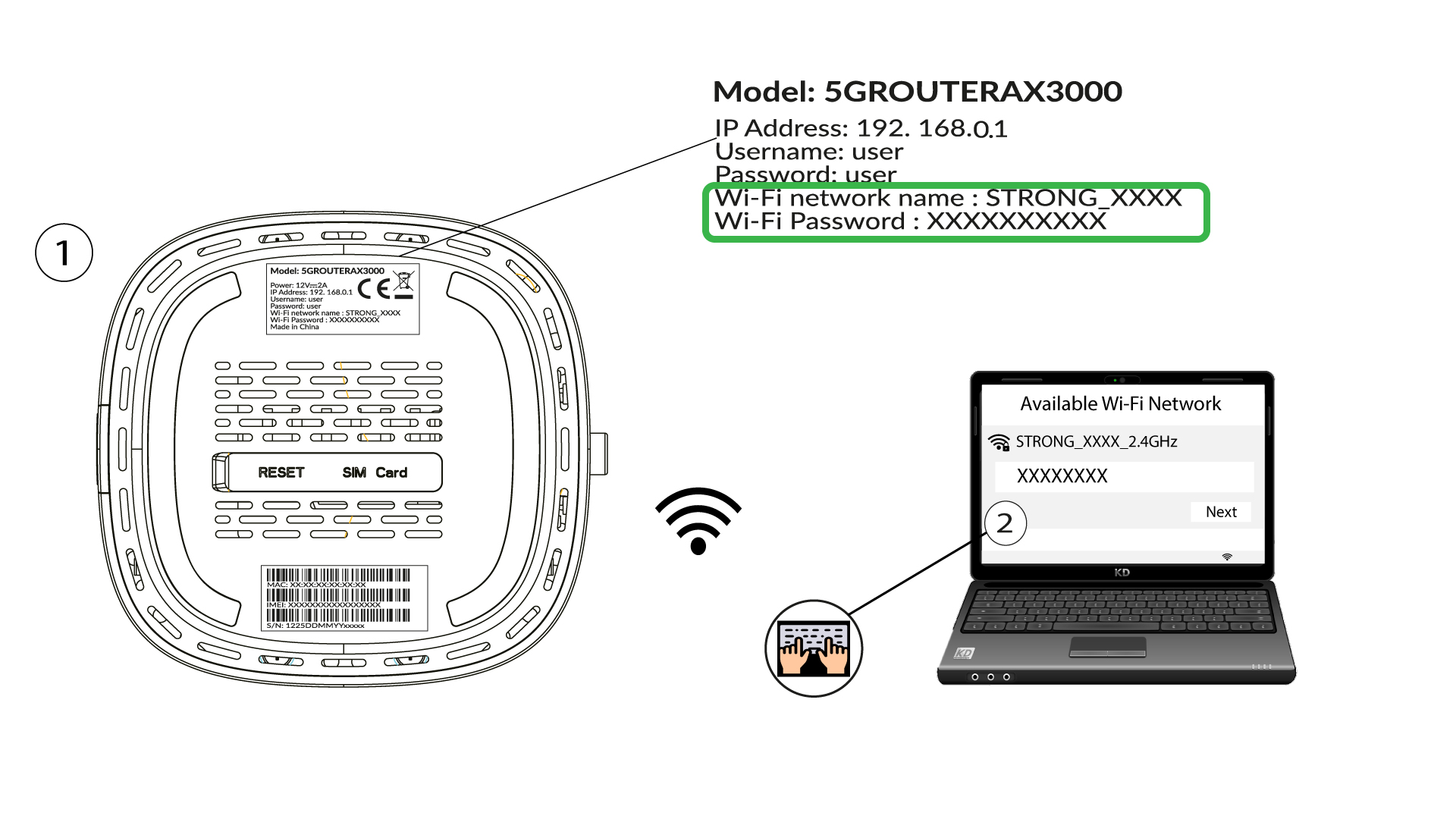
2Browse to the Web UI IP Address
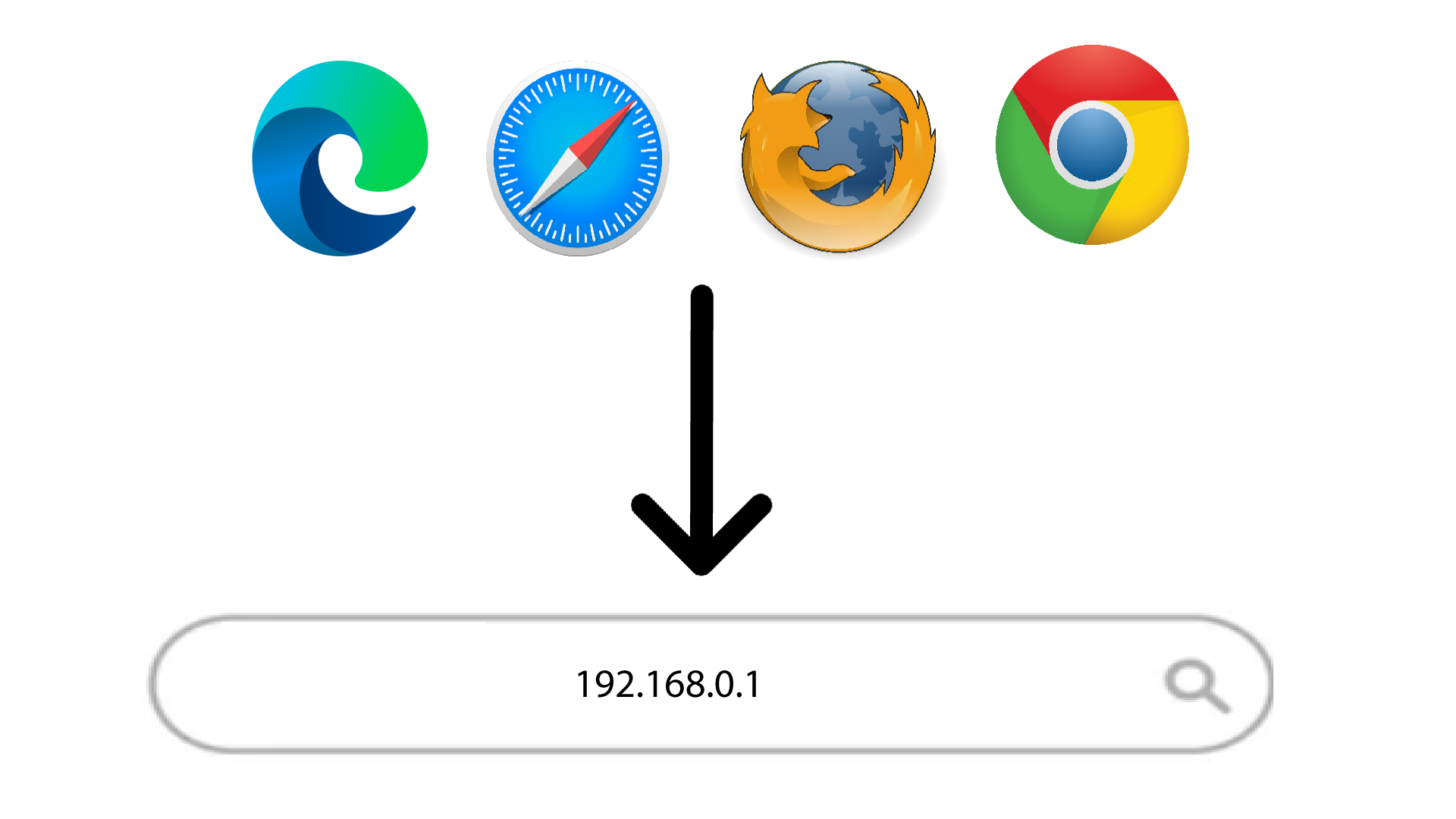
Then, enter the following IP address in your browser: 192.168.0.1
3Find your credential
To find your credentials please refer to the label located behind your device.
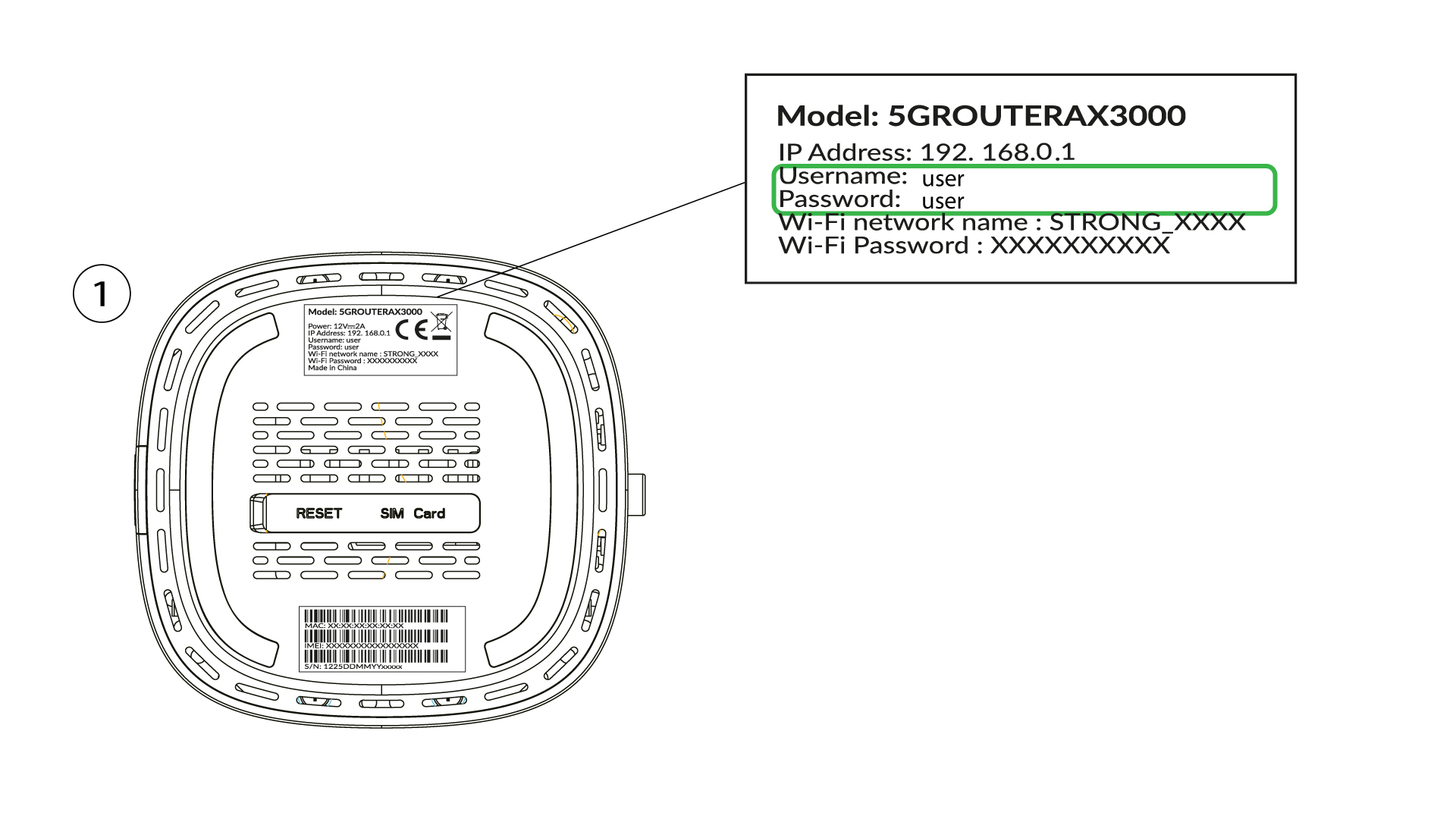
4Enter your credentials
You must enter the username and password and click Login (to find your credentials, please refer to the previous step).

5Change admin password
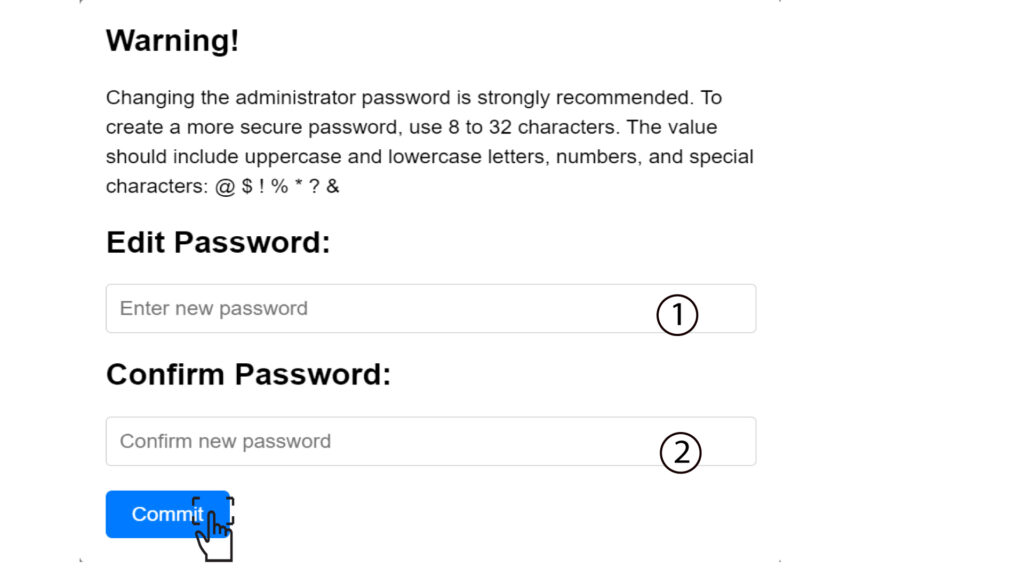
In the pop-up window that appears, you must create a new admin password after your first connection, to do so enter the following information before clicking Commit:
- Edit Password: enter a password between 8 and 32 characters containing uppercase, lowercase, number and at least one special character (@, $, !, %, *, ?, &)
- Confirm Password: enter the same password.
6Write the new credentials
Please write down the new admin password and the username on a piece of paper:
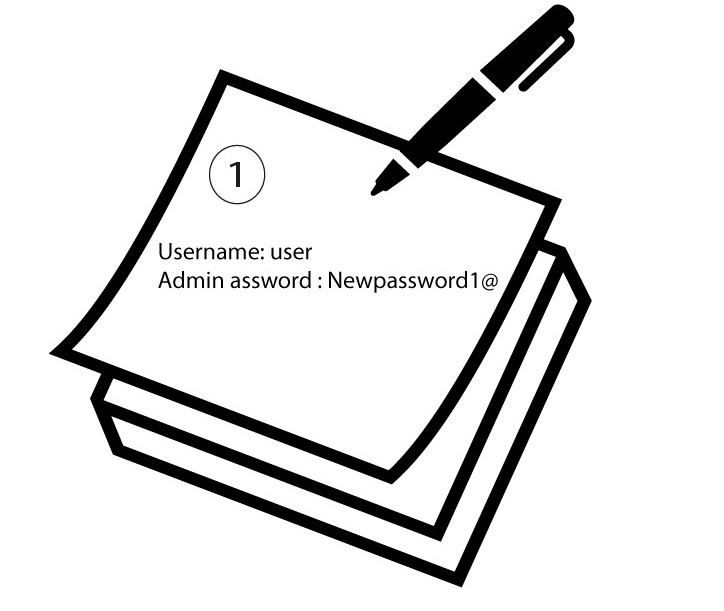

Warning: If the default administration password is set to user, you must change it after the first connection to secure the access to the router and prevent hacking. After setting up the new password, please write it down.