
Smart home camera 5MP UK
All questions
Smart home camera 5MP UK
Camera, NVR and recording
Which detection type should I choose?
You should choose the detection type based on the type of events that you want to record.
- Motion Detection: You can set up an alarm if a motion is detected in front of the camera.
- Human Detection: You can set up alarm notifications when a human is detected.
- Pet Detection: You can set up alarm notifications when a pet is detected.
How do I access the Vision by Strong App?

Warning: The Vision by Strong app is only available on the Google Play Store and the Apple App Store.
If the app is not visible or unavailable on your device, please contact your device manufacturer’s support team.
1Open the App Store
Go into the Google Play Store or the App Store.
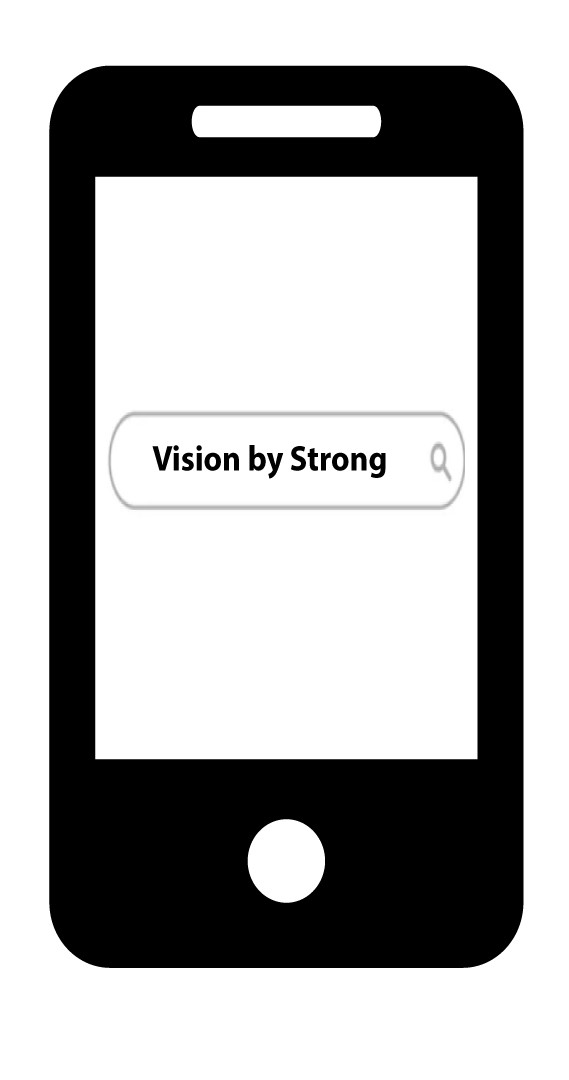
2Search for the App
Search the App 'Vision by Strong'.
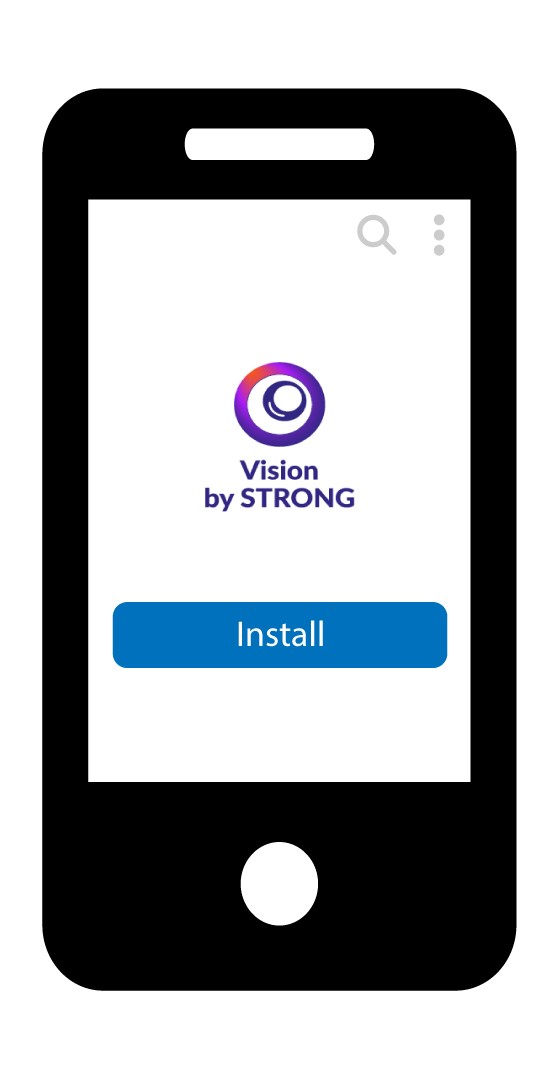
3Install the App
Click the Install button.
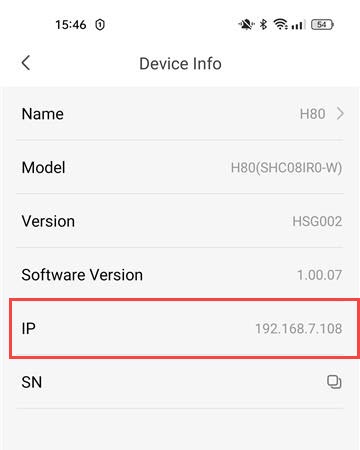
How do I find the IP address of my camera?
1Access Settings
Click Settings from the main menu.

2Open Device Information
Click Device Info.
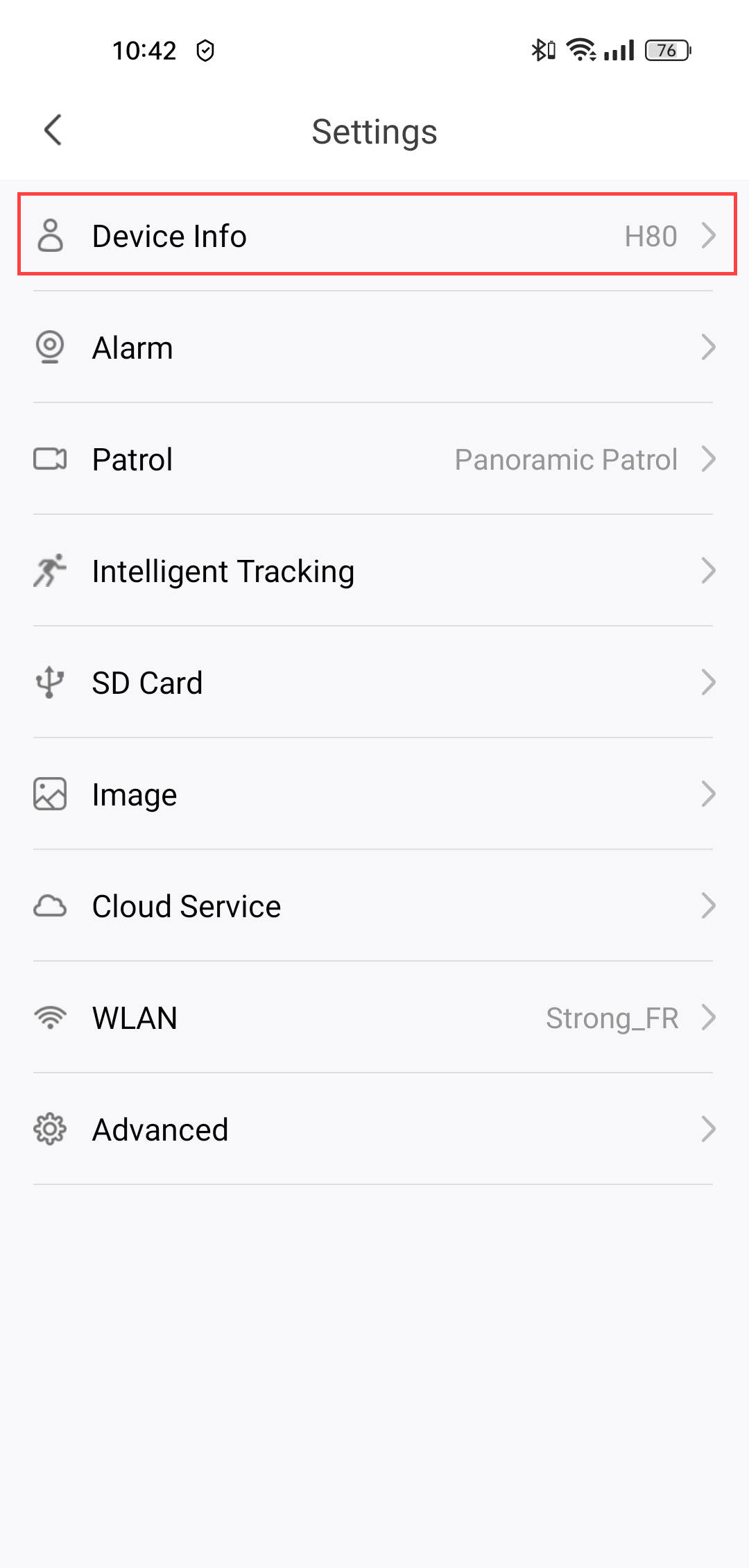
3Locate the IP Address
The IP address will be written in the information.
How do I format my SD card?
Once your SD card is installed in the camera, you need to format it before use. Follow the steps below:
1Access the Settings
On the Homepage, click the Settings icon.
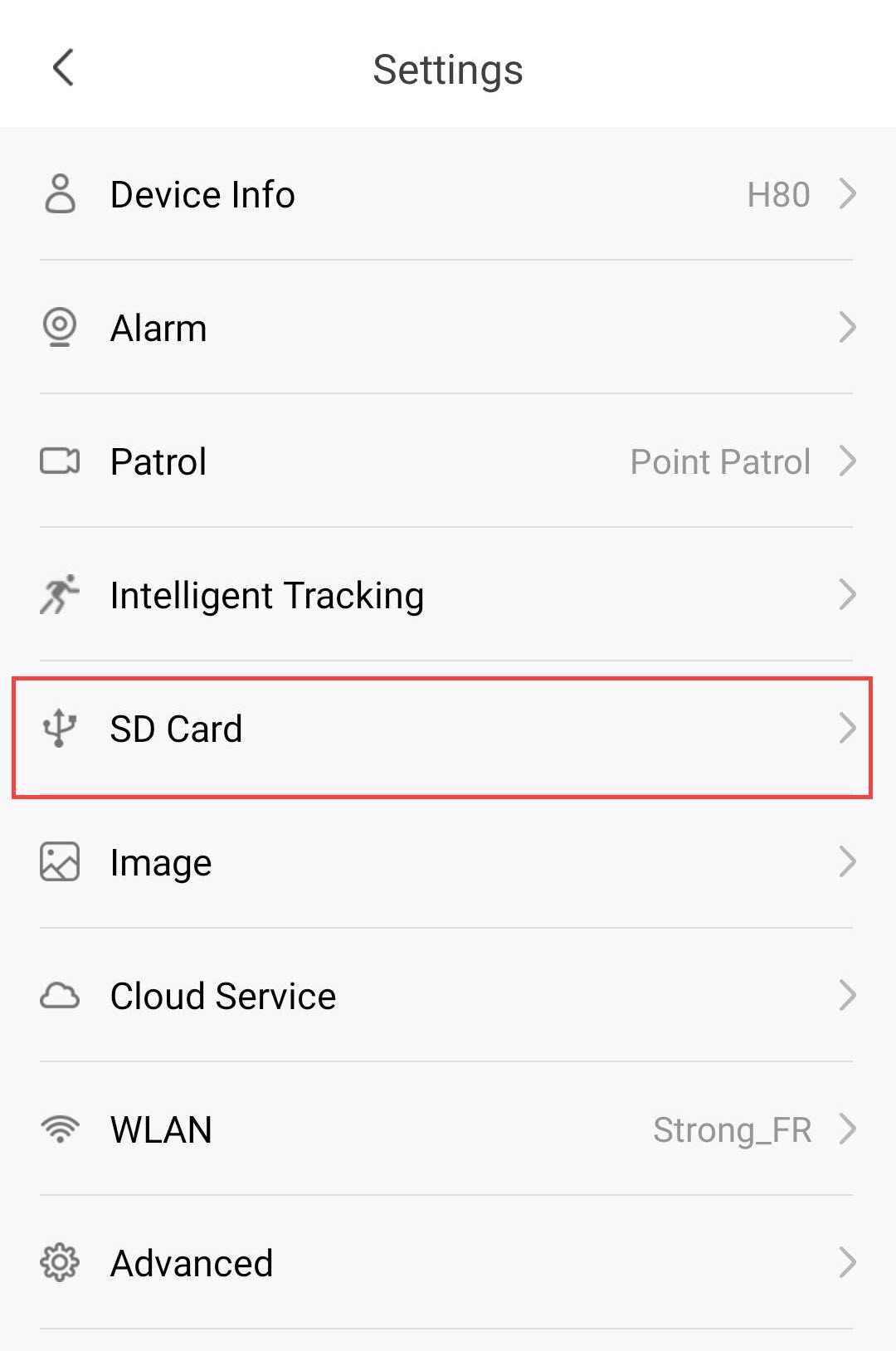
2Go to the SD Card Menu
Click SD Card from the settings list.
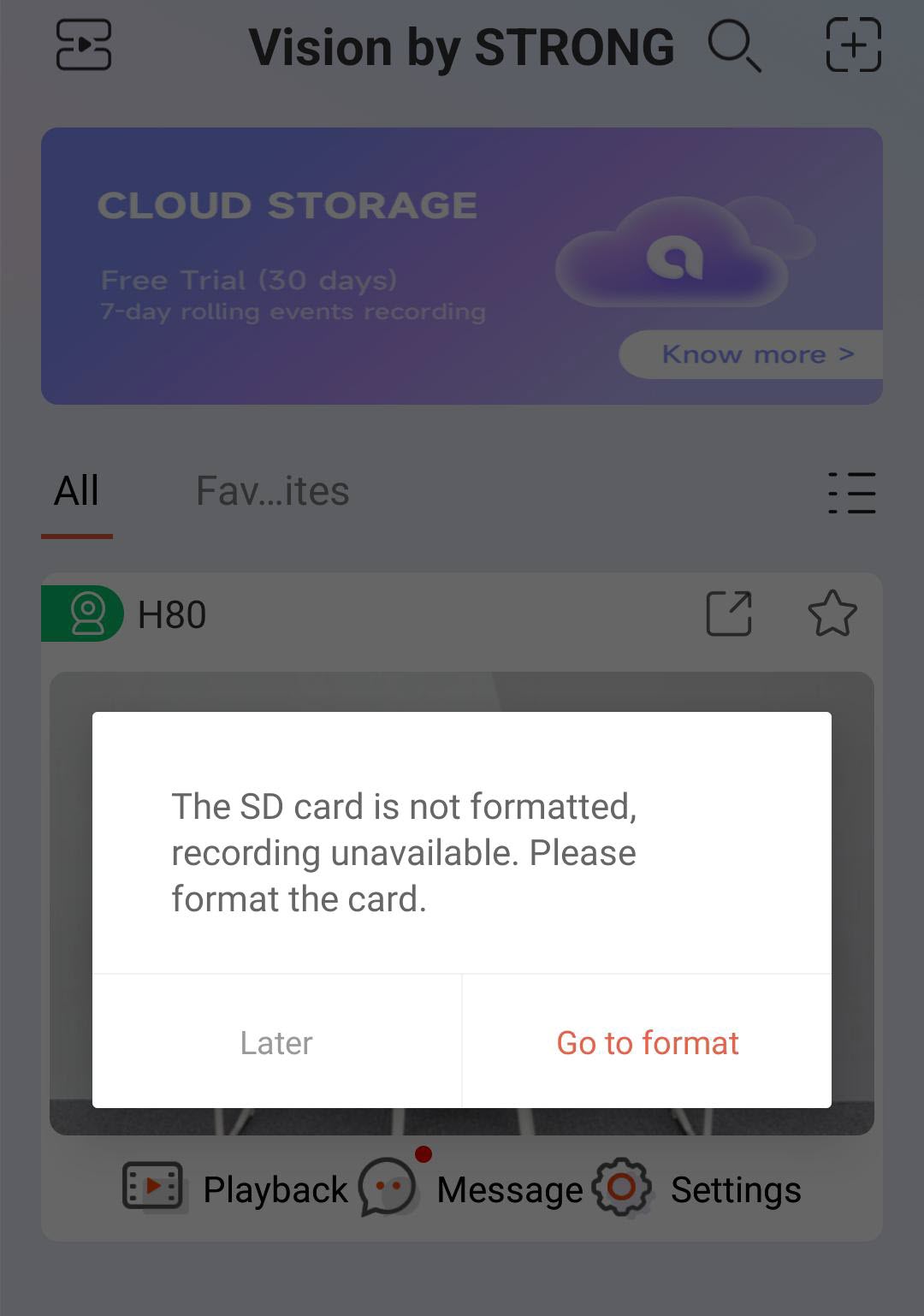
3Start the Formatting Process
Click the Go to format button.
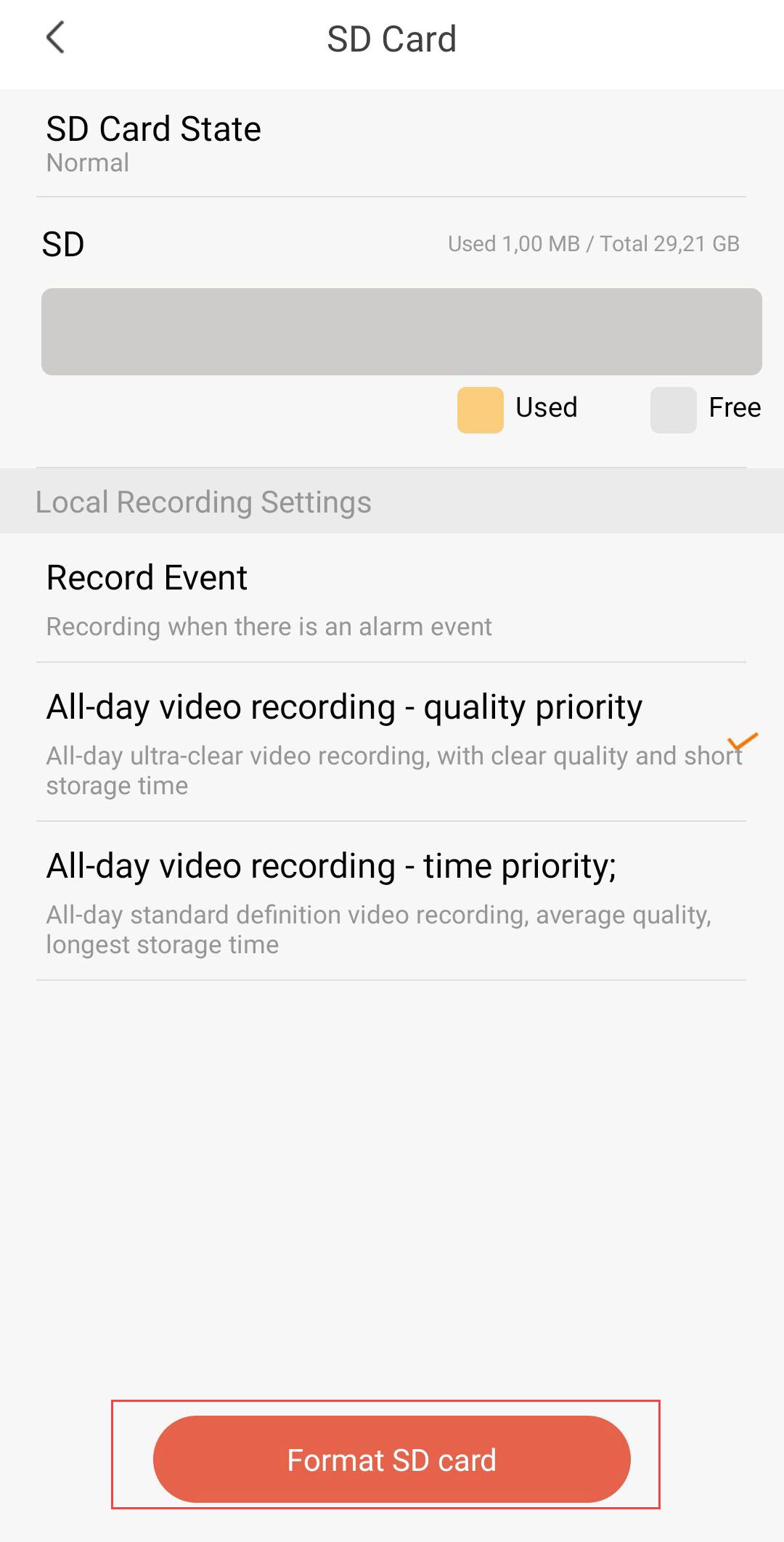
4Start the Formatting process
Then, click Format SD Card.
5Continue the process
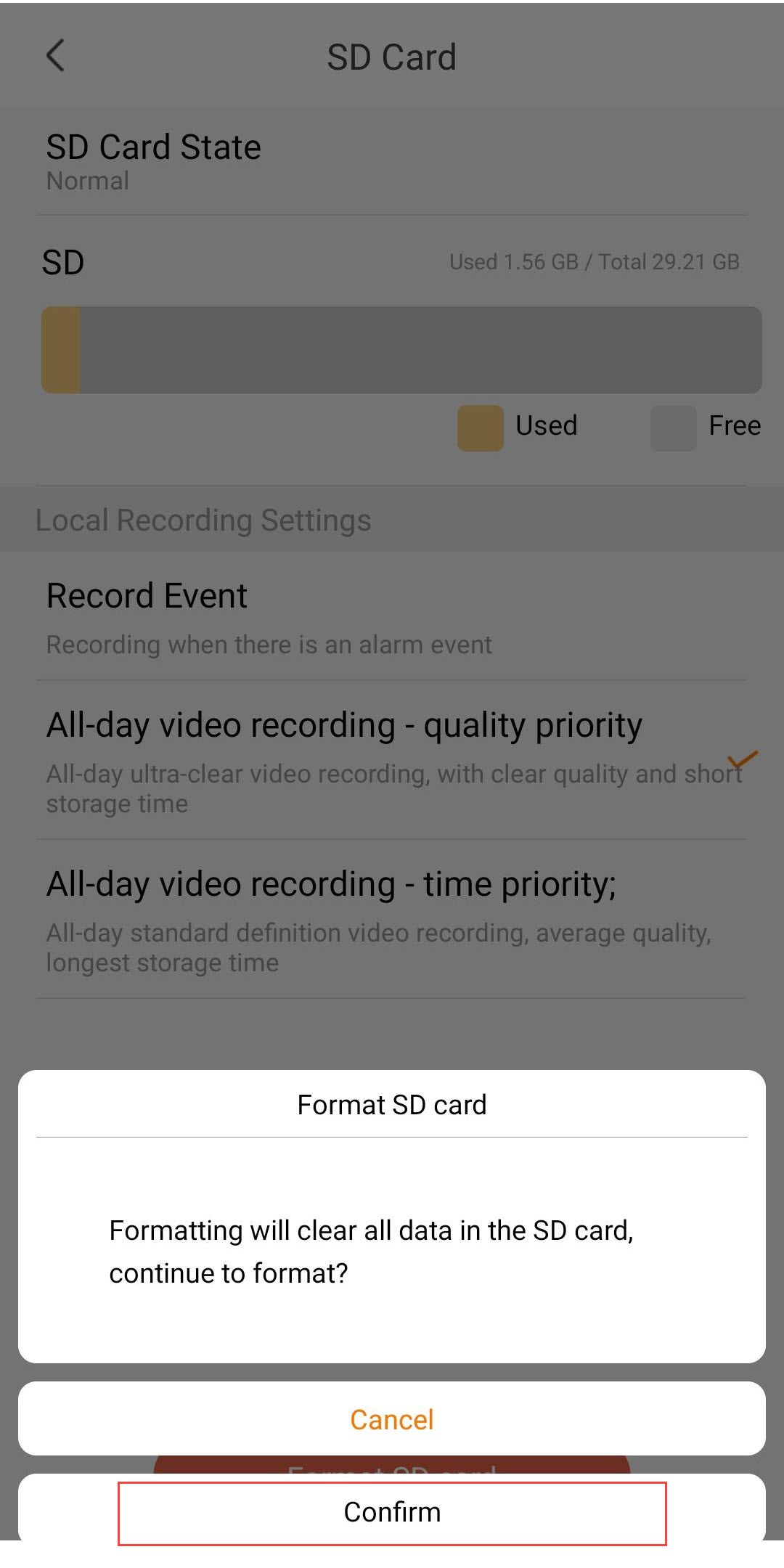
Click Confirm.
6Choose a Recording Option
After formatting, choose one of the following recording options:
- Record Event: Only records when an alarm event is triggered (e.g., motion detection). This option allows you to save storage.
- All-day Video Recording – Quality Priority: Continuous recording in ultra-clear quality. Provides the best image quality, but storage fills up quickly due to higher file sizes.
- All-day Video Recording – Time Priority: Continuous recording in standard definition. Offers the longest storage time, with average video quality.
Warning: Once the capacity of the SD card is reached, the older recordings will be overwritten.
How do I install the SD card in my camera?
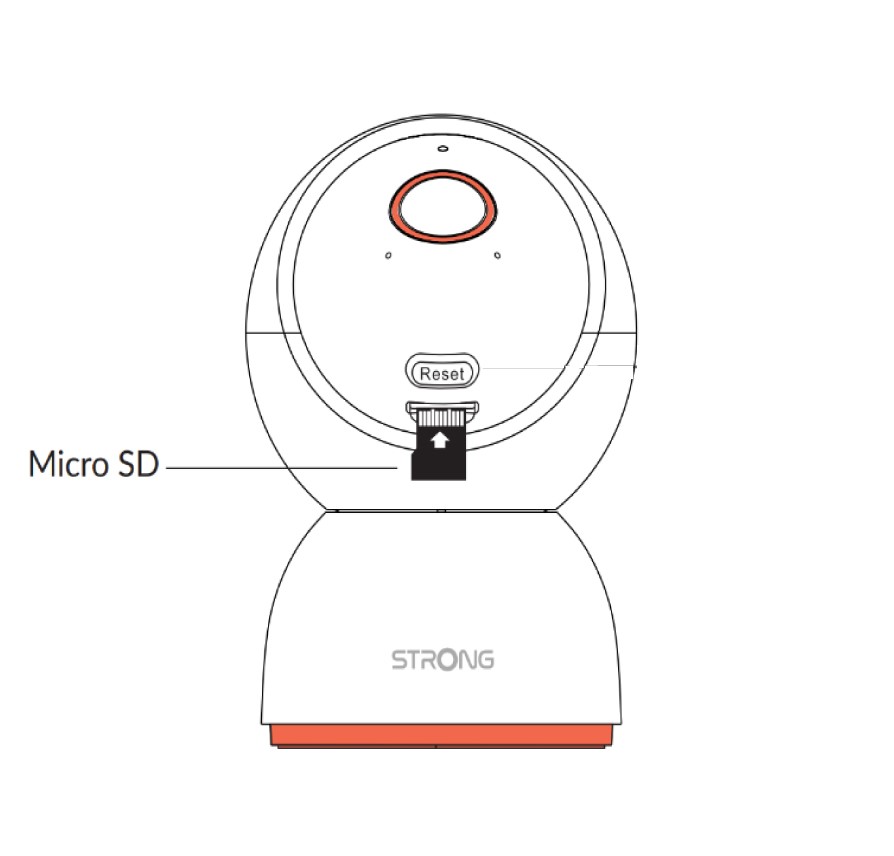
Before plugging in the camera, insert the SD card into the slot located at the bottom of the camera head. To do so, gently slide the camera head upward to reveal the SD card slot. Then, insert the SD card as shown in the illustration below.
How do I log into the App?
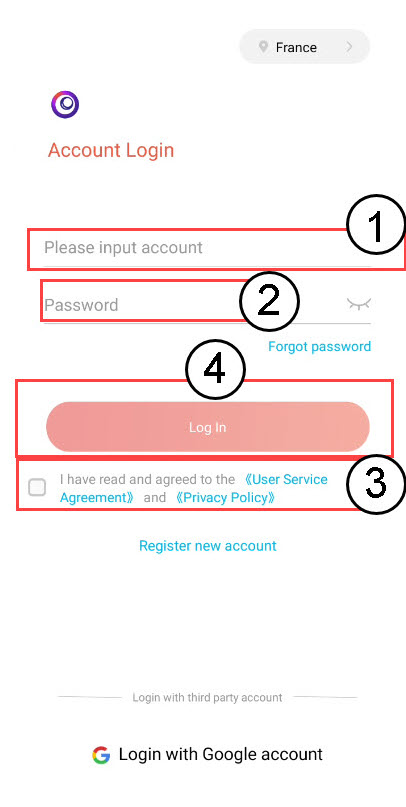
Enter your email and password. Then, check the Privacy Policy box and click Log In.
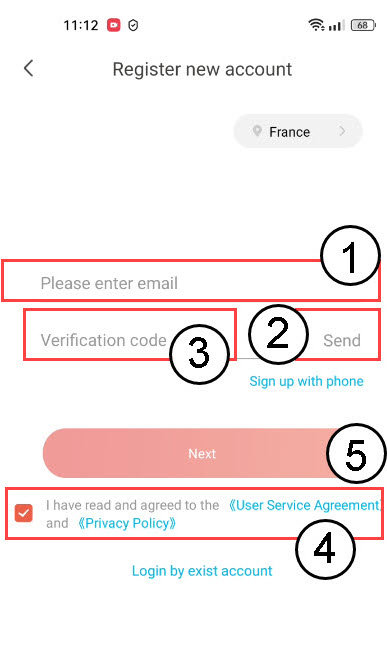
How do I register an account on the Vision by Strong App?
1Start the Registration Process
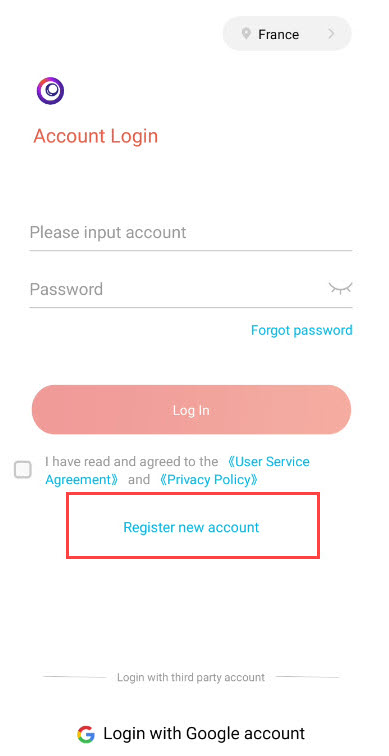
Click Register new account on the app’s login screen.
2Verify Your Email
Enter your email address and click Send. You will receive a confirmation code by email. Enter the verification that you have received and check the Privacy Policy box before clicking Next.
How do I reset my camera to its factory configuration?
You can reset your camera to its factory settings.
1Open Settings
Click Settings.
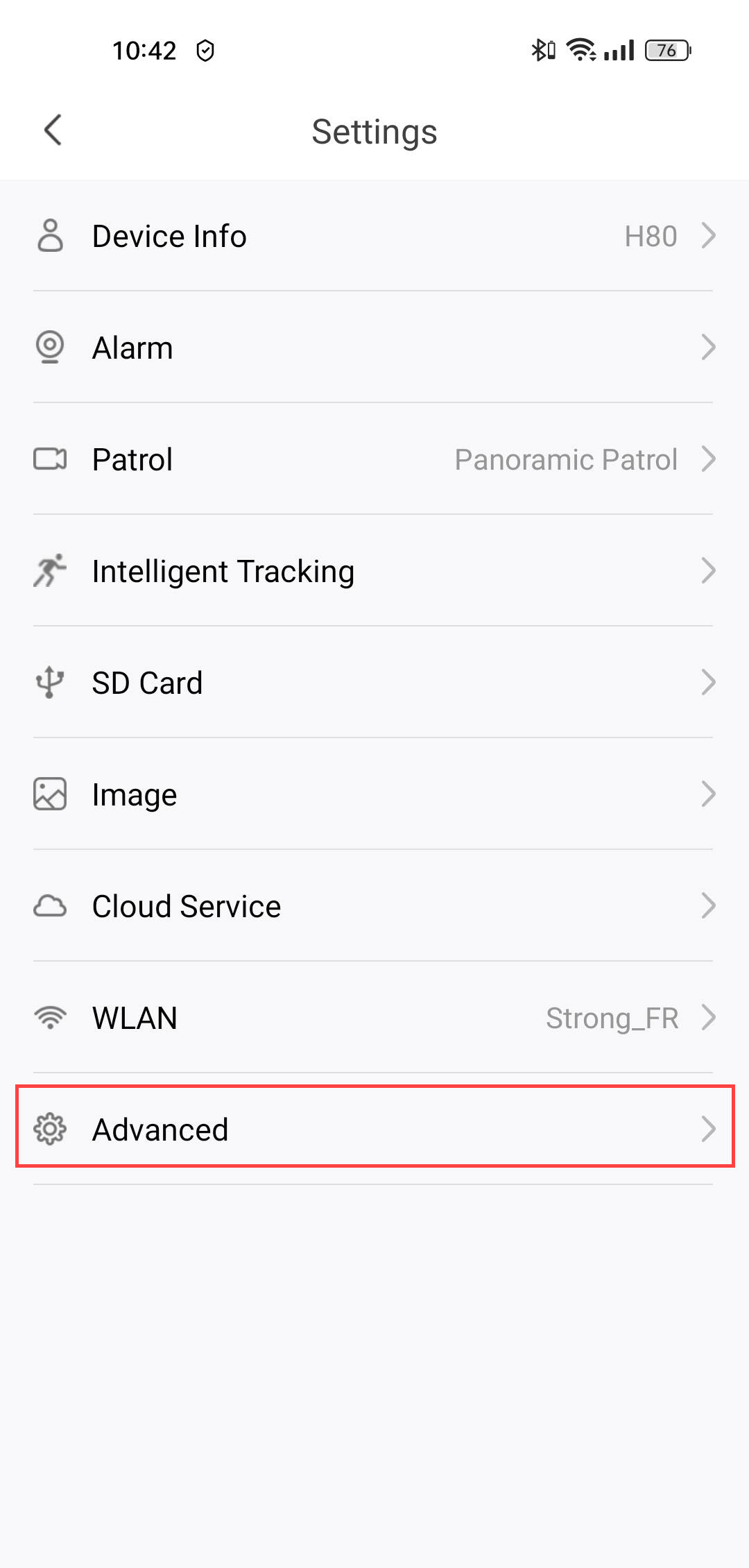
2Access Advanced Settings
Click Advanced.
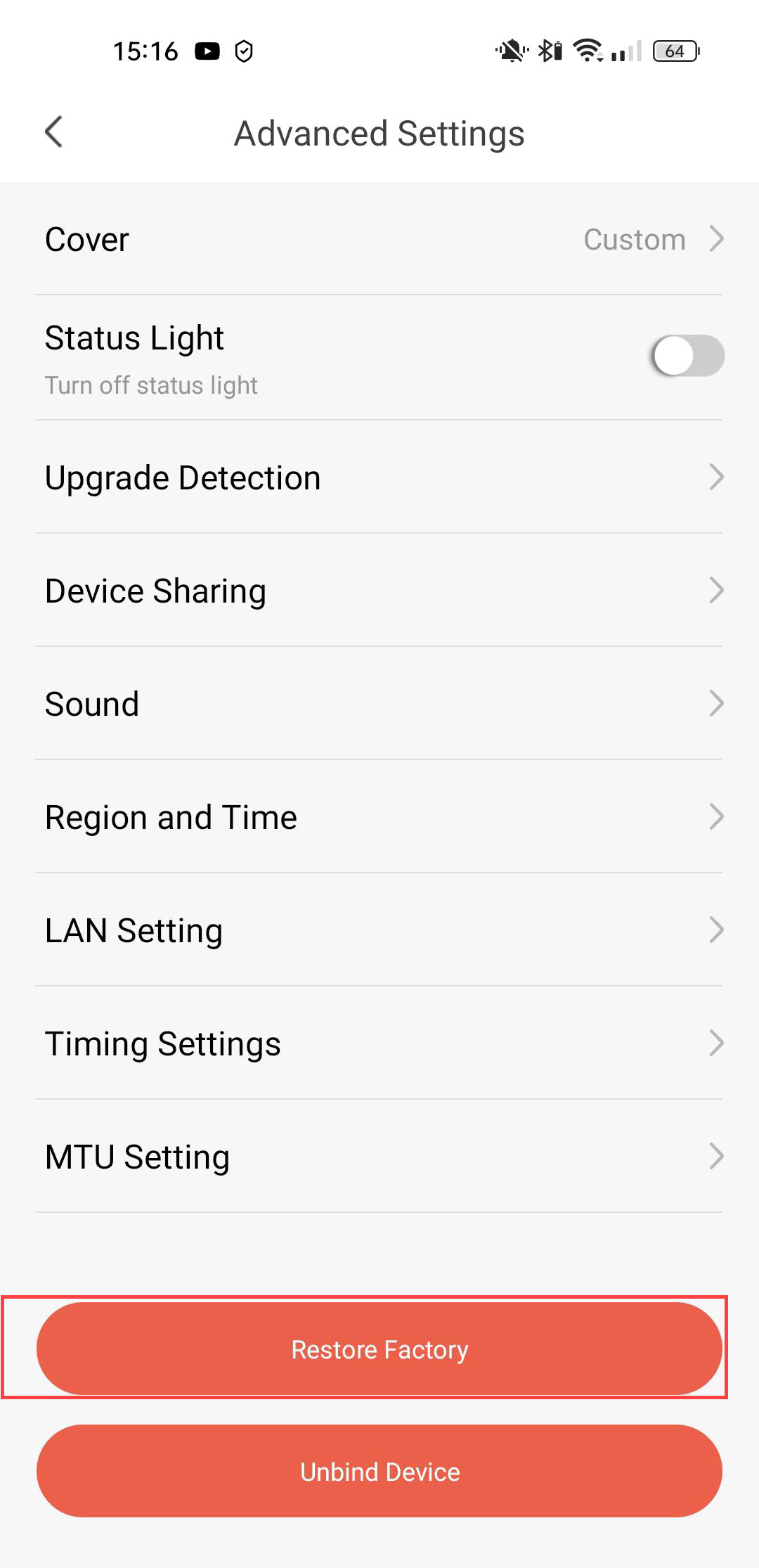
3Select Restore Factory
Click Restore Factory .
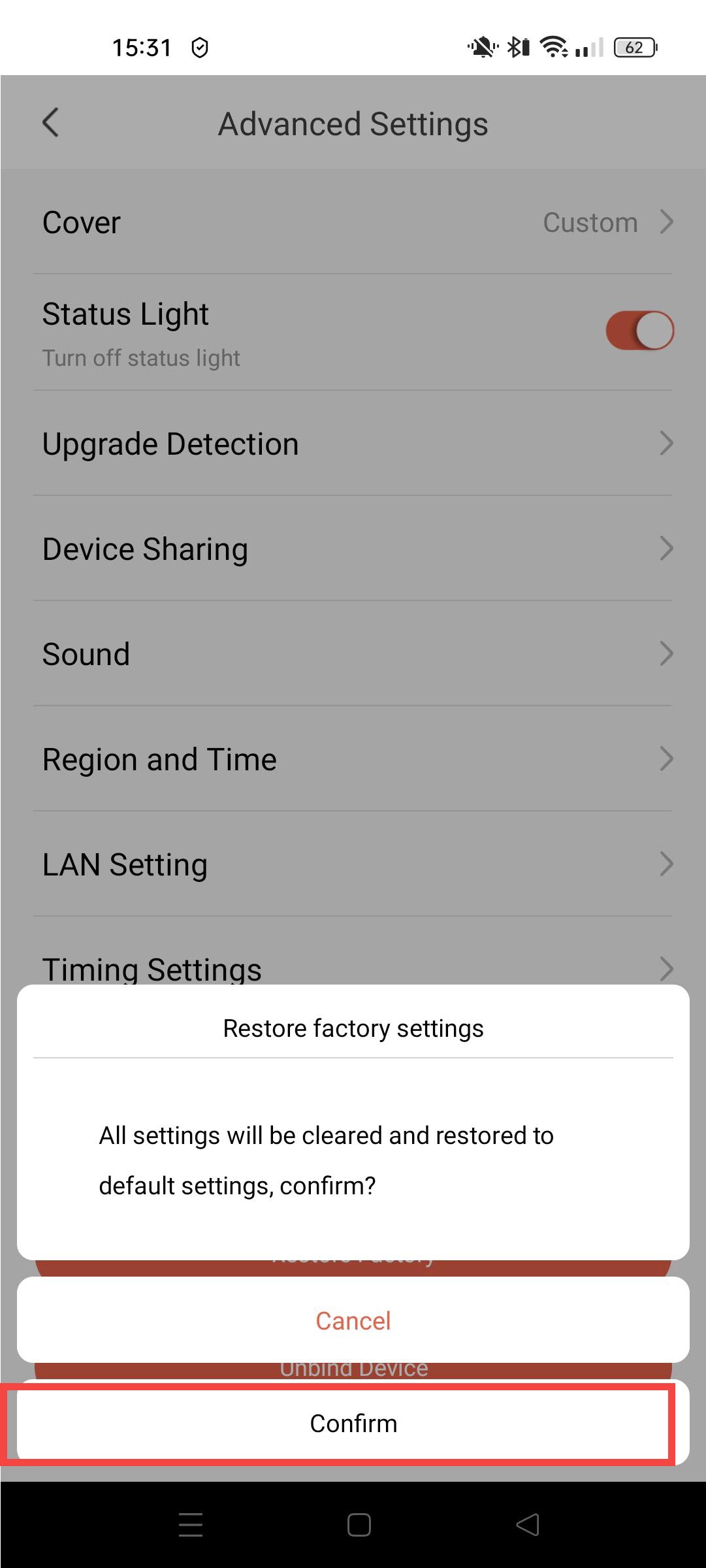
4Confirm Reset
32Click Confirm.
How do I set up Human Detection?
1Open Camera Settings
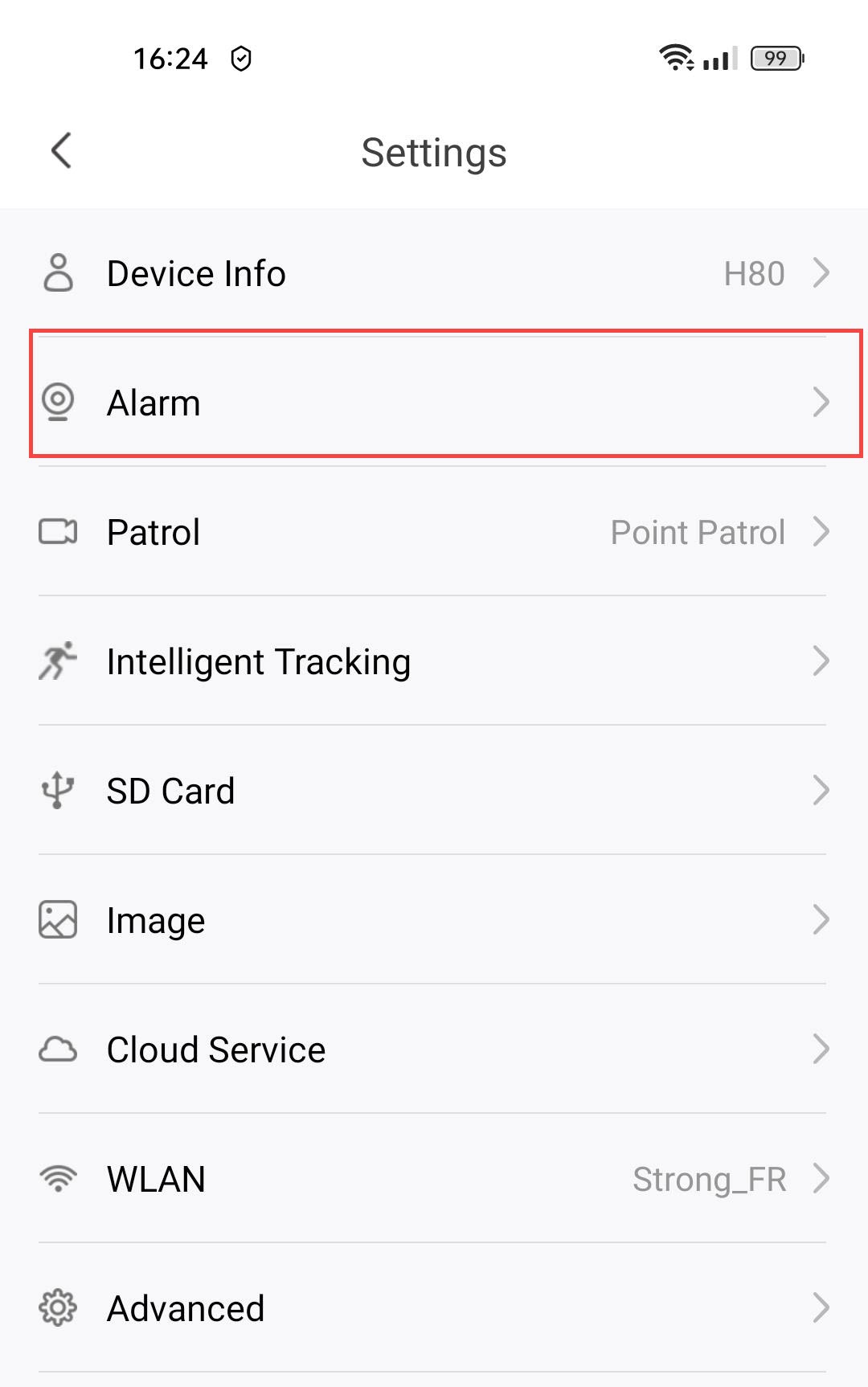
Click Settings.
2Access Alarm Settings
Select Alarm.
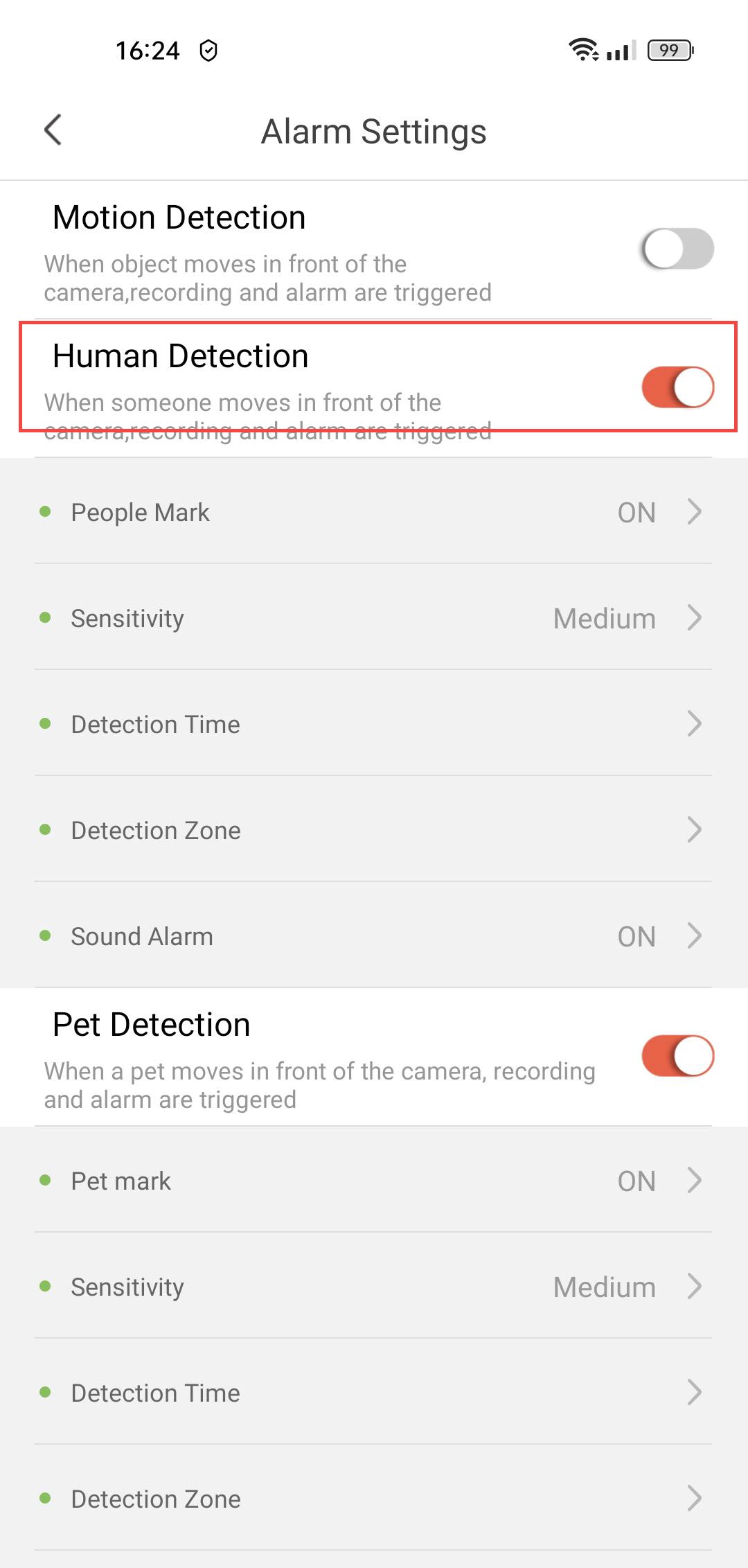
3Enable Human Detection
Press the Human Detection toggle.
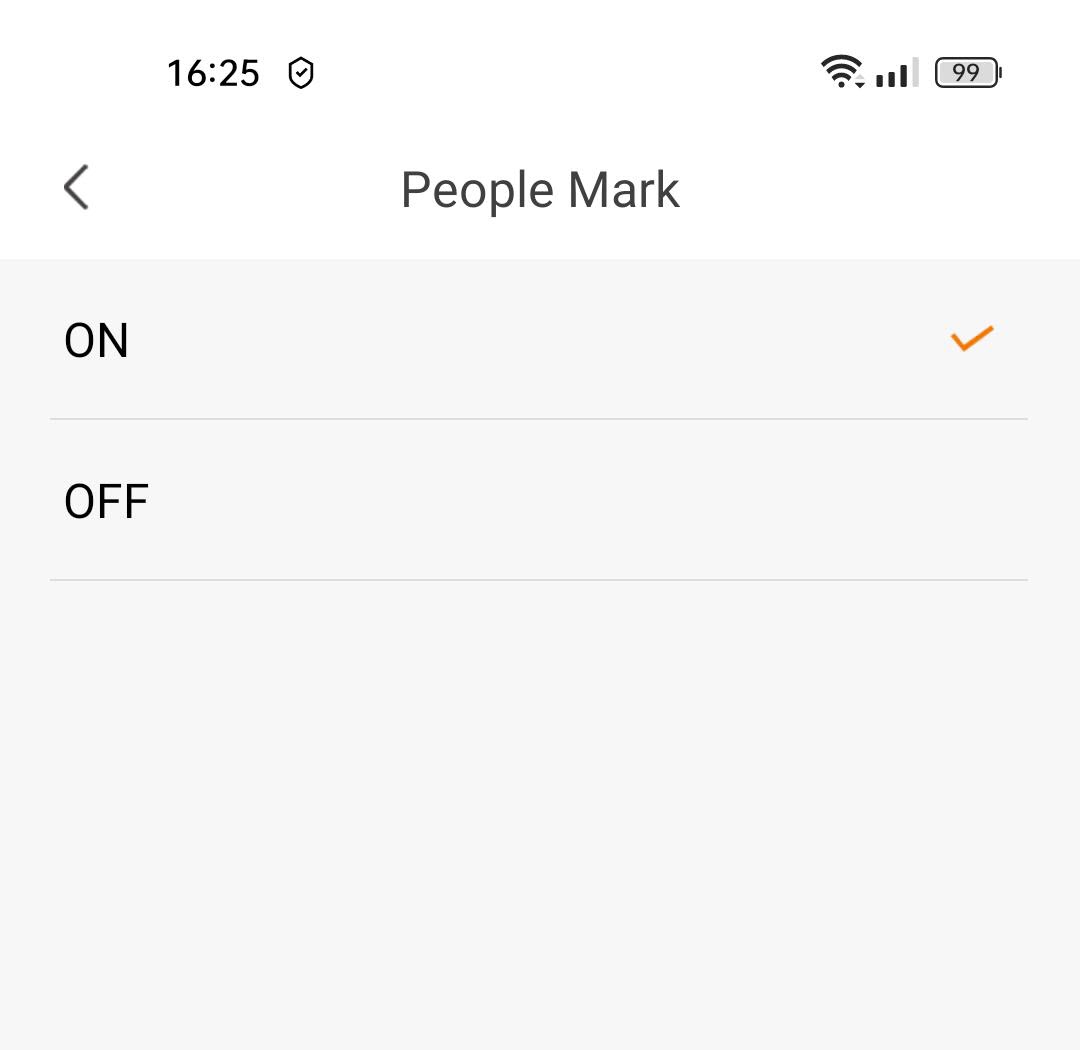
4Enable People Tagging
Select People Mark: (activate people tagging).
5Set Detection Sensitivity
Select Sensitivity (choose the level between low, medium and high to improve the accuracy of the detection).

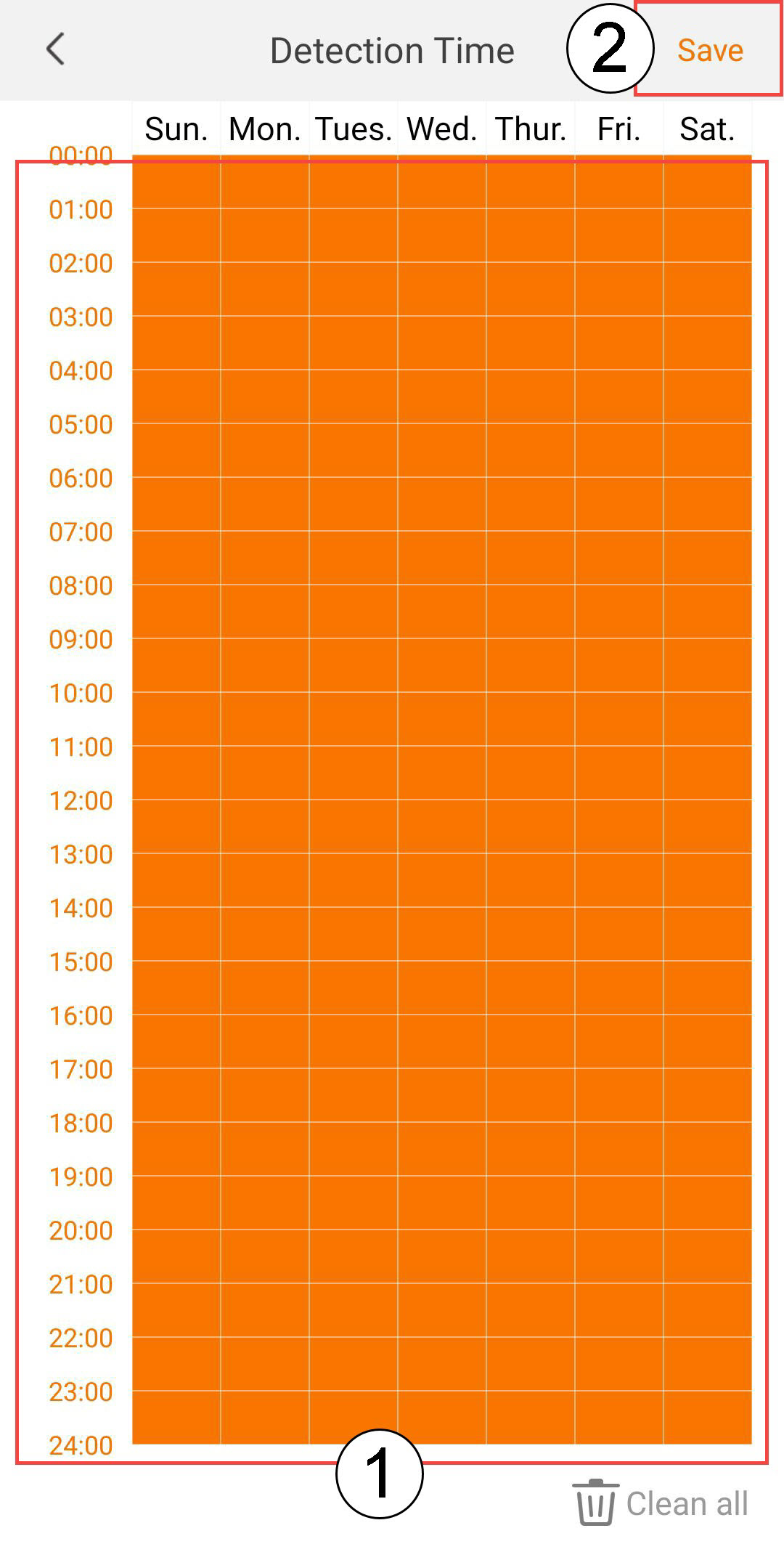
6Configure Detection Time
Select Detection Time (select the days and times when you want the alarm to be triggered in case of human detection, then click Save).
7Define the Detection Zone
Select Detection Zone: (create a detection zone on the grid and click Save. The alarm will be triggered if a human is detected in this zone).

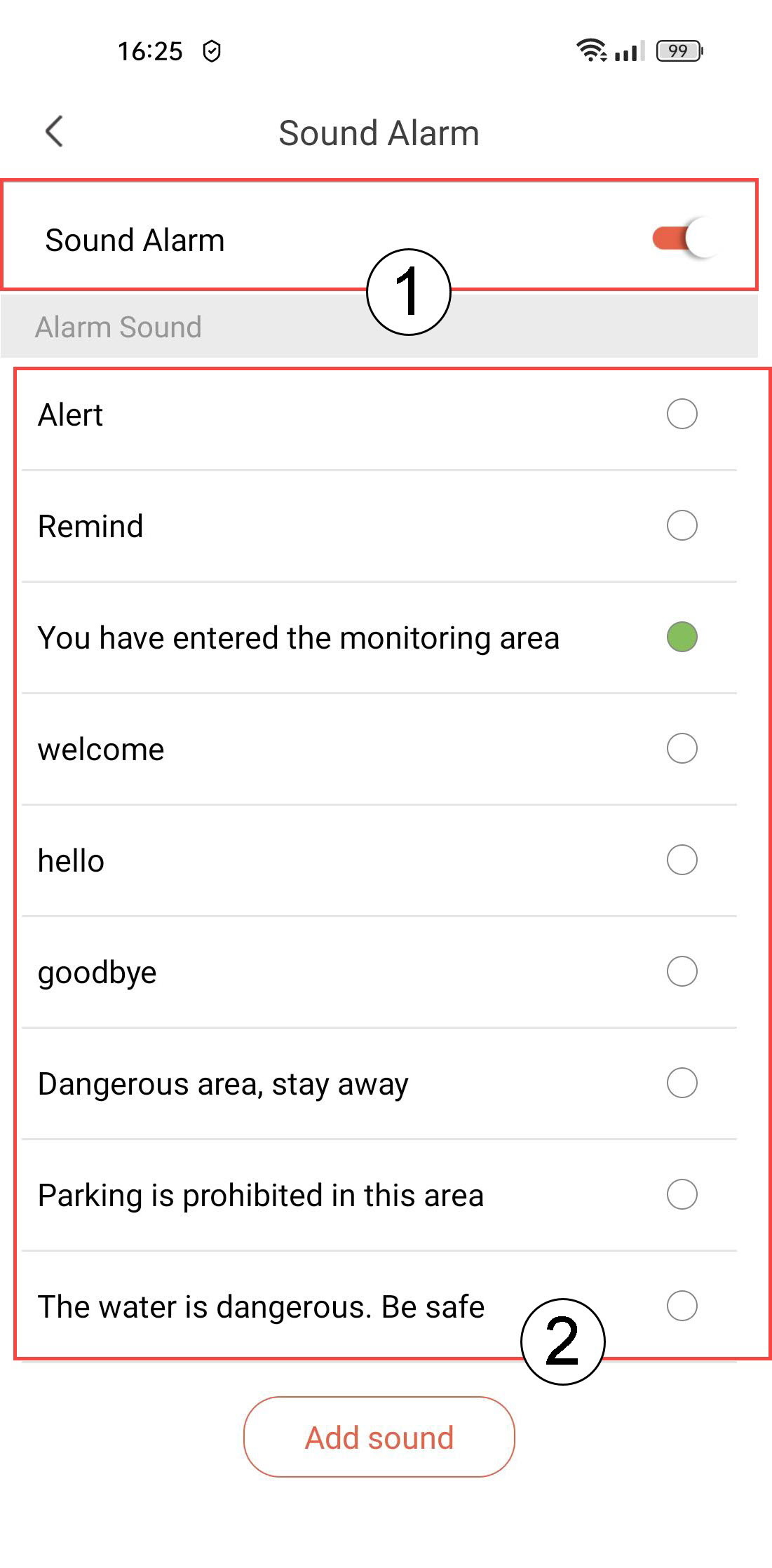
8Activate Sound Alarm
Select Sound Alarm (press the toggle to activate the alarm and select a sound from the list).
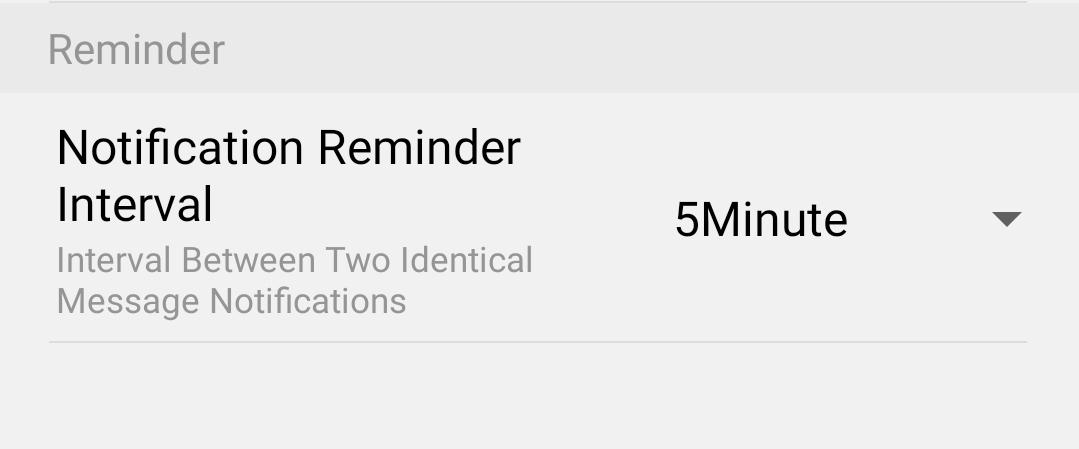
9Set Reminder Interval
Select Reminder (set the notification interval between two identical events. You have to choose a value from 30 seconds to 30 minutes).
How do I set up Motion Detection on my camera?
1Open Camera Settings
Click Settings.
2Access Alarm Settings
Select Alarm.
3Enable Motion Detection
Then, press the Motion Detection toggle.
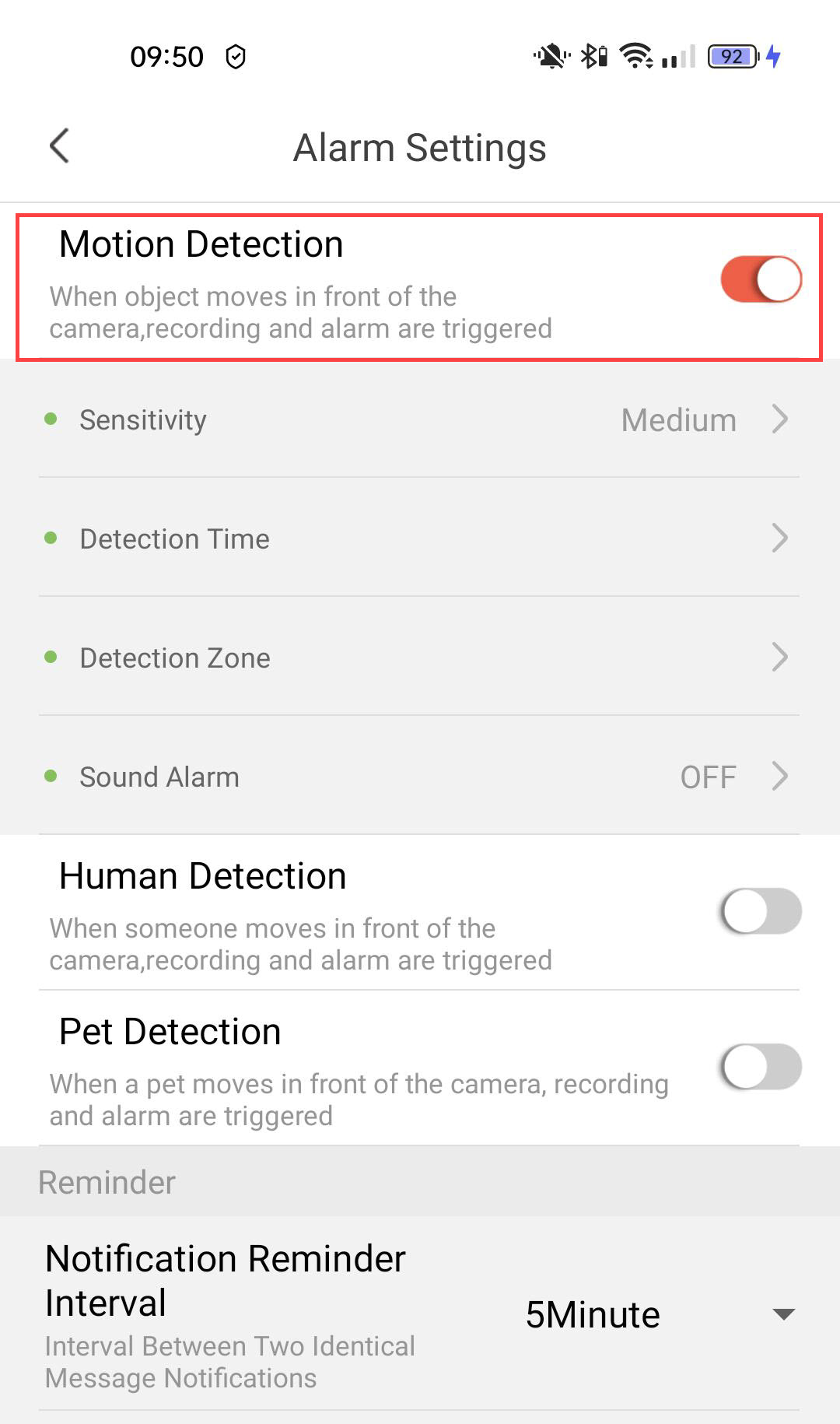
4Set Detection Sensitivity
Select Sensitivity (choose the level between low, medium, and high to improve the accuracy of the detection).
5Configure Detection Time
Select Detection Time (select the days and times when you want the alarm to be triggered in case of detection, then click Save).
6Define the Detection Zone
Select Detection Zone (create a detection zone on the grid and click Save. The alarm will be triggered if anything is detected in this zone).
7Activate Sound Alarm
Select Sound Alarm (press the toggle to activate the alarm and select a sound from the list).
8Set Reminder Interval
Select Reminder (set the notification interval between two identical events. You have to choose a value from 30 seconds to 30 minutes).
How do I set up the Pet Detection?
1Open Camera Settings
Click Settings.
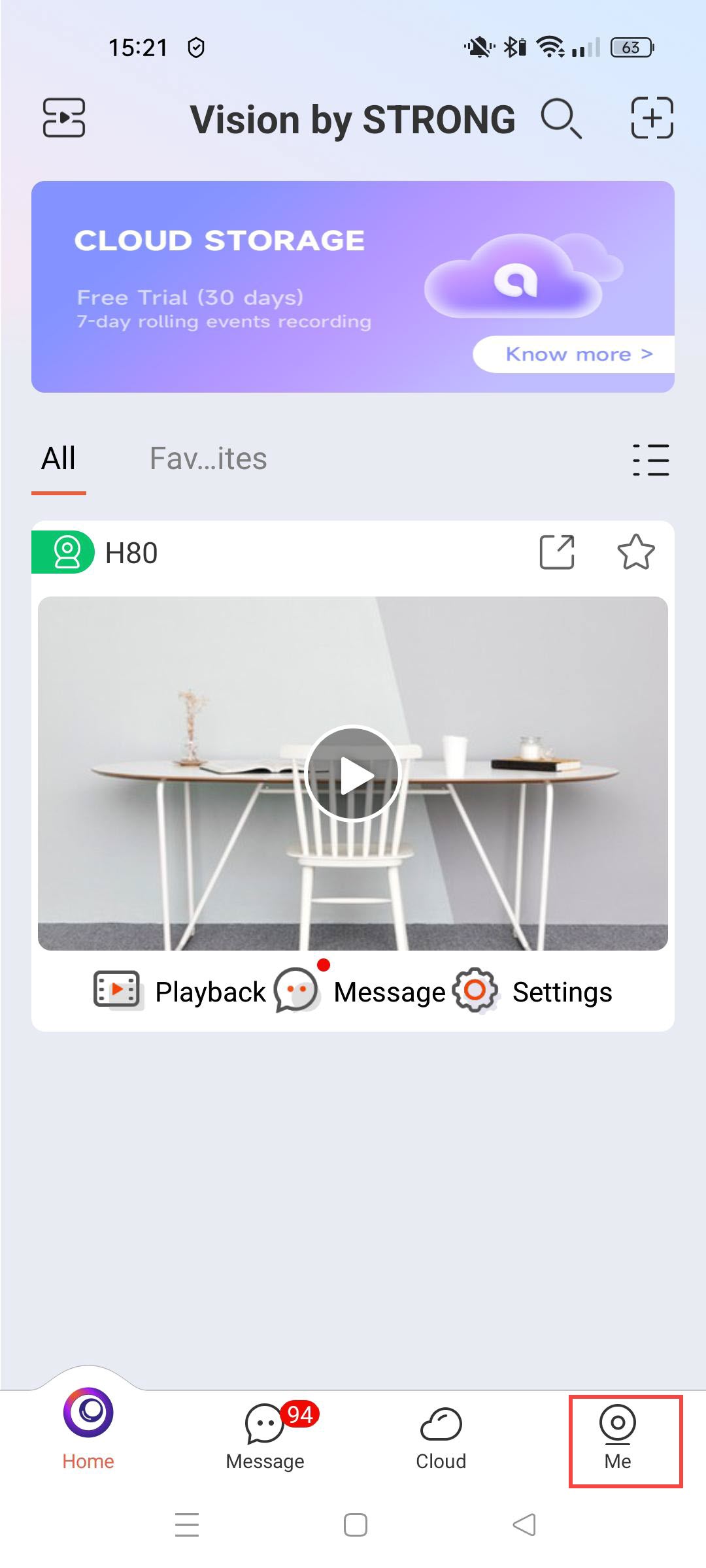
2Access Alarm Settings
Select Alarm.
3Enable Pet Detection
Press the Pet Detection toggle.
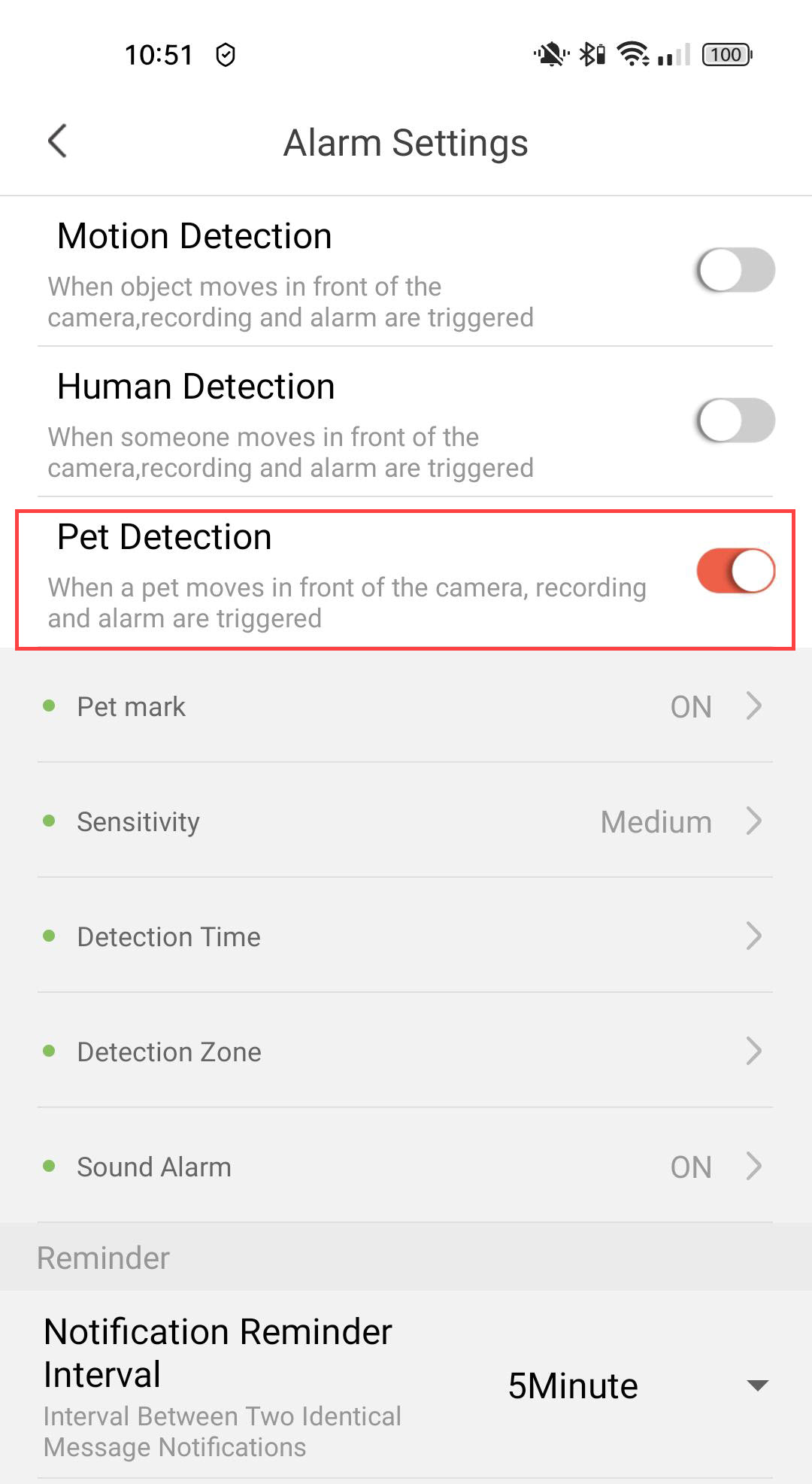
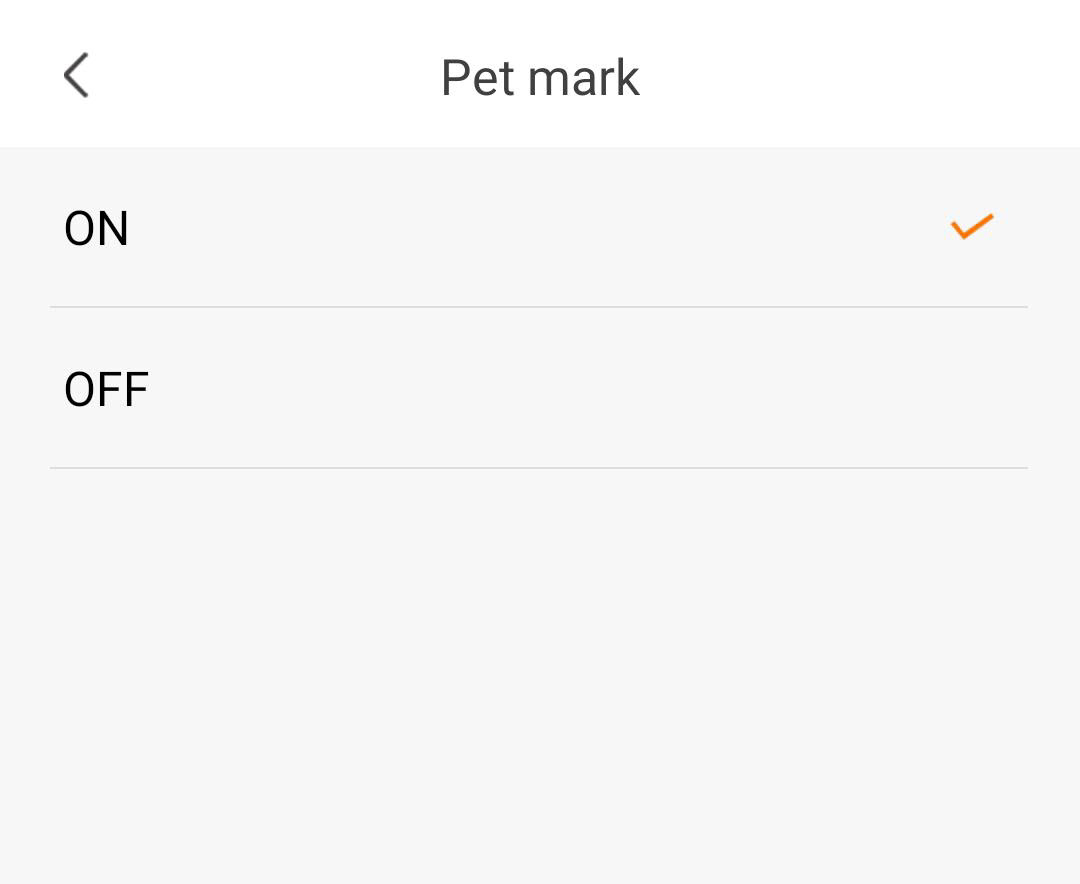
4Enable Pet Tagging
Select Pet Mark: (activate pet tagging).
5Set Detection Sensitivity
Select Sensitivity (choose the level between low, medium and high to improve the accuracy of the detection).
6Configure Detection Time
Select Detection Time (select the days and times when you want the alarm to be triggered in case of human detection, then click Save).
7Define the Detection Zone
Select Detection Zone: (create a detection zone on the grid and click Save. The alarm will be triggered if a human is detected in this zone).
8Activate Sound Alarm
Select Sound Alarm (press the toggle to activate the alarm and select a sound from the list).
9Set Reminder Interval
Select Reminder (set the notification interval between two identical events. You have to choose a value from 30 seconds to 30 minutes).
How do I sign up to the free Cloud Service trial?
You can use the Cloud Services to store all the recordings of your camera.
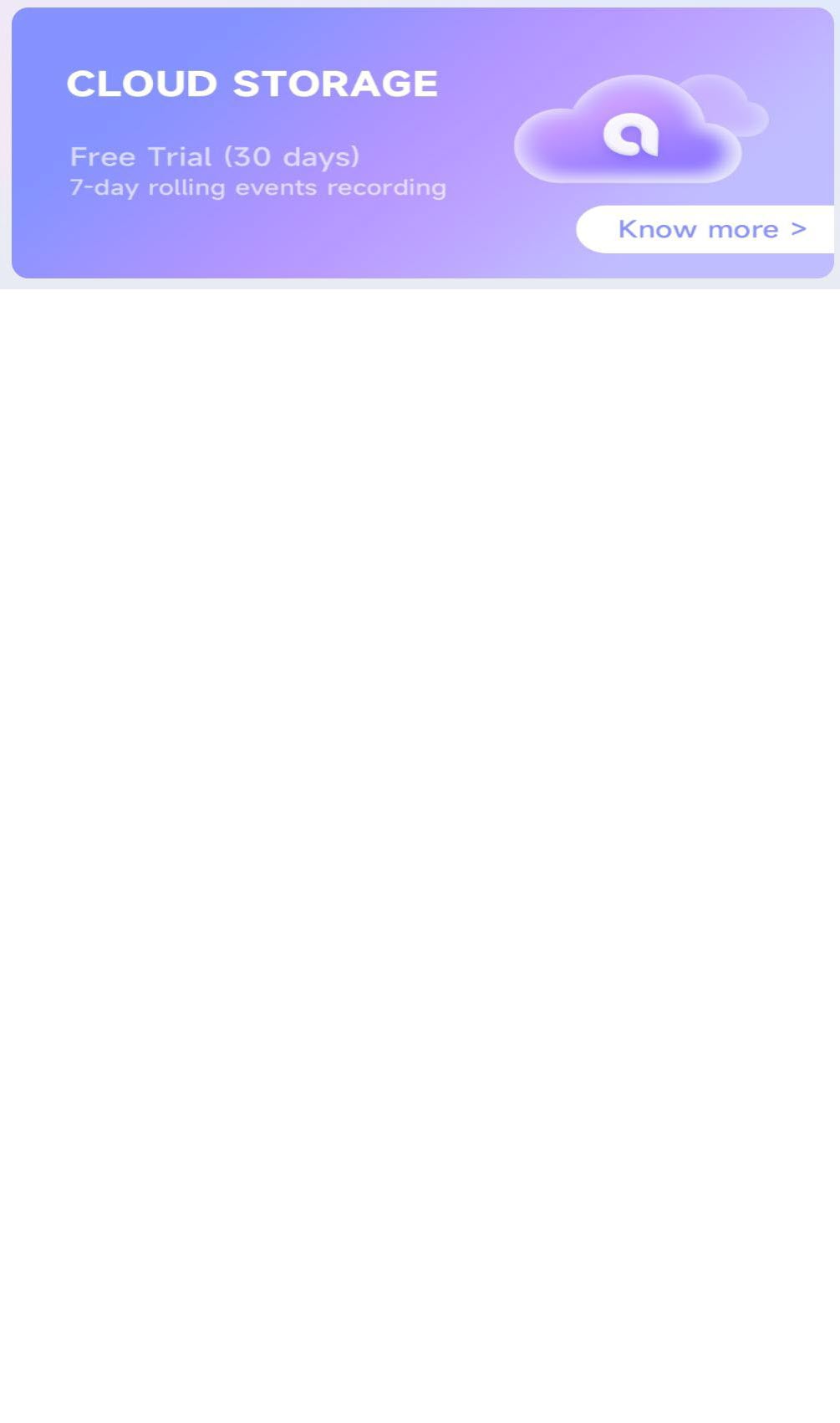
1Open Cloud Storage Details
Click Know more on the Cloud Storage header.
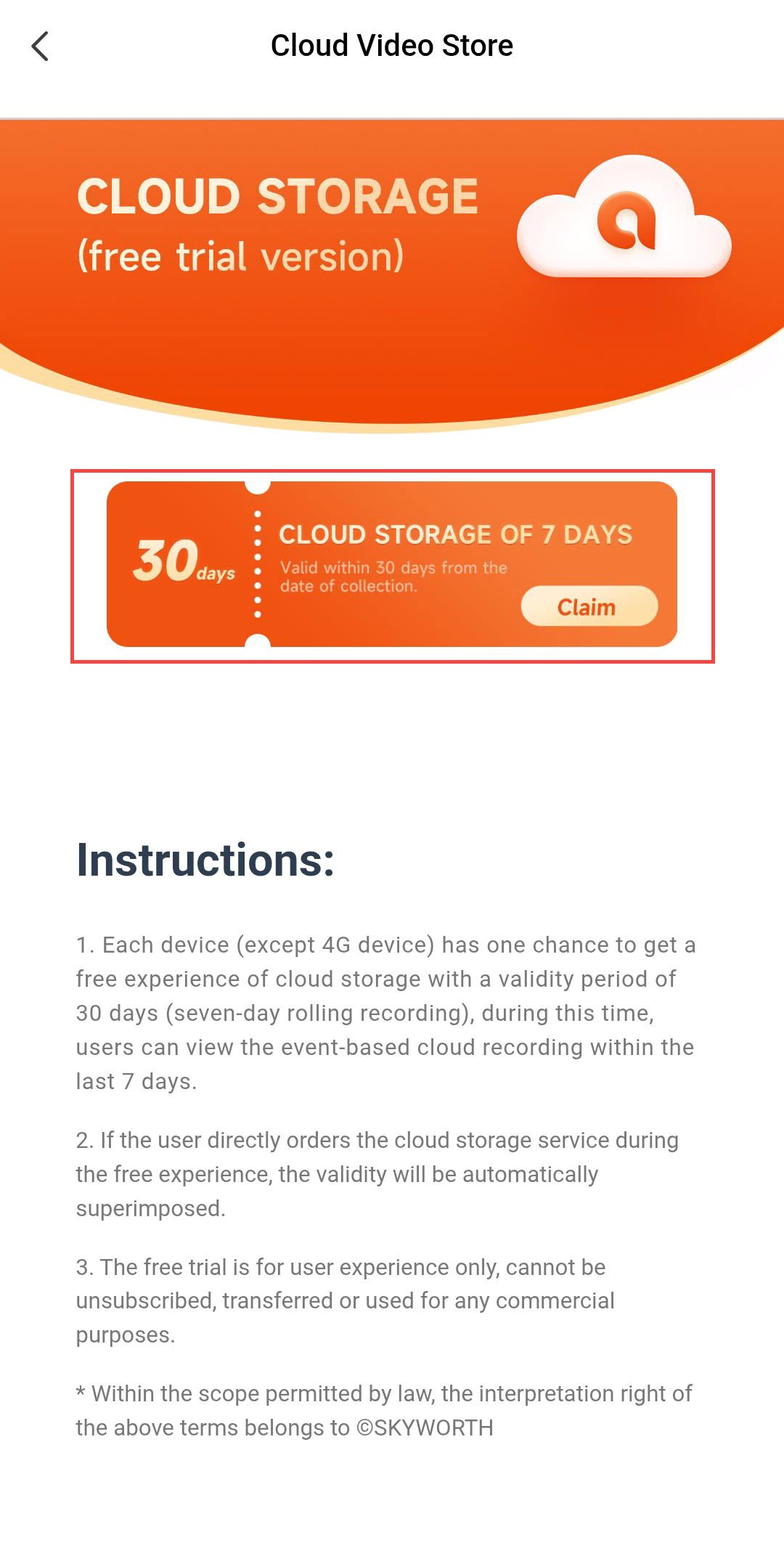
2Claim the Free Storage
Then, click Claim.
3Select Your Camera
Select your camera from the list and click Confirm.
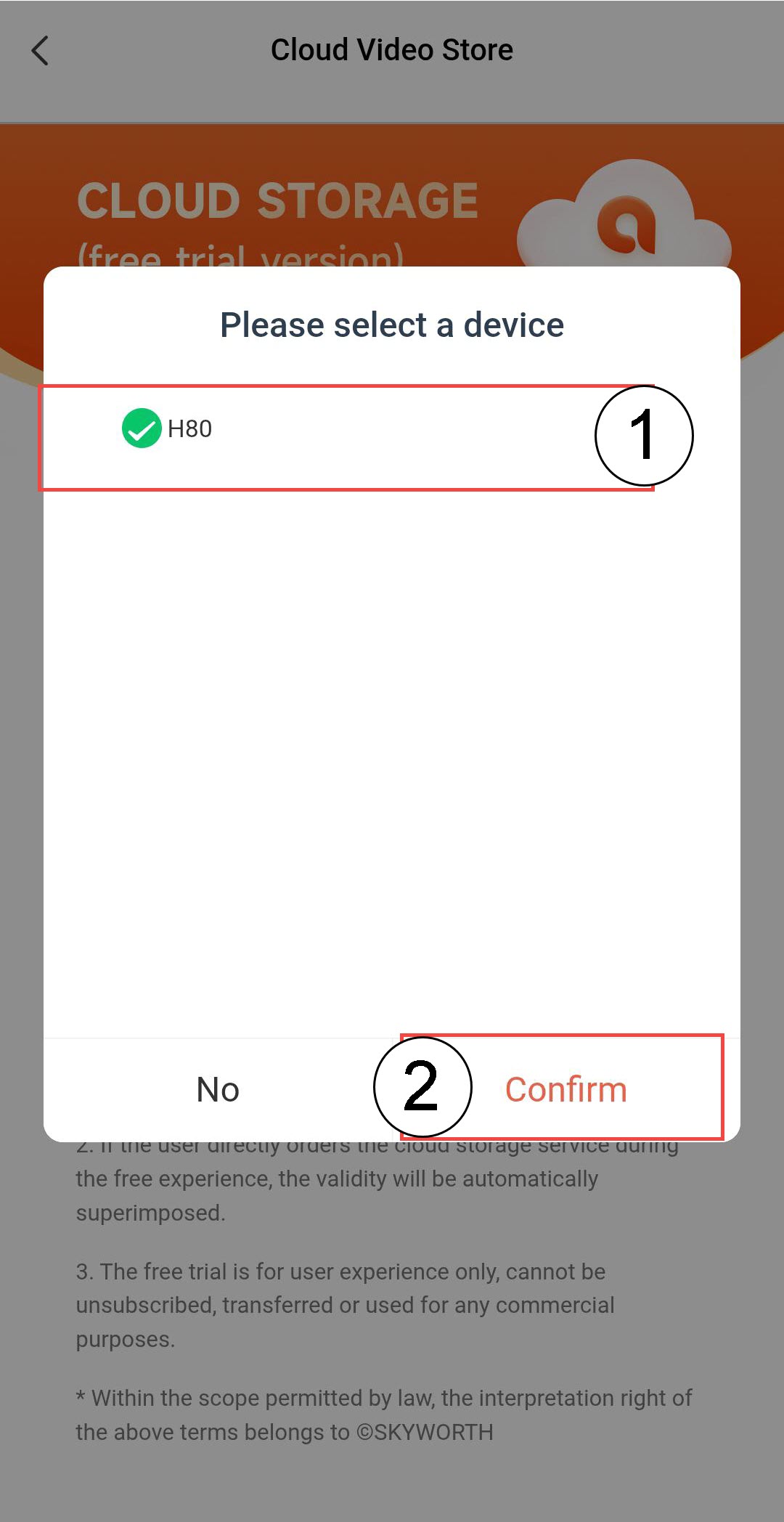

WARNING: Free cloud storage can only be claimed once for each camera.
How do I unbind a camera from the app?
If you experience any issue with your camera that are not fixed after restoring it to its factory settings, please unbind your device from the App and reinstall it.
1Open Settings
Click Settings.
2Go to Advanced Settings
Click Advanced.
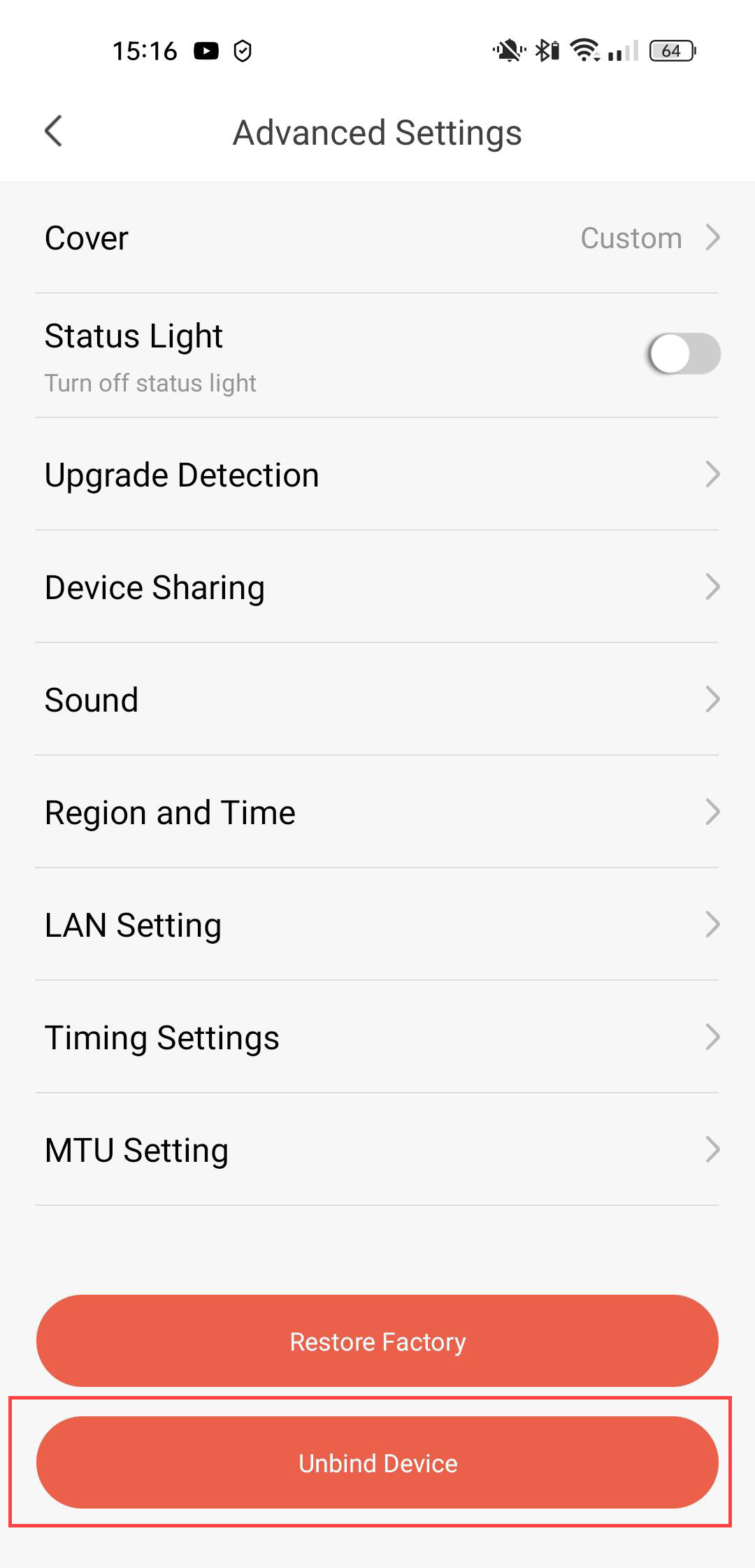
3Unbind the Device
Click Unbind
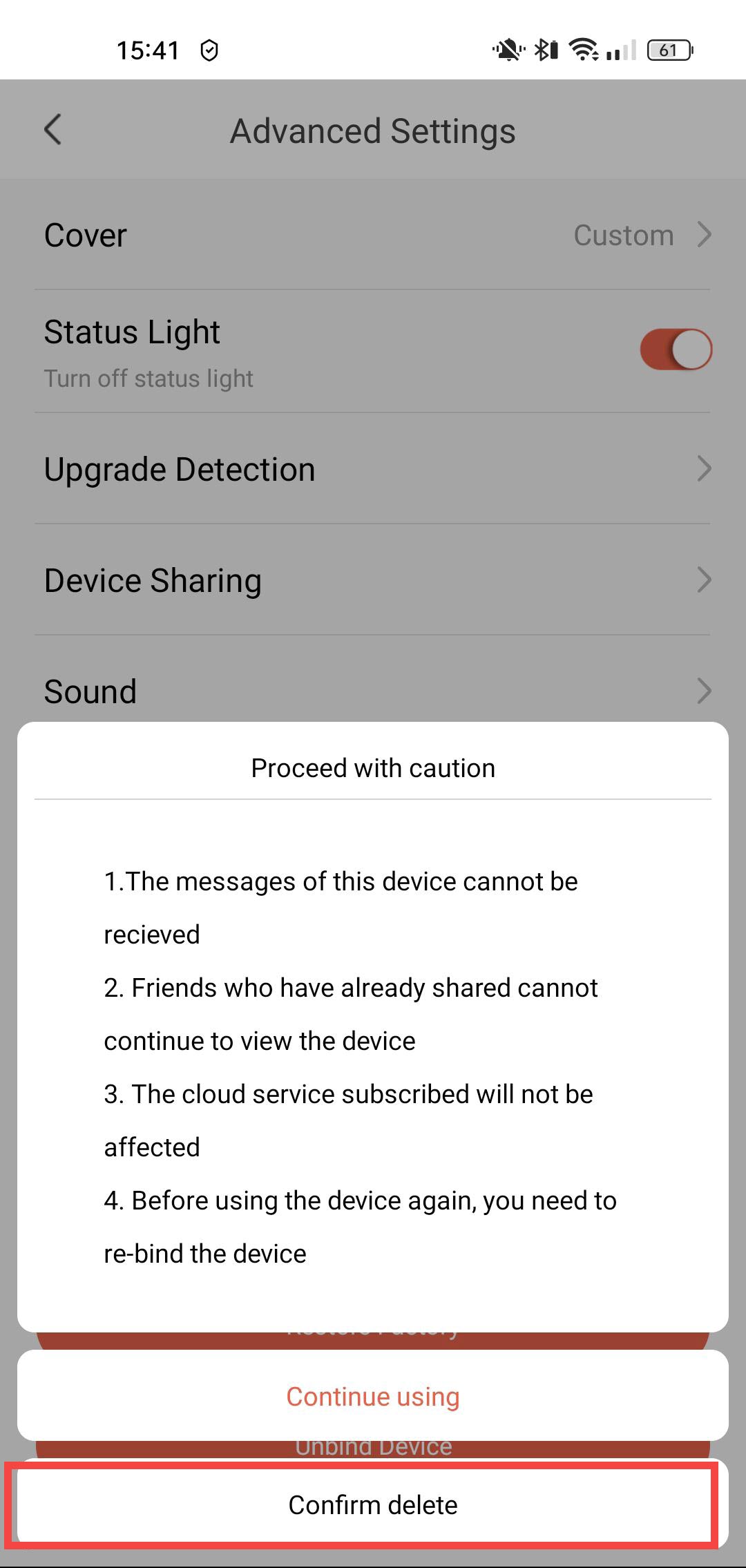
4Confirm the Unbinding
Click Confirm Delete.
How do I update my camera?
You can check whether updates are available for your device.
1Open Camera Settings
Click Settings.
2Go to Advanced Options
Click Advanced.
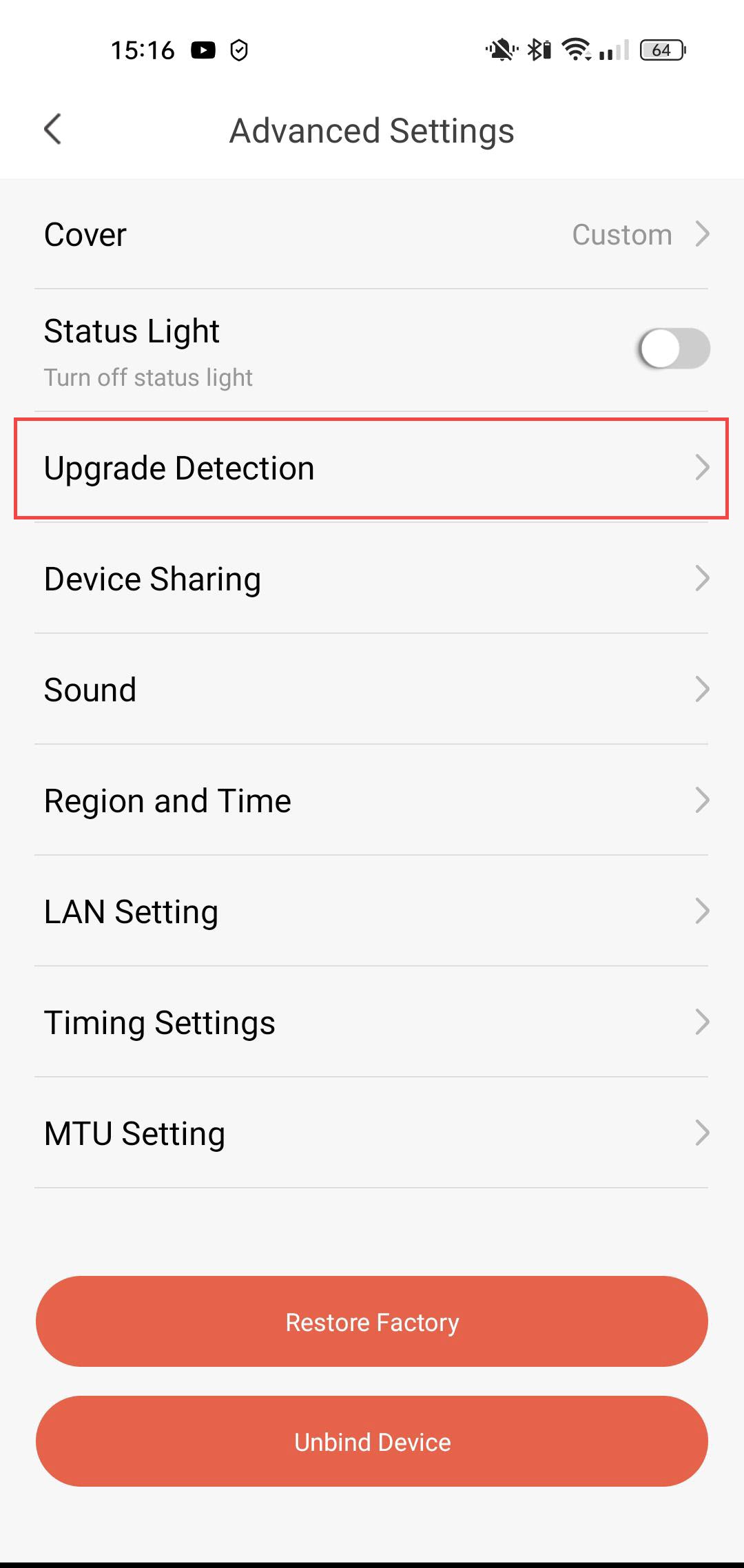
3Check for Updates
Click Upgrade Detection.
4Recheck for the Latest Version
Click Recheck.

How do I use the Cloud Services after my trial?
After performing your 30-day trial for the Cloud Services, you can sign up to use this service for the year.
1Access Settings
Click Settings
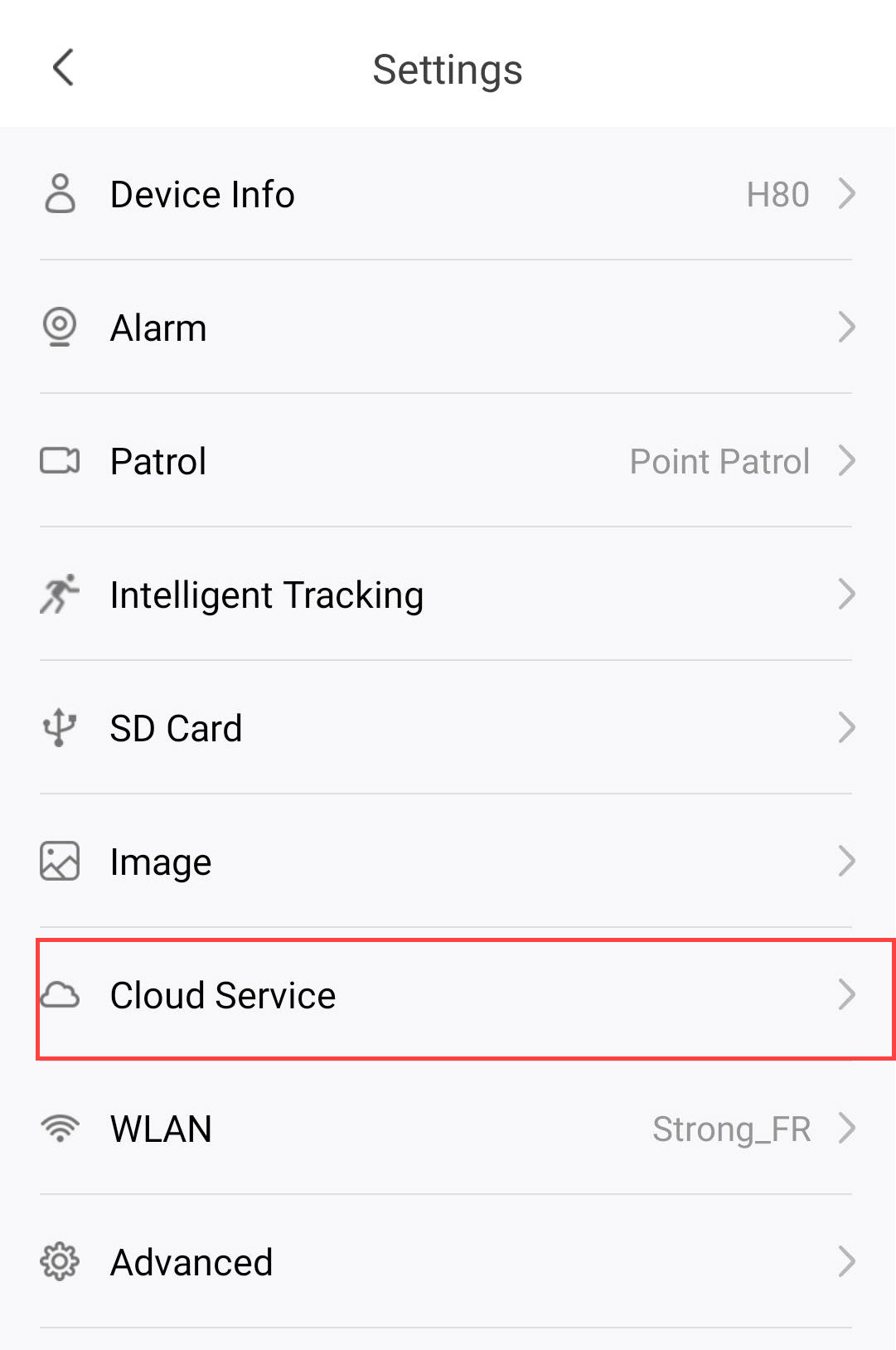
2Open Cloud Services Settings
Click Cloud Services.
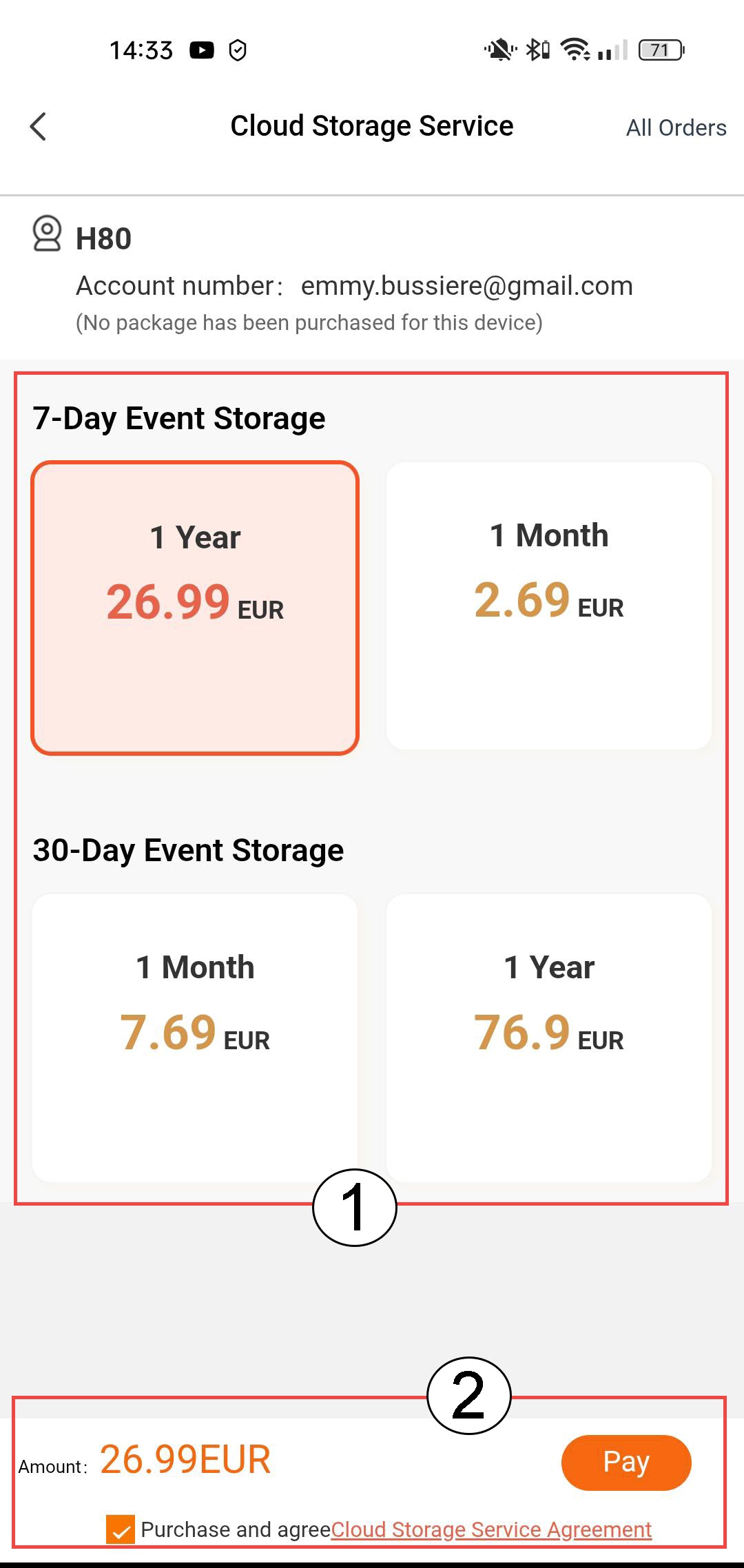
3Choose Event Storage and Subscription
Choose between 7-day event storage (events are recorded for 7 days) or 30-day event storage (events are recorded for 30 days). After the selected period, recordings are automatically deleted. You must choose the subscription period, either monthly or yearly, before clicking Pay.
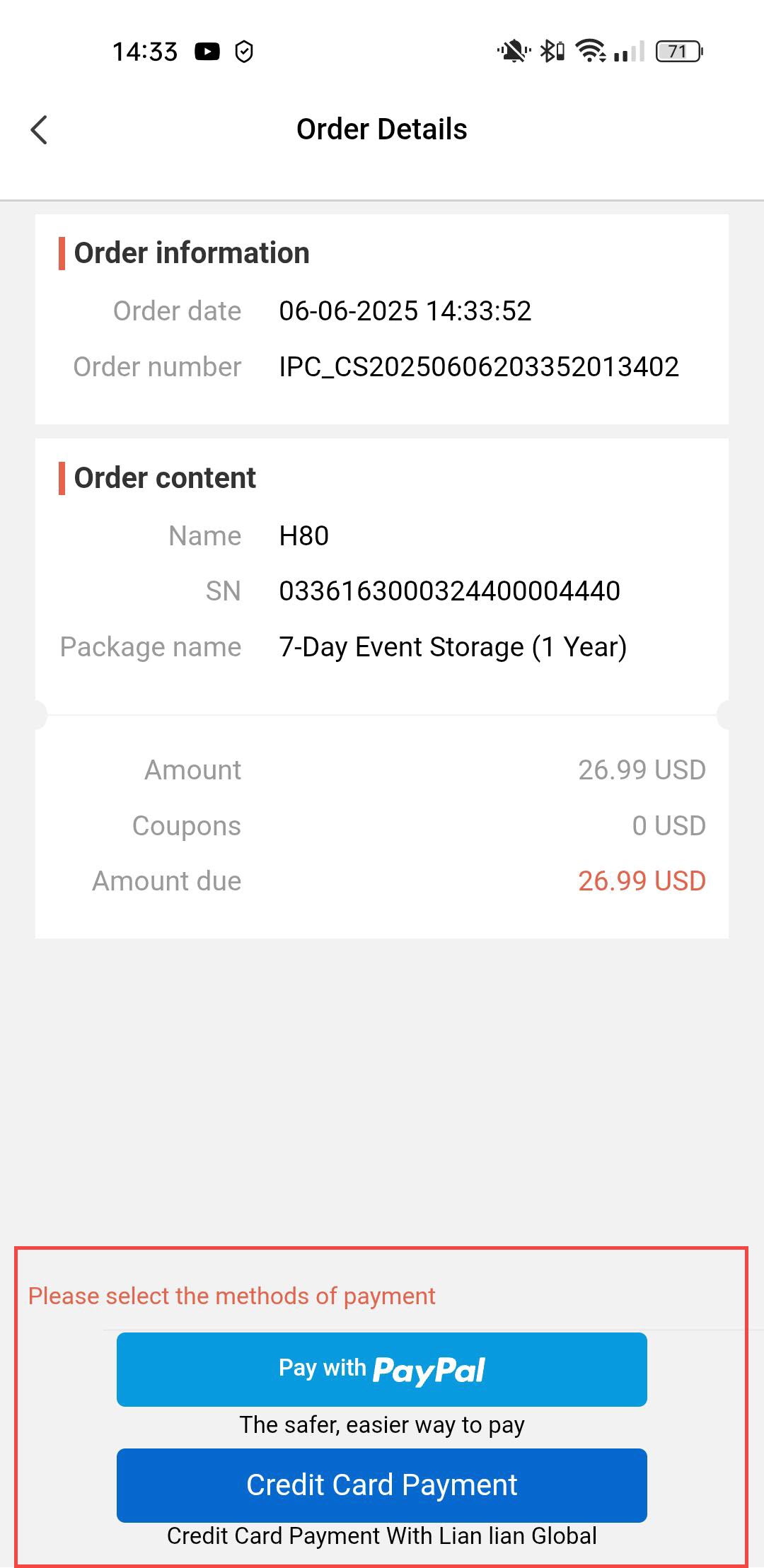
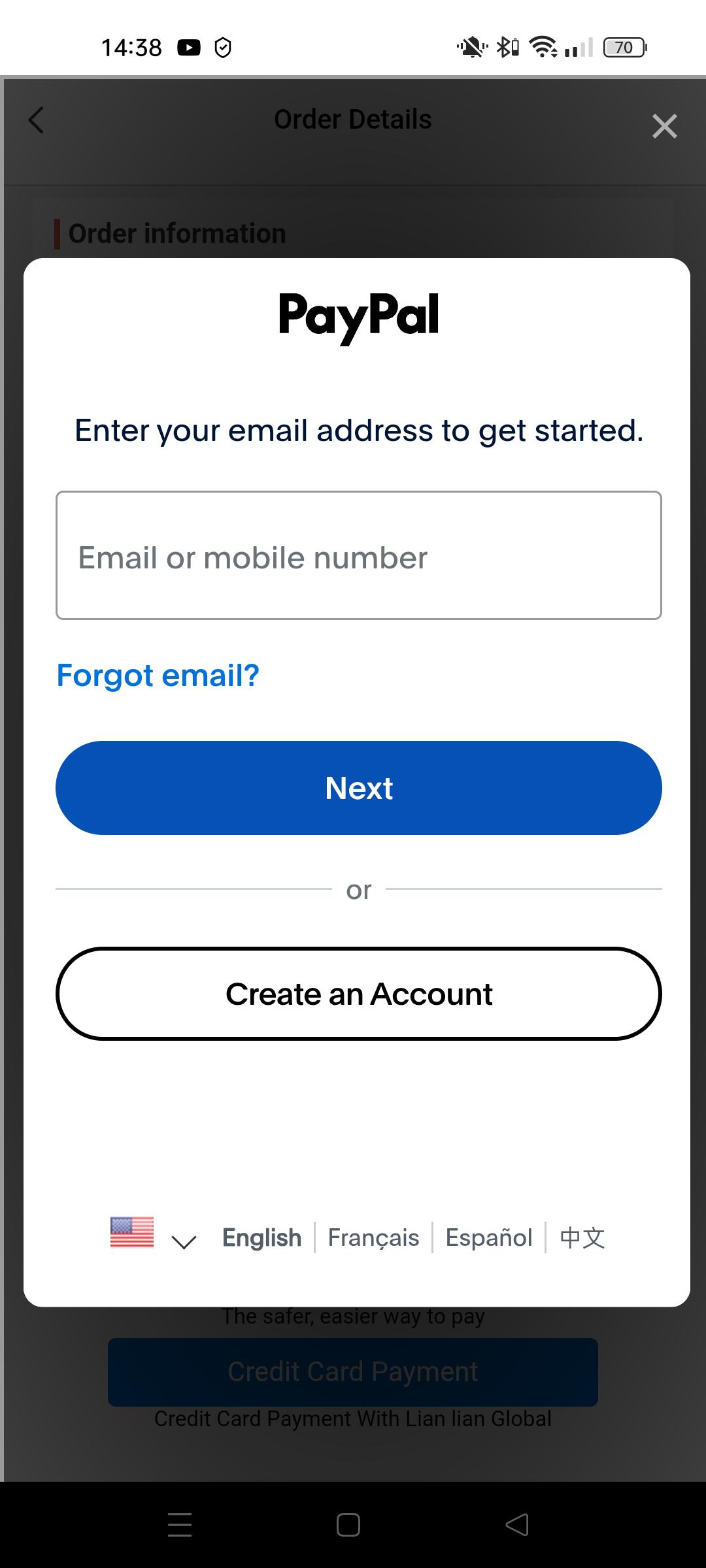
4Select Payment Method
Then, select your payment method.
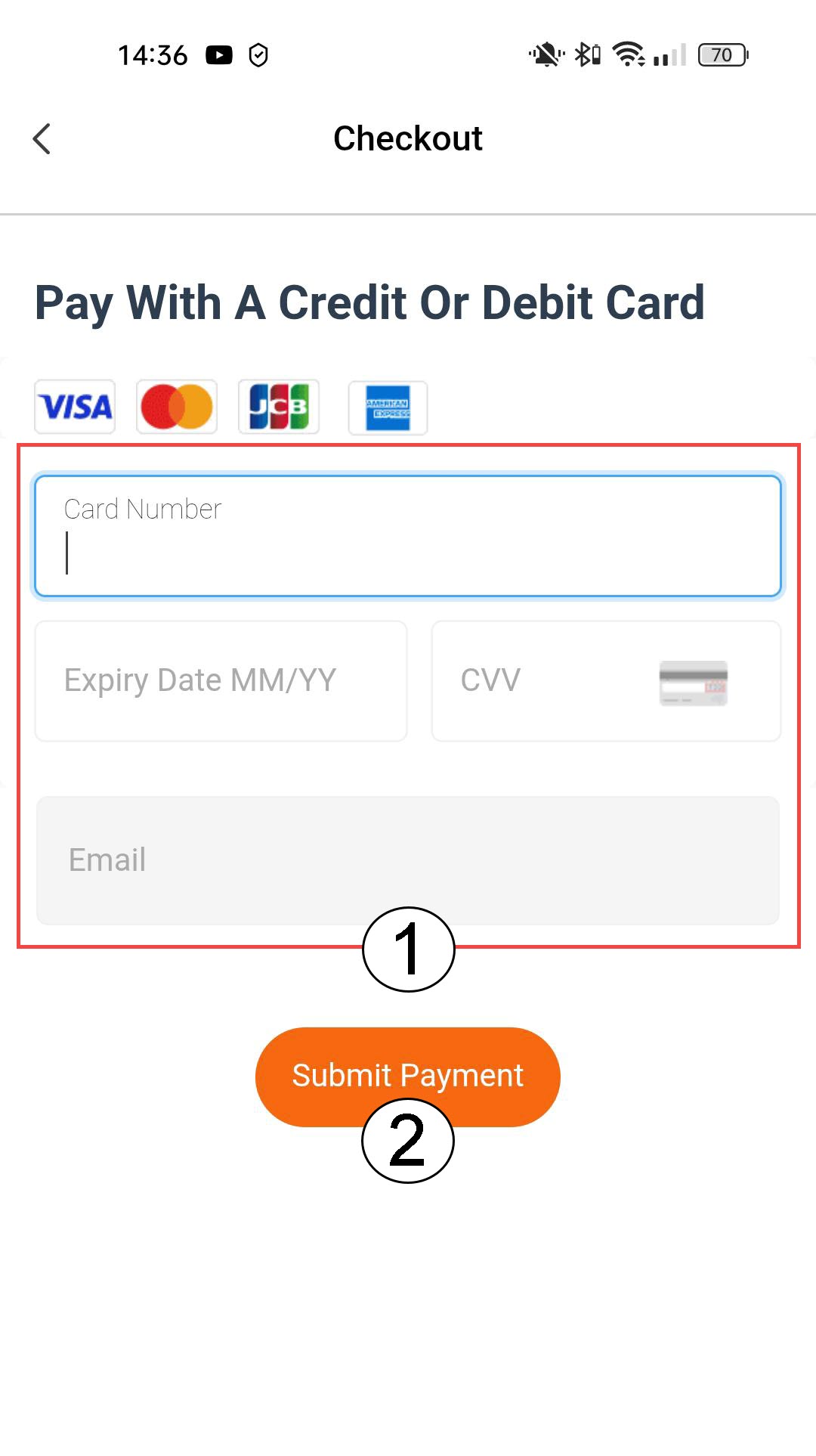
5Enter Payment Details and Confirm
You can either enter your credit card’s information before clicking Submit Payment
6Enter your Paypal information
Or enter the information of your PayPal account. Then, follow the steps on the screen.
How to Add a Camera in the App
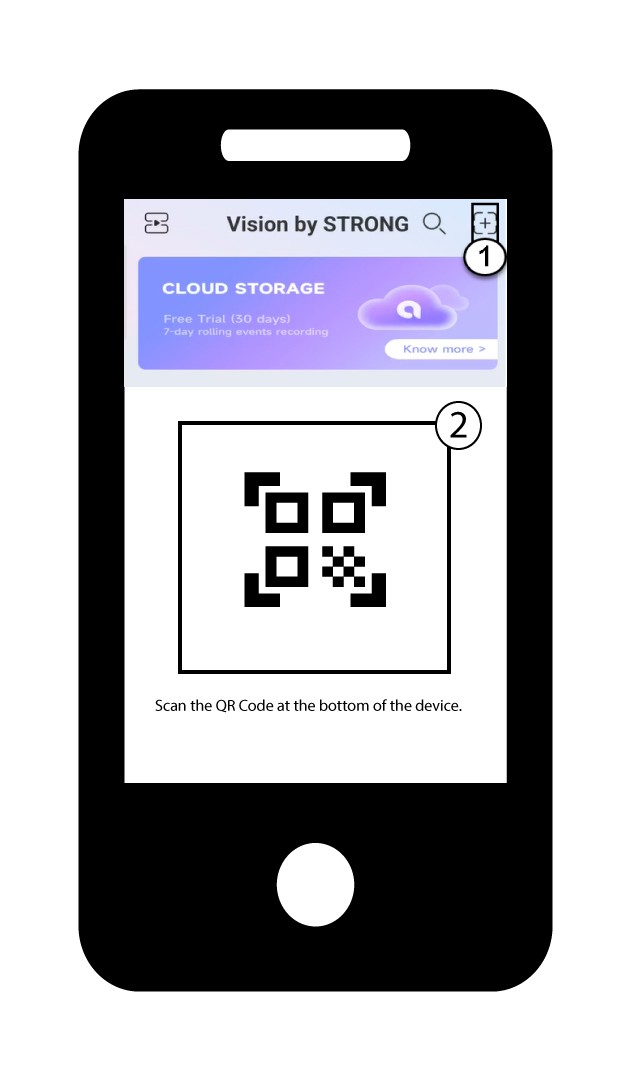
How do I add a camera in the App?
1Start Adding a Device
Click the + icon and scan the QR code of the camera.
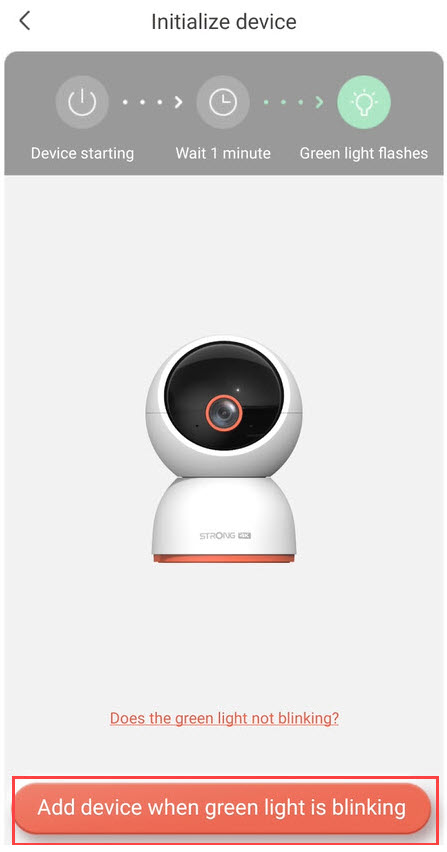
2Check the Camera LED
Then, look at the LED on your camera; if it blinks green, press the Add device.
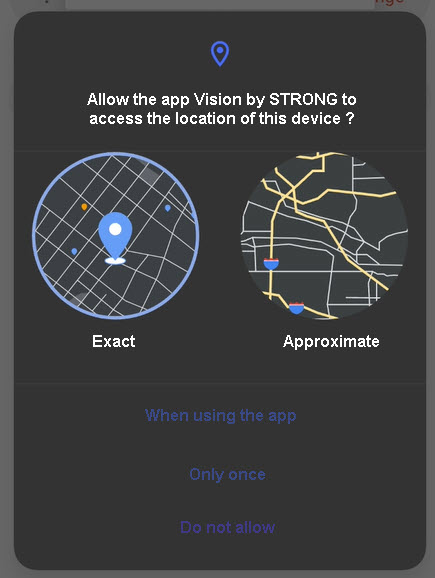
3Allow Location Access
Authorize the Vision by Strong App to access your device's location.
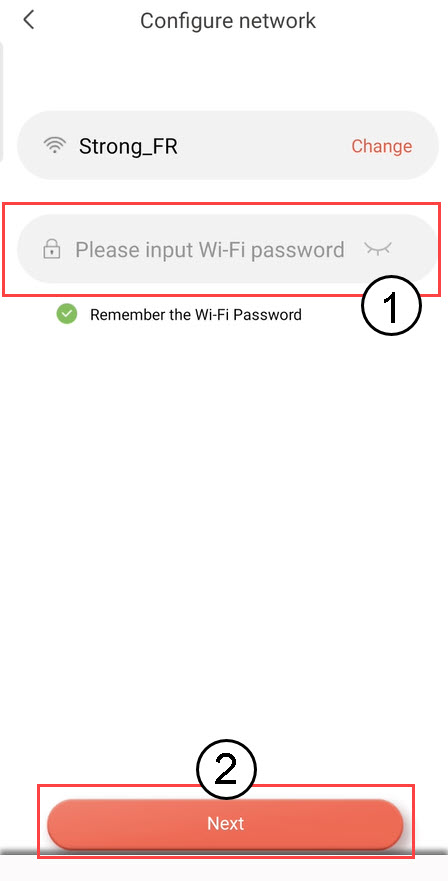
4Set Up Your Wi-Fi Network
Select an option from the list displayed on your screen. You must set up your Wi-Fi network. The App will automatically select the Wi-Fi network to which your phone is connected. Then, enter the password of the Wi-Fi network and click Next.
TIP : Click change to select a different Wi-Fi network from the list. If you want to display the Wi-Fi password, click the eye icon.
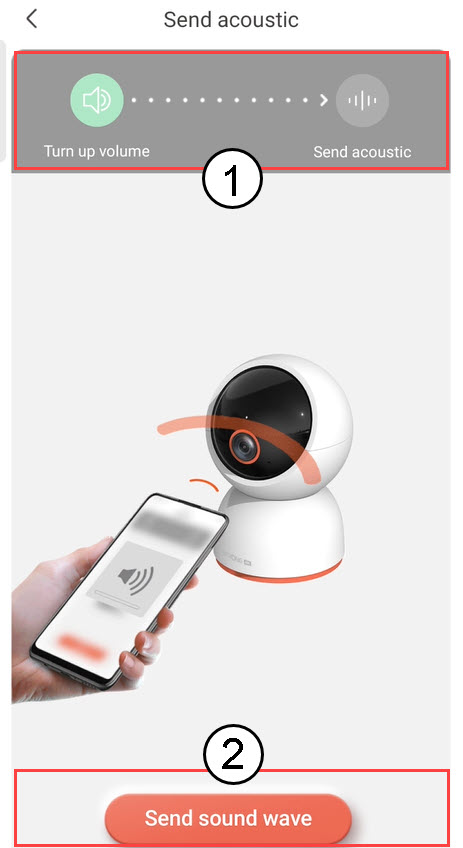
5Send the Sound Wave
Turn up your phone's volume and click Send sound wave.
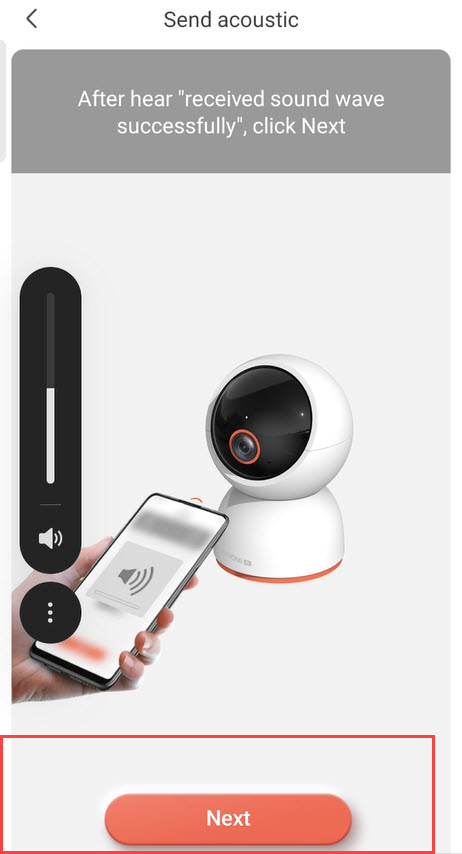
6Confirm Sound Wave Reception
Wait for the message: 'Received sound wave successfully', then click Next.
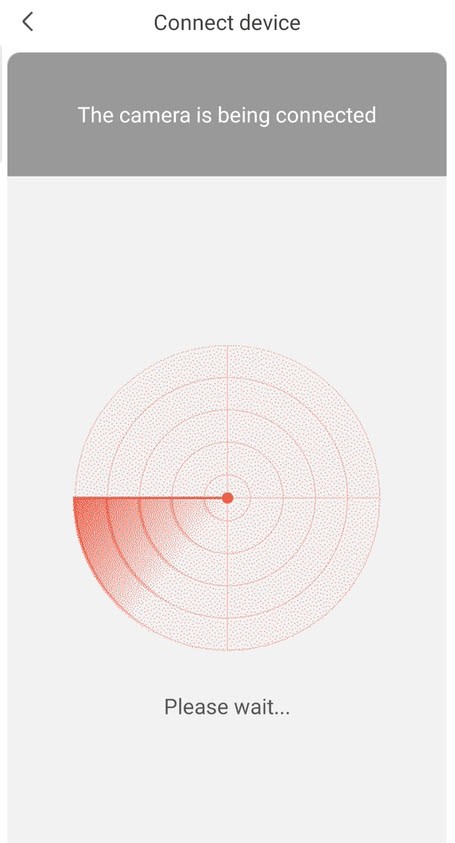
7Configuration in Progress
Please wait while the camera is being configured.
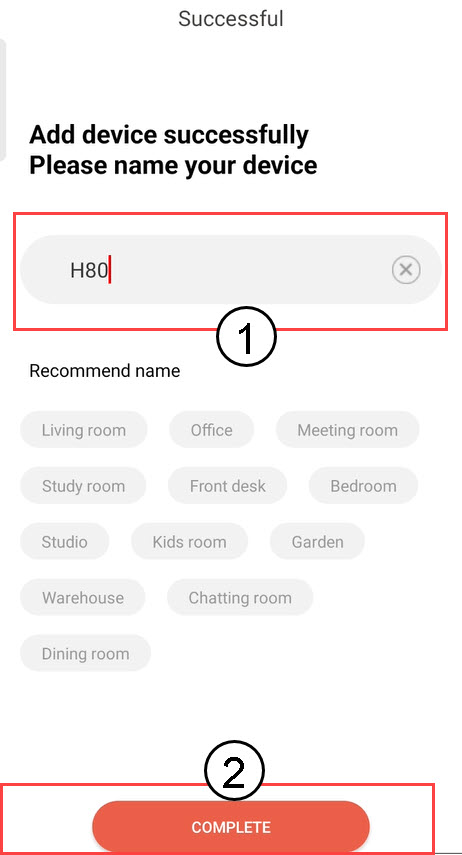
8Name Your Camera
Once the setup is completed, you must set a name for your camera. Then, click COMPLETE.
Tip: If you have several cameras, please name them based on their room location.
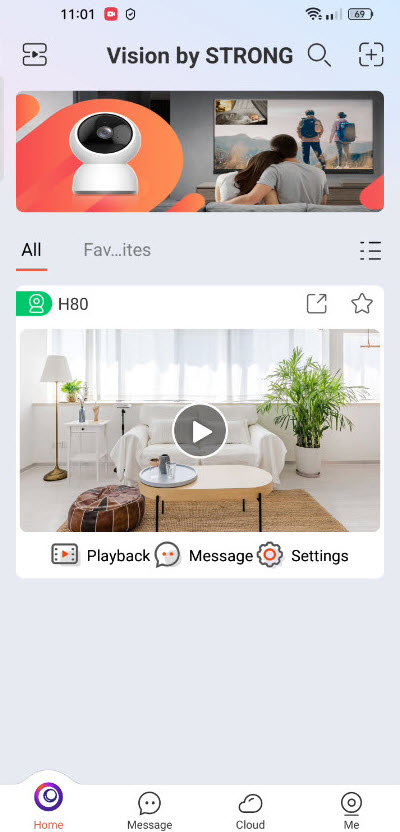
9Camera Added
Your camera now appears on the home page of the App.
How to Log Out from the App ?
Advanced Heading Title
1Open the Me Menu
Click Me, then select General.
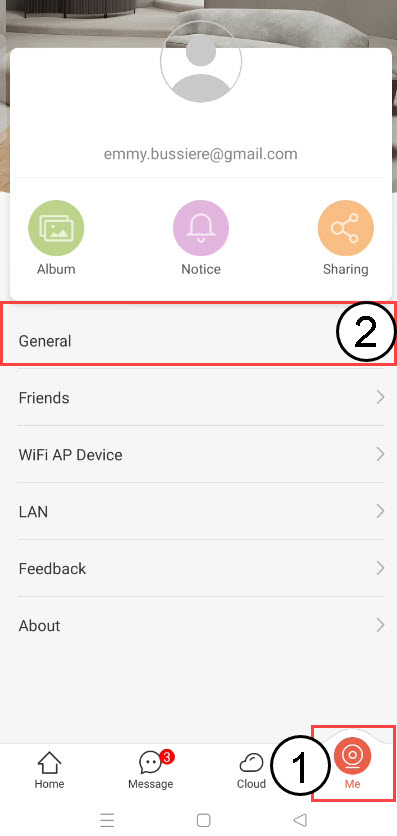
2Log Out
Click Logout to exit your account.

What can I do in the App?
In the App, you can configure:
- Detection Settings (Human Detection, Area Detection, Motion Detection, Pet Detection)
- Alarm Settings
- Storage Settings (Cloud, SD card)
- Image and Video Settings
- Device Sharing
- Device Information
- Reboot, Reset and unbind your device
- Patrols
- Admin Password
What is the maximum capacity of the SD card?
You can store the videos recorded by your camera on an SD card. The maximum supported capacity of the SD card is 512 GB.
What type of SD card can I use?
Our cameras should be used with one of the SD cards listed on the following page, where the supported models are kept up to date: Security storage whitelist.